







Question: The following steps are a guide for using MS-Project to plan the baseline for this project: 1. Each student in the group will start MS-Project
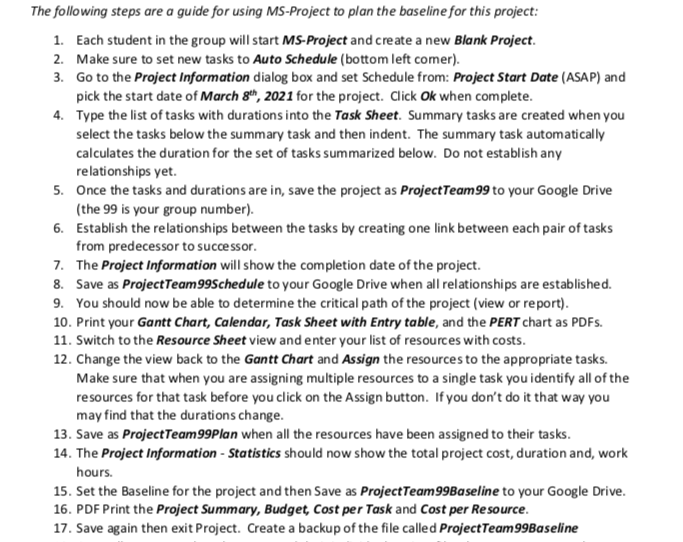
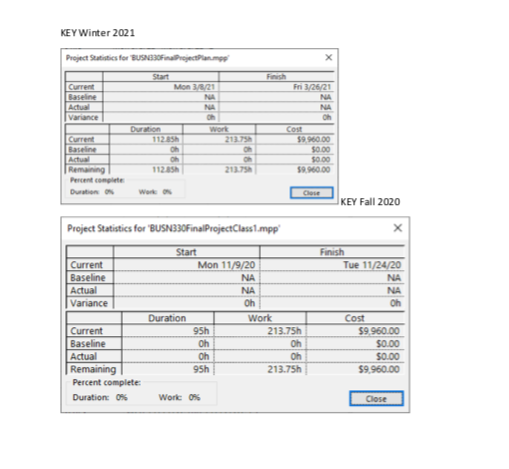
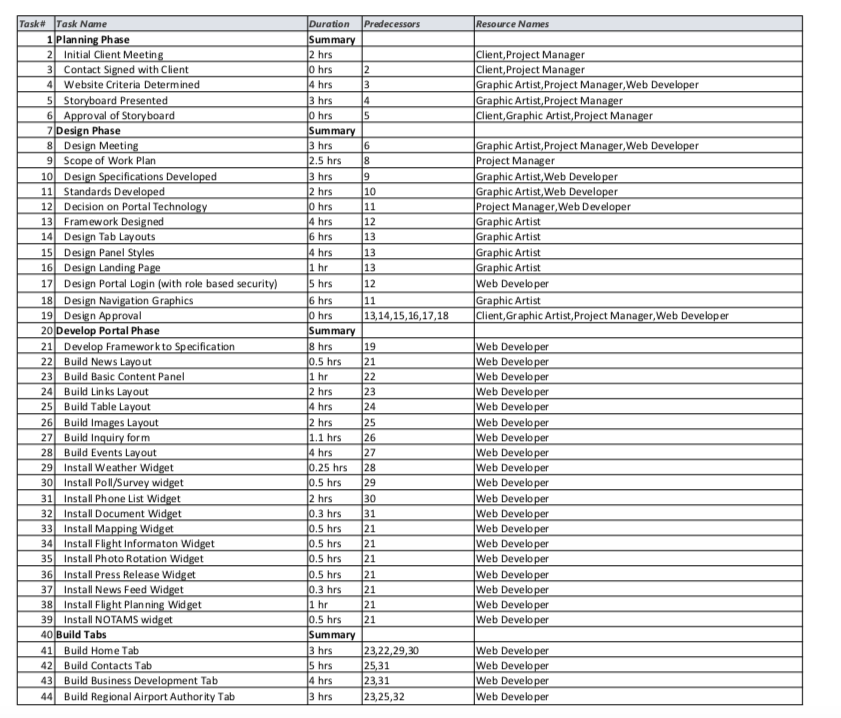
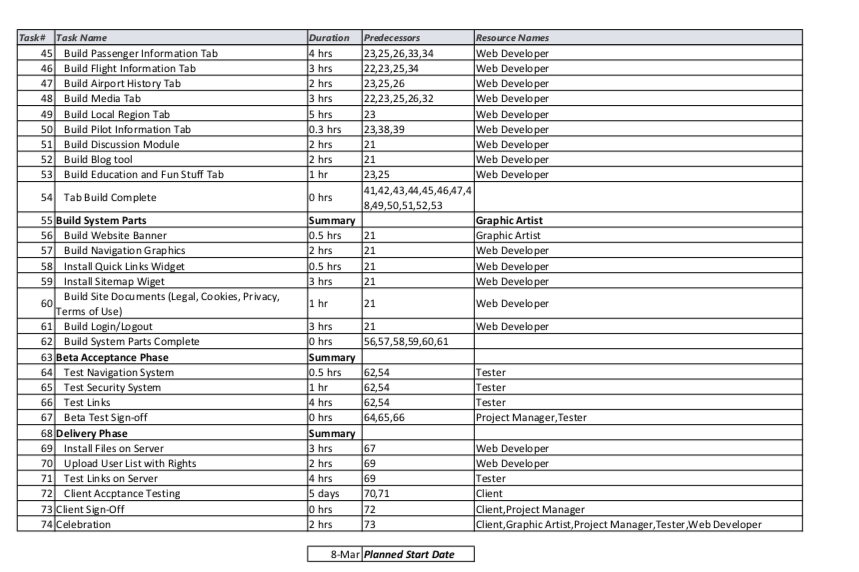
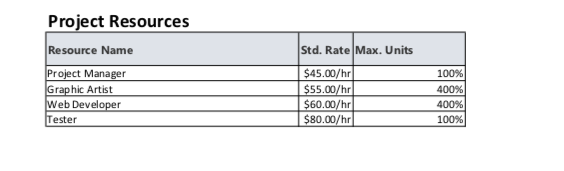
The following steps are a guide for using MS-Project to plan the baseline for this project: 1. Each student in the group will start MS-Project and create a new Blank Project. 2. Make sure to set new tasks to Auto Schedule (bottom left comer). 3. Go to the Project Information dialog box and set Schedule from: Project Start Date (ASAP) and pick the start date of March 8", 2021 for the project. Click OK when complete. 4. Type the list of tasks with durations into the Task Sheet. Summary tasks are created when you select the tasks below the summary task and then indent. The summary task automatically calculates the duration for the set of tasks summarized below. Do not establish any relationships yet. 5. Once the tasks and durations are in, save the project as ProjectTeam99 to your Google Drive (the 99 is your group number). 6. Establish the relationships between the tasks by creating one link between each pair of tasks from predecessor to successor. 7. The Project Information will show the completion date of the project. 8. Save as ProjectTeam99Schedule to your Google Drive when all relationships are established. 9. You should now be able to determine the critical path of the project (view or report). 10. Print your Gantt Chart, Calendar, Task Sheet with Entry table, and the PERT chart as PDFs. 11. Switch to the Resource Sheet view and enter your list of resources with costs. 12. Change the view back to the Gantt Chart and Assign the resources to the appropriate tasks. Make sure that when you are assigning multiple resources to a single task you identify all of the resources for that task before you click on the Assign button. If you don't do it that way you may find that the durations change. 13. Save as ProjectTeam99Plan when all the resources have been assigned to their tasks. 14. The Project Information - Statistics should now show the total project cost, duration and, work hours. 15. Set the Baseline for the project and then Save as ProjectTeam99Baseline to your Google Drive. 16. PDF Print the Project Summary, Budget, Cost per Task and Cost per Resource. 17. Save again then exit Project. Create a backup of the file called ProjectTeam 99BaselineKEY Winter 2021 Start Finish Current Man 10/21 Fri 3/26/21 Baseline MA NA Variance Duration Work Current 213.736 $9 960.00 Baseing Actual Remaining 112 858 211.73 Duntion KEY Fall 2020 Project Statistics for "BUSN330FinalProjectClass1.mpp X Start Finish Current Mon 11/9/20 Tue 11/24/20 Baseline NA NA Actual NA NA Variance oh Oh Duration Work Cost Current 95h 213.75h 59.960.00 Baseline Oh Oh $0.00 Actual Oh Oh 50.00 Remaining 95h 213.75h $9.960.00 Percent complete: Duration: 05% Work 06 CloseTask# Task Name Duration Predecessors Resource Names 1 Planning Phase Summary 2 Initial Client Meeting 2 hrs Client, Project Manager 3 Contact Signed with Client O hrs 2 Client, Project Manager 4 Website Criteria Determined 4 hrs 13 Graphic Artist, Project Manager, Web Developer 5 Storyboard Presented 3 hrs Graphic Artist, Project Manager 6 Approval of Storyboard 0 hrs 15 Client, Graphic Artist, Project Manager 7 Design Phase Summary 8 Design Meeting 3 hrs 6 Graphic Artist, Project Manager, Web Developer 9 Scope of Work Plan 2.5 hrs 8 Project Manager 10| Design Specifications Developed 3 hrs 19 Graphic Artist, Web Developer 11 Standards Developed 2 hrs 10 Graphic Artist, Web Developer 12 Decision on Portal Technology 0 hrs 11 Project Manager,Web Developer 13 Framework Designed 4 hrs 12 Graphic Artist 14 Design Tab Layouts 6 hrs 13 Graphic Artist 15 Design Panel Styles 4 hrs 13 Graphic Artist 16 Design Landing Page 1 hr 13 Graphic Artist 17 Design Portal Login (with role based security) 5 hrs 12 Web Developer 18 Design Navigation Graphics 6 hrs 11 Graphic Artist 19 Design Approval O hrs 13,14,15,16,17,18 Client, Graphic Artist, Project Manager, Web Developer 20 Develop Portal Phase Summary 21 Develop Framework to Specification 8 hrs 19 Web Developer 22 Build News Layout 0.5 hrs 21 Web Developer 23 Build Basic Content Panel 1 hr 22 Web Developer 24 Build Links Layout 2 hrs 23 Web Developer 25 Build Table Layout 4 hrs 24 Web Developer 26 Build Images Layout 2 hrs 25 Web Developer 27 Build Inquiry form 1.1 hrs 26 Web Developer 28 Build Events Layout 4 hrs 27 Web Developer 29 Install Weather Widget 0.25 hrs 28 Web Developer 30 Install Poll/Survey widget 0.5 hrs 29 Web Developer 31 Install Phone List Widget 2 hrs 30 Web Developer 32 Install Document Widget 0.3 hrs 31 Web Developer 33 Install Mapping Widget 0.5 hrs 21 Web Developer 34 Install Flight Informaton Widget 0.5 hrs 21 Web Developer 35 Install Photo Rotation Widget 0.5 hrs 21 Web Developer 36 Install Press Release Widget 0.5 hrs 21 Web Developer 37 Install News Feed Widget 0.3 hrs 21 Web Developer 38 Install Flight Planning Widget 1 hr 21 Web Developer 39 Install NOTAMS widget 0.5 hrs 21 Web Developer 40 Build Tabs Summary 41 Build Home Tab 3 hrs 23,22,29,30 Web Developer 42 Build Contacts Tab 5 hrs 25,3 Web Developer 43 Build Business Development Tab 4 hrs (23,31 Web Developer Build Regional Airport Authority Tab 3 hrs 23,25,32 Web DeveloperTask# Task Name Duration Predecessors Resource Names 45 Build Passenger Information Tab 4 hrs 23,25,26,33,34 Web Developer 46 Build Flight Information Tab 3 hrs 22,23,25,34 Web Developer 47 Build Airport History Tab 2 hrs 23,25,26 Web Developer 48 Build Media Tab 3 hrs 22,23,25,26,32 Web Developer 49 Build Local Region Tab 5 hrs 23 Web Developer 50 Build Pilot Information Tab 0.3 hrs 23,38,39 Web Developer 51 Build Discussion Module 2 hrs 21 Web Developer 52 Build Blog tool 2 hrs 21 Web Developer 53 Build Education and Fun Stuff Tab 1 hr 23,25 Web Developer 41,42,43,44,45,46,47,4 54 Tab Build Complete D hrs 8,49,50,51,52,53 55 Build System Parts Summary Graphic Artist 56 Build Website Banner 0.5 hrs 21 Graphic Artist 57 Build Navigation Graphics 2 hrs 21 Web Developer 58 Install Quick Links Widget 0.5 hrs 21 Web Developer 59 Install Sitemap Wiget 3 hrs 21 Web Developer Build Site Documents (Legal, Cookies, Privacy, 60 1 hr 21 Web Developer Terms of Use 61 Build Login/Logout 3 hrs 21 Web Developer 62 Build System Parts Complete 0 hrs 56,57,58,59,60,61 63 Beta Acceptance Phase Summary 64 Test Navigation System 0.5 hrs 62,54 Tester 65 Test Security System 1 hr 62,54 Tester 66 Test Links 4 hrs 62.54 Tester 67 Beta Test Sign-off 0 hrs 64,65,66 Project Manager, Tester 68 Delivery Phase Summary 69 Install Files on Server 3 hrs 67 Web Developer 70 Upload User List with Rights 2 hrs 69 Web Developer 71 Test Links on Server 4 hrs 69 Tester 72 Client Accptance Testing 5 days 70,71 Client 73 Client Sign-Off 0 hrs 72 Client, Project Manager 74 Celebration 2 hrs 73 Client, Graphic Artist, Project Manager, Tester ,Web Developer 8-Mar Planned Start DateProject Resources Resource Name Std. Rate Max. Units Project Manager $45.00/hr 100% Graphic Artist $55.00/hr 400% Web Developer $60.00/hr 400% Tester $80.00/hr 100%
Step by Step Solution
There are 3 Steps involved in it

Get step-by-step solutions from verified subject matter experts
 Study Help