







Question: this chapter's case study you will use the existing Path of Light Yoga Studio (Chapter 4) website as a starting point while you create a
this chapter's case study you will use the existing Path of Light Yoga Studio (Chapter 4) website as a starting point while you create a new version of the website that incorporates images.
You have five tasks in this case study:
-
Create a new folder for the Path of Light Yoga Studio website.
-
Update the yoga.css external style sheet.
-
Update the Home page: index.html.
-
Update the Classes page: classes.html.
-
Create a new Schedule page: schedule.html.
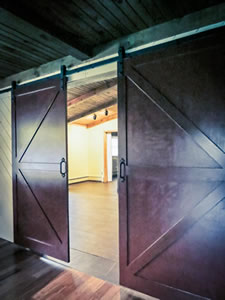
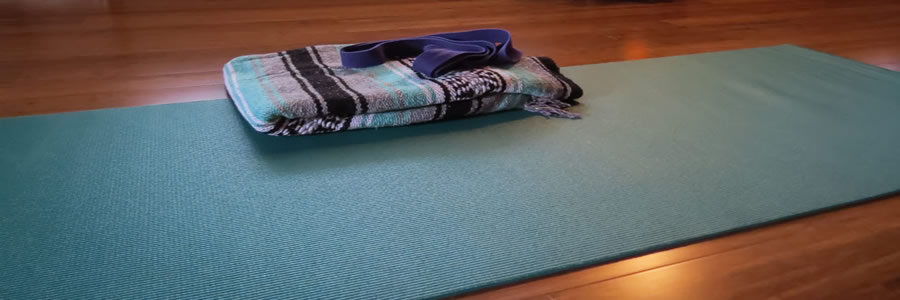
Task 1: Create a folder called ch5yoga to contain your Path of Light Yoga Studio website files. Copy the files from the Chapter 4 Case Study ch4yoga folder and place them in your ch5yoga folder. Locate the chapter5/casestudystarters/yoga folder in the student files. Copy the following files to your ch5yoga folder: lilyheader.jpg, yogadoor.jpg, yogalounge.jpg, and yogamat.jpg.
Task 2: The External Style Sheet. Launch a text editor and open the yoga.css external style sheet file.
-
The body element selector. Add a declaration that configures Verdana, Arial, or sans-serif font typeface.
-
The header element selector. Add declarations to configure lilyheader.jpg as a background image that displays on the right without repeating.
-
The nav element selector. Code styles to configure centered, bold text.
-
The nav a element selector. Code styles to eliminate the display of the underline for hyperlinks (hint: use the nav a descendant selector with text-decoration: none;).
-
The h1 element selector. Code styles to display 400% line height and 1em text-indent.
-
The footer selector. Add declarations to configure small, italic, and centered text.
-
The li element selector. Code styles to configure 90% font size.
Save your file. Use the CSS Validator (http://jigsaw.w3.org/css-validator) to check your syntax. Correct and retest if necessary.
Task 3: The Home Page. Launch a text editor and open the home page, index.html. Remove the b, small, and i tags from the page. Add an tag above the h2 element. Configure the tag to display the yogadoor.jpg image. Configure the alt, height, and width attributes for the image. Also configure the image to appear to the right of the text by coding the align="right"attribute on the tag. Note: The W3C HTML validator will indicate that the align attribute is invalid. We'll overlook the error for this case study. In Chapter 7, you'll learn to use the CSS float property (instead of the align attribute) to configure this type of layout. Save and test your page in a browser. It should look similar to Figure 5.27.
Figure 5.27
Path of Light Yoga Studio home page.

Figure5.27Full Alternative Text
Task 4: The Classes Page. Launch a text editor and open the classes page, classes.html. Remove the b, small, and i tags from the page. Add an tag above the h2 element. Configure the tag to display the yogamat.jpg image. Configure the alt, height, and width attributes for the image. Save and test your page in a browser. It should look similar to Figure 5.28.
Figure 5.28
New Path of Light Yoga Studio wireframe.

Transcribed image text
Step by Step Solution
There are 3 Steps involved in it

Get step-by-step solutions from verified subject matter experts
 Study Help