







Question: This is a java programming LA#1-Part1-I code /* * Stopwatch */ package stopwatch; import javax.swing.*; import java.awt.*; import java.awt.event.*; public class Stopwatch extends JFrame {
This is a java programming
LA#1-Part1-I code
/* * Stopwatch */ package stopwatch; import javax.swing.*; import java.awt.*; import java.awt.event.*; public class Stopwatch extends JFrame { public static void main(String args[]) { // Construct the frame new Stopwatch().show(); } public Stopwatch() { // Frame constructor setTitle("Stopwatch Application"); setSize(300, 100); } }
There are total 5 parts to code (Tasks Involved 1 to 5)
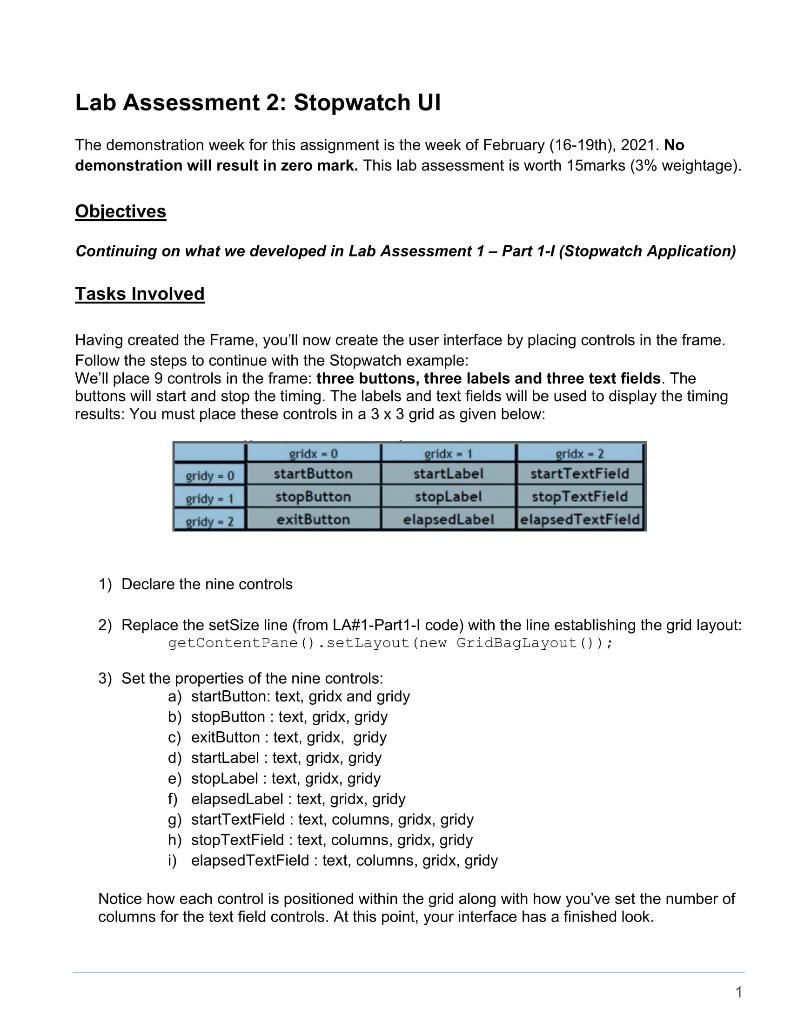
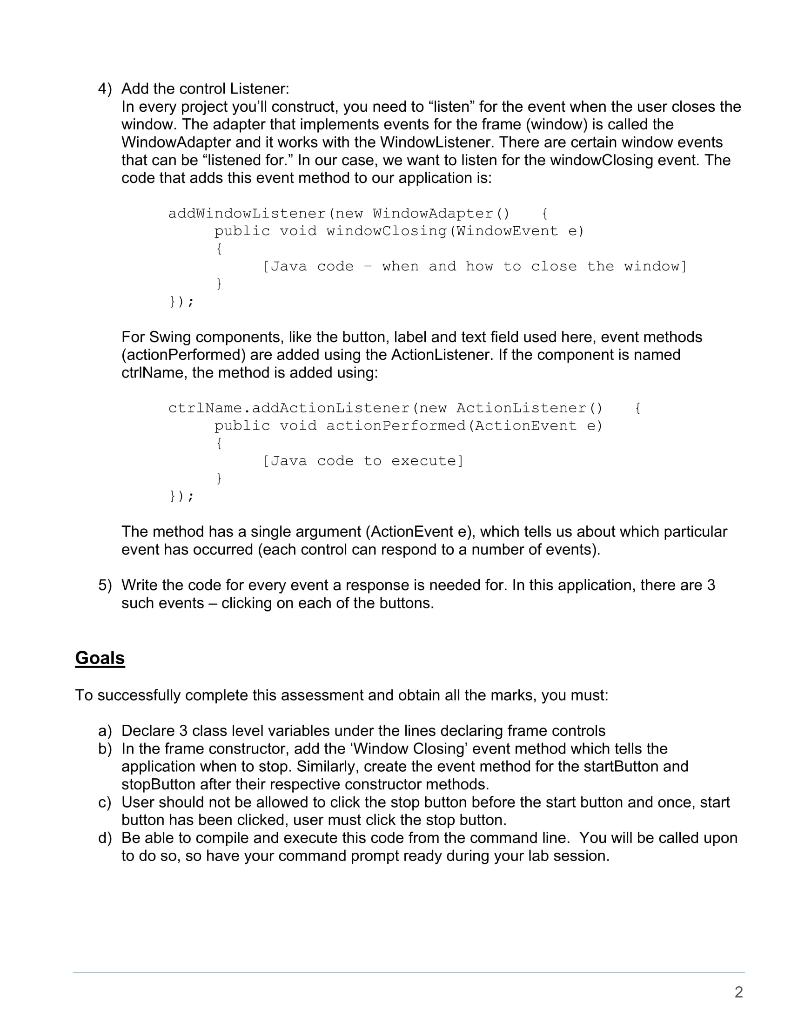
Lab Assessment 2: Stopwatch UI The demonstration week for this assignment is the week of February (16-19th), 2021. No demonstration will result in zero mark. This lab assessment is worth 15marks (3% weightage). Objectives Continuing on what we developed in Lab Assessment 1 - Part 1-1 (Stopwatch Application) Tasks Involved Having created the Frame, you'll now create the user interface by placing controls in the frame. Follow the steps to continue with the Stopwatch example: We'll place 9 controls in the frame: three buttons, three labels and three text fields. The buttons will start and stop the timing. The labels and text fields will be used to display the timing results: You must place these controls in a 3 x 3 grid as given below: gridy - 0 gridy - 1 sridy - 2 cridx - 0 start Button stopButton exitButton gridx-1 startLabel stopLabel elapsed Label gridx - 2 startTextField stop TextField elapsedTextField 1) Declare the nine controls 2) Replace the setSize line (from LA#1-Part1-1 code) with the line establishing the grid layout: getContentPane ().setLayout (new GridBagLayout()); 3) Set the properties of the nine controls: a) startButton: text, gridx and gridy b) stopButton : text, gridx, gridy c) exitButton : text, gridx, gridy d) startLabel : text, gridx, gridy e) stopLabel : text, gridx, gridy f) elapsedLabel : text, gridx, gridy g) startTextField : text, columns, gridx, gridy h) stopTextField : text, columns, gridx, gridy i) elapsedTextField: text, columns, gridx, gridy Notice how each control is positioned within the grid along with how you've set the number of columns for the text field controls. At this point, your interface has a finished look. 1 4) Add the control Listener: In every project you'll construct, you need to "listen" for the event when the user closes the window. The adapter that implements events for the frame (window) is called the WindowAdapter and it works with the Window Listener. There are certain window events that can be listened for." In our case, we want to listen for the windowClosing event. The code that adds this event method to our application is: addWindowListener (new WindowAdapter() { public void windowClosing (WindowEvent e) { [Java code when and how to close the window] ) }); For Swing components, like the button, label and text field used here, event methods (action Performed) are added using the ActionListener. If the component is named ctrlName, the method is added using: ctrlName.addActionListener(new ActionListener() public void action Performed (ActionEvent e) [Java code to execute] }); The method has a single argument (ActionEvent e), which tells us about which particular event has occurred (each control can respond to a number of events). 5) Write the code for every event a response is needed for. In this application, there are 3 such events - clicking on each of the buttons. Goals To successfully complete this assessment and obtain all the marks, you must: a) Declare 3 class level variables under the lines declaring frame controls b) In the frame constructor, add the 'Window Closing' event method which tells the application when to stop. Similarly, create the event method for the startButton and stopButton after their respective constructor methods. c) User should not be allowed to click the stop button before the start button and once, start button has been clicked, user must click the stop button. d) Be able to compile and execute this code from the command line. You will be called upon to do so, so have your command prompt ready during your lab session. 2 Lab Assessment 2: Stopwatch UI The demonstration week for this assignment is the week of February (16-19th), 2021. No demonstration will result in zero mark. This lab assessment is worth 15marks (3% weightage). Objectives Continuing on what we developed in Lab Assessment 1 - Part 1-1 (Stopwatch Application) Tasks Involved Having created the Frame, you'll now create the user interface by placing controls in the frame. Follow the steps to continue with the Stopwatch example: We'll place 9 controls in the frame: three buttons, three labels and three text fields. The buttons will start and stop the timing. The labels and text fields will be used to display the timing results: You must place these controls in a 3 x 3 grid as given below: gridy - 0 gridy - 1 sridy - 2 cridx - 0 start Button stopButton exitButton gridx-1 startLabel stopLabel elapsed Label gridx - 2 startTextField stop TextField elapsedTextField 1) Declare the nine controls 2) Replace the setSize line (from LA#1-Part1-1 code) with the line establishing the grid layout: getContentPane ().setLayout (new GridBagLayout()); 3) Set the properties of the nine controls: a) startButton: text, gridx and gridy b) stopButton : text, gridx, gridy c) exitButton : text, gridx, gridy d) startLabel : text, gridx, gridy e) stopLabel : text, gridx, gridy f) elapsedLabel : text, gridx, gridy g) startTextField : text, columns, gridx, gridy h) stopTextField : text, columns, gridx, gridy i) elapsedTextField: text, columns, gridx, gridy Notice how each control is positioned within the grid along with how you've set the number of columns for the text field controls. At this point, your interface has a finished look. 1 4) Add the control Listener: In every project you'll construct, you need to "listen" for the event when the user closes the window. The adapter that implements events for the frame (window) is called the WindowAdapter and it works with the Window Listener. There are certain window events that can be listened for." In our case, we want to listen for the windowClosing event. The code that adds this event method to our application is: addWindowListener (new WindowAdapter() { public void windowClosing (WindowEvent e) { [Java code when and how to close the window] ) }); For Swing components, like the button, label and text field used here, event methods (action Performed) are added using the ActionListener. If the component is named ctrlName, the method is added using: ctrlName.addActionListener(new ActionListener() public void action Performed (ActionEvent e) [Java code to execute] }); The method has a single argument (ActionEvent e), which tells us about which particular event has occurred (each control can respond to a number of events). 5) Write the code for every event a response is needed for. In this application, there are 3 such events - clicking on each of the buttons. Goals To successfully complete this assessment and obtain all the marks, you must: a) Declare 3 class level variables under the lines declaring frame controls b) In the frame constructor, add the 'Window Closing' event method which tells the application when to stop. Similarly, create the event method for the startButton and stopButton after their respective constructor methods. c) User should not be allowed to click the stop button before the start button and once, start button has been clicked, user must click the stop button. d) Be able to compile and execute this code from the command line. You will be called upon to do so, so have your command prompt ready during your lab session. 2
Step by Step Solution
There are 3 Steps involved in it

Get step-by-step solutions from verified subject matter experts
 Study Help