







Question: This is dealing with a LINUX system. How is this done correctly? 4. Redirect a long listing of all content in the student's home directory,
This is dealing with a LINUX system. How is this done correctly?
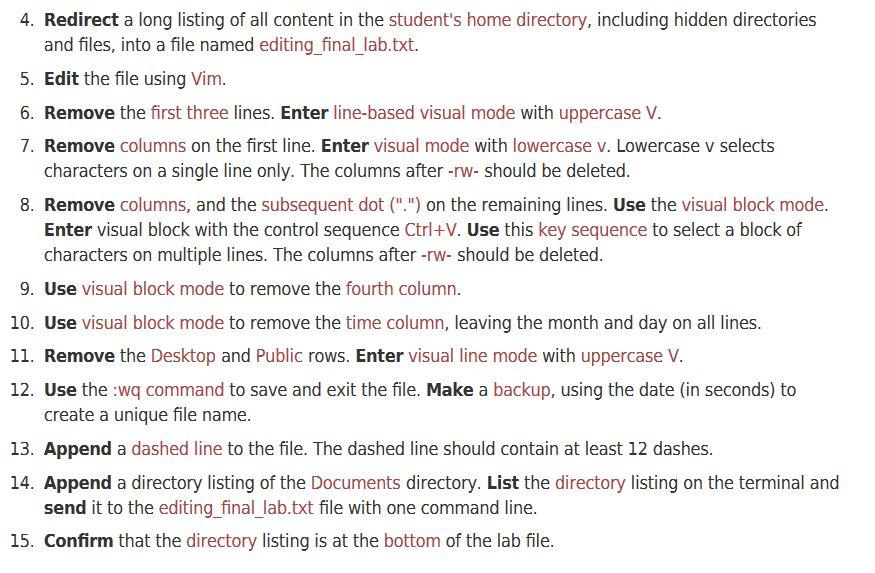
4. Redirect a long listing of all content in the student's home directory, including hidden directories and files, into a file named editing_final_lab.txt. 5. Edit the file using Vim. 6. Remove the first three lines. Enter line-based visual mode with uppercase V. 7. Remove columns on the first line. Enter visual mode with lowercase v. Lowercase v selects characters on a single line only. The columns after -rw- should be deleted. 8. Remove columns, and the subsequent dot (".") on the remaining lines. Use the visual block mode. Enter visual block with the control sequence Ctrl+V. Use this key sequence to select a block of characters on multiple lines. The columns after -rw- should be deleted. 9. Use visual block mode to remove the fourth column. 10. Use visual block mode to remove the time column, leaving the month and day on all lines. 11. Remove the Desktop and Public rows. Enter visual line mode with uppercase V. 12. Use the :wq command to save and exit the file. Make a backup, using the date (in seconds) to create a unique file name. 13. Append a dashed line to the file. The dashed line should contain at least 12 dashes. 14. Append a directory listing of the Documents directory. List the directory listing on the terminal and send it to the editing_final_lab.txt file with one command line. 15. Confirm that the directory listing is at the bottom of the lab file. 4. Redirect a long listing of all content in the student's home directory, including hidden directories and files, into a file named editing_final_lab.txt. 5. Edit the file using Vim. 6. Remove the first three lines. Enter line-based visual mode with uppercase V. 7. Remove columns on the first line. Enter visual mode with lowercase v. Lowercase v selects characters on a single line only. The columns after -rw- should be deleted. 8. Remove columns, and the subsequent dot (".") on the remaining lines. Use the visual block mode. Enter visual block with the control sequence Ctrl+V. Use this key sequence to select a block of characters on multiple lines. The columns after -rw- should be deleted. 9. Use visual block mode to remove the fourth column. 10. Use visual block mode to remove the time column, leaving the month and day on all lines. 11. Remove the Desktop and Public rows. Enter visual line mode with uppercase V. 12. Use the :wq command to save and exit the file. Make a backup, using the date (in seconds) to create a unique file name. 13. Append a dashed line to the file. The dashed line should contain at least 12 dashes. 14. Append a directory listing of the Documents directory. List the directory listing on the terminal and send it to the editing_final_lab.txt file with one command line. 15. Confirm that the directory listing is at the bottom of the lab file
Step by Step Solution
There are 3 Steps involved in it

Get step-by-step solutions from verified subject matter experts
 Study Help