







Question: This is for a linux course I'm taking, we use Ubuntu. CS 221: The Linux Operating System Assignment 2 Working with Linux Graphical User Interface
This is for a linux course I'm taking, we use Ubuntu.
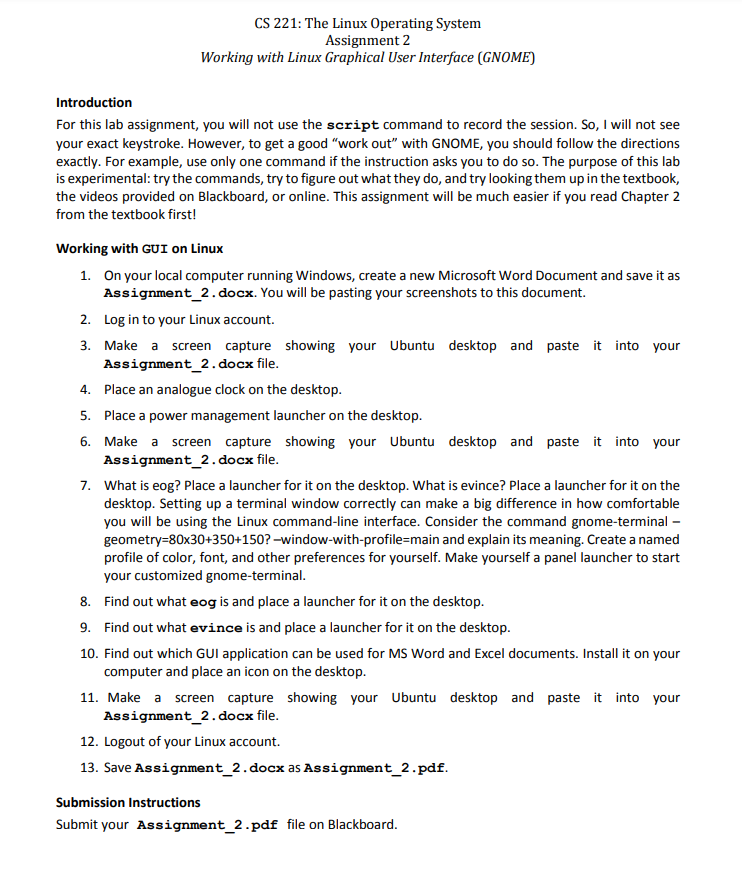
CS 221: The Linux Operating System Assignment 2 Working with Linux Graphical User Interface (GNOME) Introduction For this lab assignment, you will not use the script command to record the session. So, I will not see your exact keystroke. However, to get a good "work out" with GNOME, you should follow the directions exactly. For example, use only one command if the instruction asks you to do so. The purpose of this lab is experimental: try the commands, try to figure out what they do, and try looking them up in the textbook, the videos provided on Blackboard, or online. This assignment will be much easier if you read Chapter 2 from the textbook first! Working with GUI on Linux 1. On your local computer running Windows, create a new Microsoft Word Document and save it as Assignment_2.docx. You will be pasting your screenshots to this document. 2. Log in to your Linux account. 3. Make a screen capture showing your Ubuntu desktop and paste it into your Assignment_2.docx file. 4. Place an analogue clock on the desktop. 5. Place a power management launcher on the desktop. 6. Make a screen capture showing your Ubuntu desktop and paste it into your Assignment_2.docx file. 7. What is eog? Place a launcher for it on the desktop. What is evince? Place a launcher for it on the desktop. Setting up a terminal window correctly can make a big difference in how comfortable you will be using the Linux command-line interface. Consider the command gnome-terminal geometry=80x30+350+150?-window-with-profile=main and explain its meaning. Create a named profile of color, font, and other preferences for yourself. Make yourself a panel launcher to start your customized gnome-terminal. 8. Find out what eog is and place a launcher for it on the desktop. 9. Find out what evince is and place a launcher for it on the desktop. 10. Find out which GUI application can be used for MS Word and Excel documents. Install it on your computer and place an icon on the desktop. 11. Make a screen capture showing your Ubuntu desktop and paste it into your Assignment_2.docx file. 12. Logout of your Linux account. 13. Save Assignment_2.docx as Assignment_2.pdf. Submission Instructions Submit your Assignment_2.pdf file on Blackboard. CS 221: The Linux Operating System Assignment 2 Working with Linux Graphical User Interface (GNOME) Introduction For this lab assignment, you will not use the script command to record the session. So, I will not see your exact keystroke. However, to get a good "work out" with GNOME, you should follow the directions exactly. For example, use only one command if the instruction asks you to do so. The purpose of this lab is experimental: try the commands, try to figure out what they do, and try looking them up in the textbook, the videos provided on Blackboard, or online. This assignment will be much easier if you read Chapter 2 from the textbook first! Working with GUI on Linux 1. On your local computer running Windows, create a new Microsoft Word Document and save it as Assignment_2.docx. You will be pasting your screenshots to this document. 2. Log in to your Linux account. 3. Make a screen capture showing your Ubuntu desktop and paste it into your Assignment_2.docx file. 4. Place an analogue clock on the desktop. 5. Place a power management launcher on the desktop. 6. Make a screen capture showing your Ubuntu desktop and paste it into your Assignment_2.docx file. 7. What is eog? Place a launcher for it on the desktop. What is evince? Place a launcher for it on the desktop. Setting up a terminal window correctly can make a big difference in how comfortable you will be using the Linux command-line interface. Consider the command gnome-terminal geometry=80x30+350+150?-window-with-profile=main and explain its meaning. Create a named profile of color, font, and other preferences for yourself. Make yourself a panel launcher to start your customized gnome-terminal. 8. Find out what eog is and place a launcher for it on the desktop. 9. Find out what evince is and place a launcher for it on the desktop. 10. Find out which GUI application can be used for MS Word and Excel documents. Install it on your computer and place an icon on the desktop. 11. Make a screen capture showing your Ubuntu desktop and paste it into your Assignment_2.docx file. 12. Logout of your Linux account. 13. Save Assignment_2.docx as Assignment_2.pdf. Submission Instructions Submit your Assignment_2.pdf file on Blackboard
Step by Step Solution
There are 3 Steps involved in it

Get step-by-step solutions from verified subject matter experts
 Study Help