







Question: This is the second part I wanted to put it in two questions so they all get answered. Need formuals and cell refrences. In the
This is the second part I wanted to put it in two questions so they all get answered. Need formuals and cell refrences.
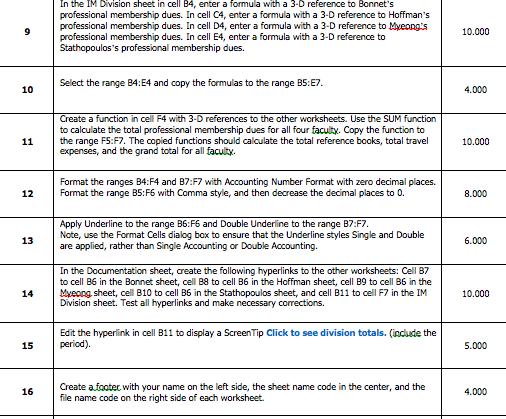
In the IM Division sheet in cell B4, enter a formula with a 3-D reference to Bonnet's professional membership dues. In cell C4, enter a formula with a 3-D reference to Hoffman's professional membership dues. In cell D4, enter a formula with a 3-D reference to Myeongs professional membership dues. In cell E4, enter a formula with a 3-D reference to Stathopoulos's professional membership dues. 10.000 Select the range BA:E4 and copy the formulas to the ra nge B5:E7. 10 4.000 in cell F4 with to the other worksheets. Use the to calculate the total professional membership dues for all four facuty. Copy the function to expenses, and the grand total for all facuty. Format the ranges B4:F4 and B7:F7 with Accounting Number Format with zero decimal places. 11 the range F5:F7. The copied functions should calculate the total reference books, total travel 10.000 12 Format the range B5:F6 with Comma style, and then decrease the decimal places to 0. 8.000 Apply Underline to the range B6:F6 and Double Underline to the range B7:F7 Note, use the Format Cells dialog box to ensure that the Underline styles Single and Double are applied, rather than Single Accounting or Double Accounting. 13 6.000 In the Documentation sheet, create the following hyperlinks to the other worksheets: Cell B7 to cell B6 in the Bonnet sheet, cell B8 to cell B6 in the Hoffman sheet, cell B9 to cell B6 in the 14 Myeong sheet, cell B10 to cell B6 in the Stathopoulos sheet, and cell B11 to cell F7 in the IM 10.000 Division sheet. Test all hyperlinks and make necessary corrections. Edit the hyperlink in cell B11 to display a ScreenTip Click to see division totals. (indude the 15 period). 5.000 Create afooter with your name on the left side, the sheet name code in the center, and the file name code on the right side of each worksheet. 4.000 In the IM Division sheet in cell B4, enter a formula with a 3-D reference to Bonnet's professional membership dues. In cell C4, enter a formula with a 3-D reference to Hoffman's professional membership dues. In cell D4, enter a formula with a 3-D reference to Myeongs professional membership dues. In cell E4, enter a formula with a 3-D reference to Stathopoulos's professional membership dues. 10.000 Select the range BA:E4 and copy the formulas to the ra nge B5:E7. 10 4.000 in cell F4 with to the other worksheets. Use the to calculate the total professional membership dues for all four facuty. Copy the function to expenses, and the grand total for all facuty. Format the ranges B4:F4 and B7:F7 with Accounting Number Format with zero decimal places. 11 the range F5:F7. The copied functions should calculate the total reference books, total travel 10.000 12 Format the range B5:F6 with Comma style, and then decrease the decimal places to 0. 8.000 Apply Underline to the range B6:F6 and Double Underline to the range B7:F7 Note, use the Format Cells dialog box to ensure that the Underline styles Single and Double are applied, rather than Single Accounting or Double Accounting. 13 6.000 In the Documentation sheet, create the following hyperlinks to the other worksheets: Cell B7 to cell B6 in the Bonnet sheet, cell B8 to cell B6 in the Hoffman sheet, cell B9 to cell B6 in the 14 Myeong sheet, cell B10 to cell B6 in the Stathopoulos sheet, and cell B11 to cell F7 in the IM 10.000 Division sheet. Test all hyperlinks and make necessary corrections. Edit the hyperlink in cell B11 to display a ScreenTip Click to see division totals. (indude the 15 period). 5.000 Create afooter with your name on the left side, the sheet name code in the center, and the file name code on the right side of each worksheet. 4.000
Step by Step Solution
There are 3 Steps involved in it

Get step-by-step solutions from verified subject matter experts
 Study Help