



Question: This was a lab from college and we used WINDOWS 2008 SERVER. But I couldnt able to finish it so my professor gave us to
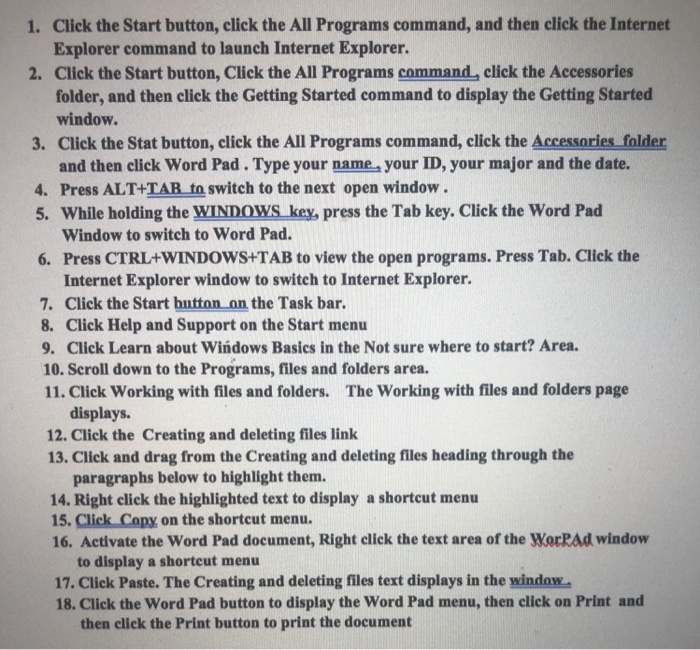
Click the Start button, click the All Programs command, and then click the Internet Explorer command to launch Internet Explorer. Click the Start button, Click the All Programs command, click the Accessories folder, and then click the Getting Started command to display the Getting Started window. 1. 2. 3. Click the Stat button, click the All Programs command, click the Accessories folder and then click Word Pad. Type your name your ID, your major and the date. 4. Press ALT+TAR to switch to the next open window 5. While holding the WINDOWS key, press the Tab key. Click the Word Pad Window to switch to Word Pad. 6. Press CTRL+WINDOWS TAB to view the open programs. Press Tab. Click the Internet Explorer window to switch to Internet Explorer. 7. Click the Start button on the Task bar. 8. Click Help and Support on the Start menu 9. Click Learn about Windows Basics in the Not sure where to start? Area. 10. Scroll down to the Programs, files and folders area. 11. Click Working with files and folders. The Working with files and folders page displays. 12. Click the Creating and deleting files link 13. Click and drag from the Creating and deleting files heading through the paragraphs below to highlight them. 14. Right click the highlighted text to display a shortcut menu 15. Click Copy on the shortcut menu. 16. Activate the Word Pad document, Right click the text area of the WorRad window to display a shortcut menu 17. Click Paste. The Creating and deleting files text displays in the window 18. Click the Word Pad button to display the Word Pad menu, then click on Print and then click the Print button to print the document
Step by Step Solution
There are 3 Steps involved in it

Get step-by-step solutions from verified subject matter experts