







Question: To complete this exercise, download the starting exercise file named EA2_A2_FinancialStatements-eStart that is attached to this assignment. Then follow the EA2-A2 instructions in your Labyrinth
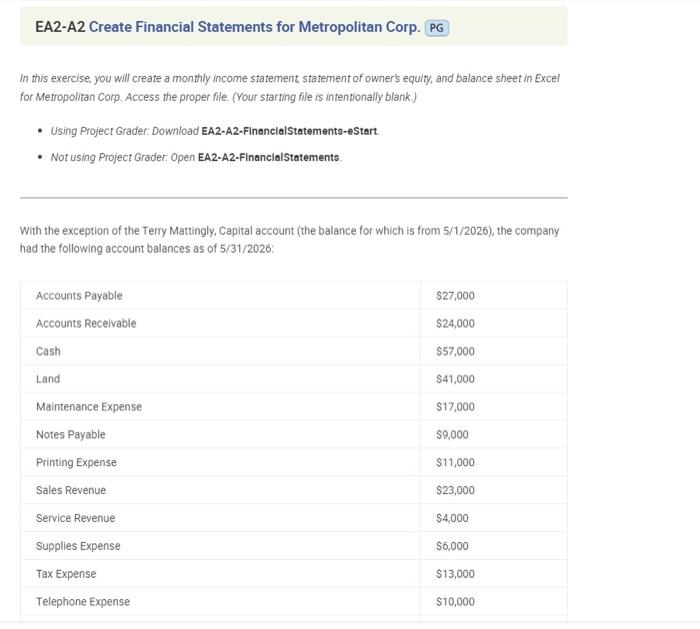
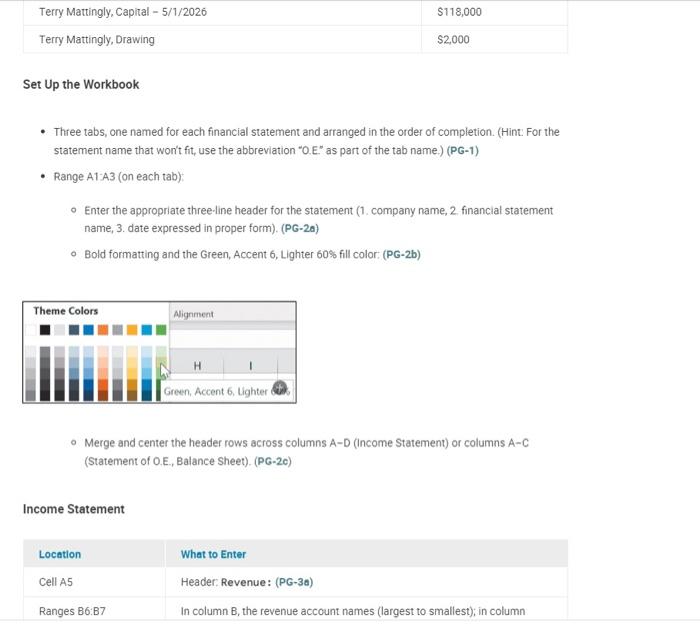
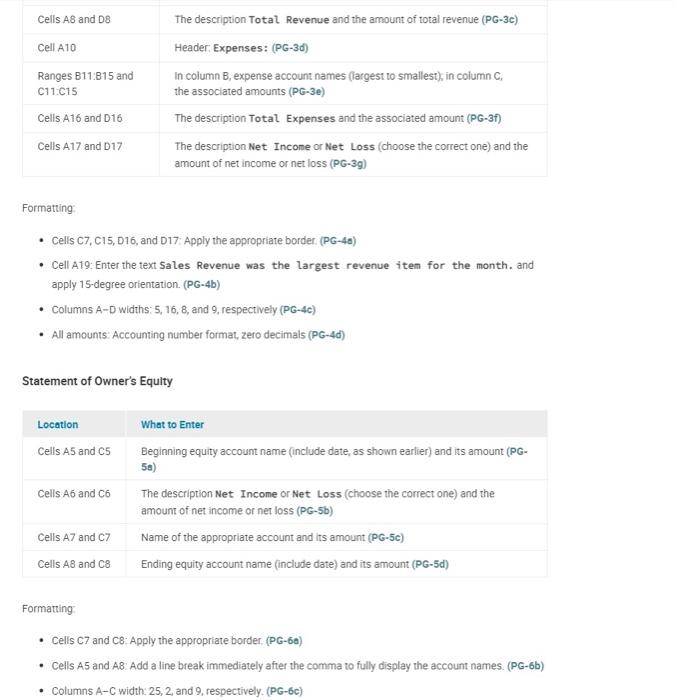
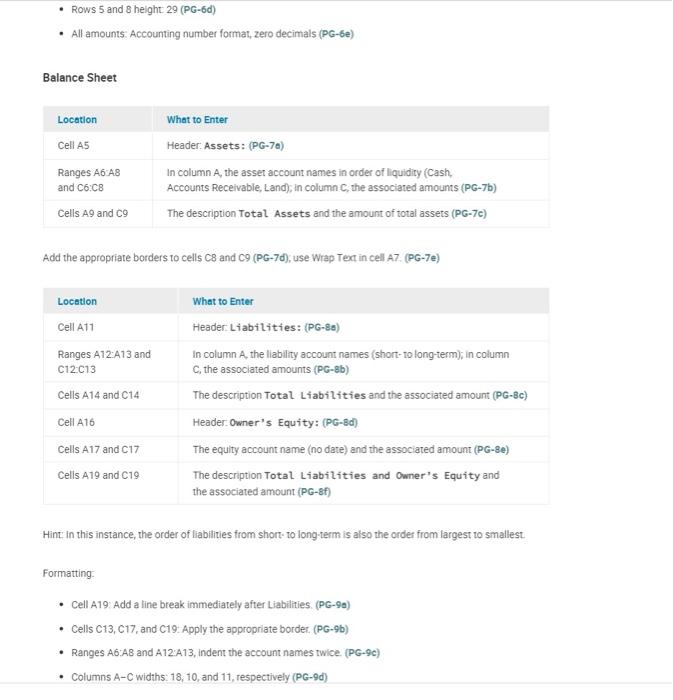
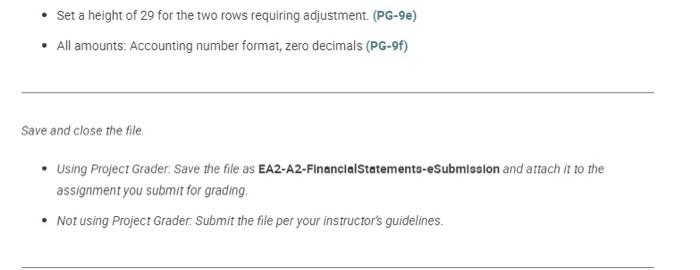
In this exercise, you will create a monthly income statement, statement of owner's equity, and balance sheet in Excel for Metropolitan Corp. Access the proper file. (Your starting file is intentionally blank.) - Using Project Grader. Download EA2-A2-FinancialStatements-eStart. - Not using Project Grader: Open EA2-A2-FinanclalStatements. With the exception of the Terry Mattingly, Capital account (the balance for which is from 5/1/2026), the company had the following account balances as of 5/31/2026 : Set Up the Workbook - Three tabs, one named for each financial statement and arranged in the order of completion. (Hint: For the statement name that wor't fit, use the abbreviation "O.E." as part of the tab name.) (PG-1) - Range A1 A3 (on each tab): - Enter the appropriate three-line header for the statement (1. company name, 2 financial statement name, 3. date expressed in proper form). (PG-2a) Bold formatting and the Green, Accent 6, Lighter 60% fill color: (PG-2b) - Merge and center the header rows across columns A-D (Income Statement) or columns A-C (Statement of O.E., Balance Sheet). (PG-20) Income Statement Formatting: - Cells C7, C15, D16, and D17: Apply the appropriate border. (PG-4a) - Cell A19: Enter the text Sales Revenue was the largest revenue iten for the month. and apply 15 -degree orlentation. (PG-4b) - Columns A-D widths: 5, 16, 8, and 9, respectively (PG-4c) - All amounts: Accounting number format, zero decimals (PG-4d) Statement of Owner's Equity Formatting: - Cells C7 and C8: Apply the appropriate border. (PG-6a) - Cells A5 and A8: Add a line break immediately after the comma to fully display the accoumt names. (PG-6b) - Columns A-C width: 25,2 , and 9, respectively. (PG-6c) - Rows 5 and 8 height: 29 (PG-6d) - All amounts: Accounting number format, zero decimals (PG-6e) Balance Sheet Add the appropriate borders to cells C8 and C9 (PG-7d), use Wrap Text in cell A7. (PG-7e) Hint: in this instance, the order of liabilities from short: to long-term is also the order from largest to smallest. Formatting - Cell A19: Add a line break immediately after Liabilities. (PG-9a) - Cells C13, C17, and C19: Apply the appropriate border. (PG-9b) - Ranges A6:A8 and A12:A13, indent the account names twice. (PG-9c) - Columns A-C widths: 18 , 10, and 11, respectively (PG-9d) - Set a height of 29 for the two rows requiring adjustment. (PG-9e) - All amounts: Accounting number format, zero decimals (PG-9f) Save and close the file. - Using Project Grader. Save the file as EA2-A2-FinancialStatements-eSubmission and attach it to the assignment you submit for grading. - Not using Project Grader. Submit the file per your instructor's guidelines
Step by Step Solution
There are 3 Steps involved in it

Get step-by-step solutions from verified subject matter experts
 Study Help