



Question: To view the onscreen Expense form, select the + New icon. Select Expense. The Expense window that appears is an example of an onscreen form.
To view the onscreen Expense form, select the New icon.
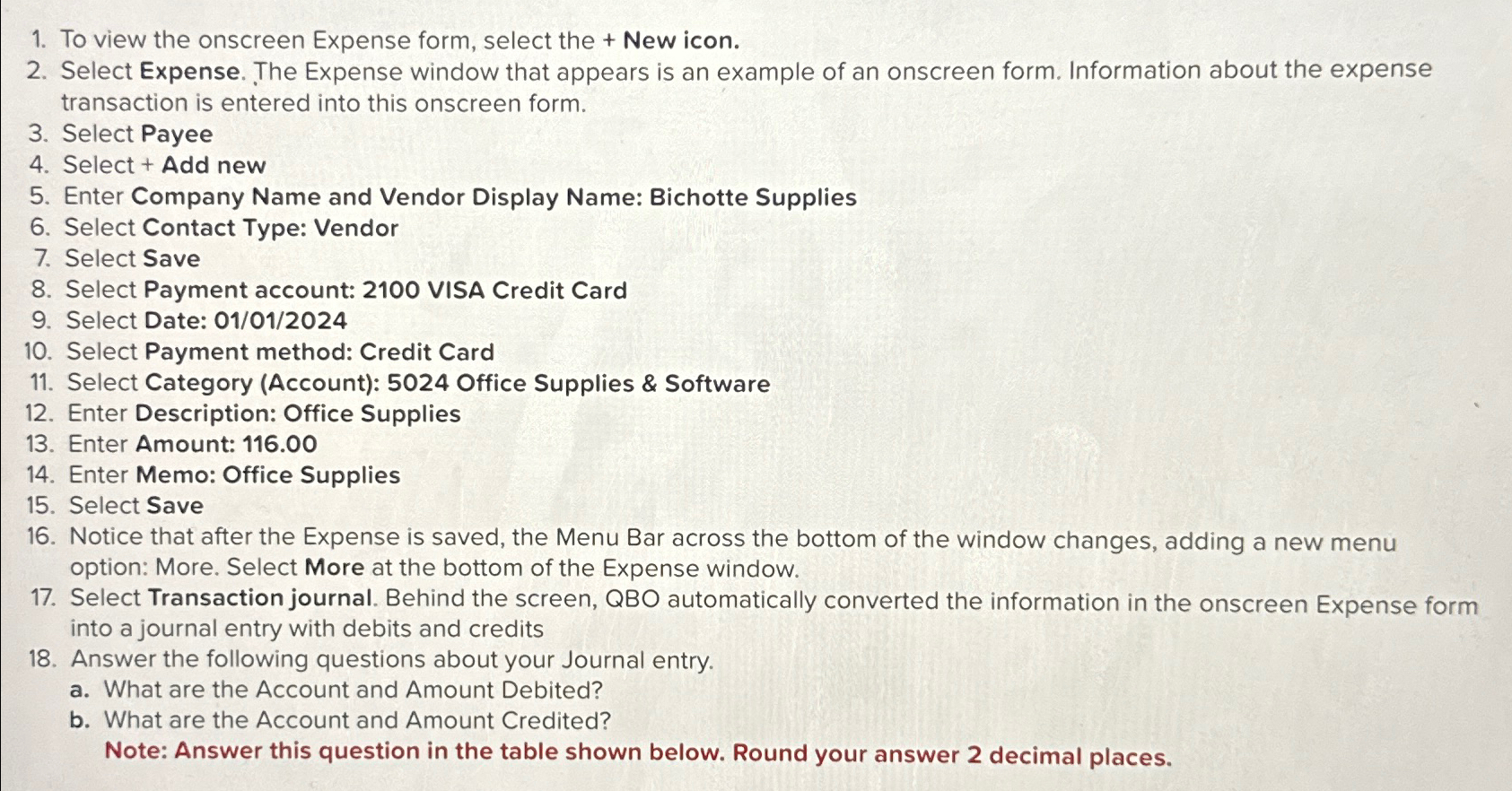
Select Expense. The Expense window that appears is an example of an onscreen form. Information about the expense transaction is entered into this onscreen form.
Select Payee
Select Add new
Enter Company Name and Vendor Display Name: Bichotte Supplies
Select Contact Type: Vendor
Select Save
Select Payment account: VISA Credit Card
Select Date:
Select Payment method: Credit Card
Select Category Account: Office Supplies & Software
Enter Description: Office Supplies
Enter Amount:
Enter Memo: Office Supplies
Select Save
Notice that after the Expense is saved, the Menu Bar across the bottom of the window changes, adding a new menu option: More. Select More at the bottom of the Expense window.
Select Transaction journal. Behind the screen, QBO automatically converted the information in the onscreen Expense form into a journal entry with debits and credits
Answer the following questions about your Journal entry.
a What are the Account and Amount Debited?
b What are the Account and Amount Credited?
Note: Answer this question in the table shown below. Round your answer decimal places.
Step by Step Solution
There are 3 Steps involved in it
1 Expert Approved Answer
Step: 1 Unlock

Question Has Been Solved by an Expert!
Get step-by-step solutions from verified subject matter experts
Step: 2 Unlock
Step: 3 Unlock