Question: ury Go 22 A A Aa 21 ab ADA Abcode Moscopy Alle Cette schon AaBb ACCO a. Shelly Cashman Excel 2019 Module 10: SAM Project
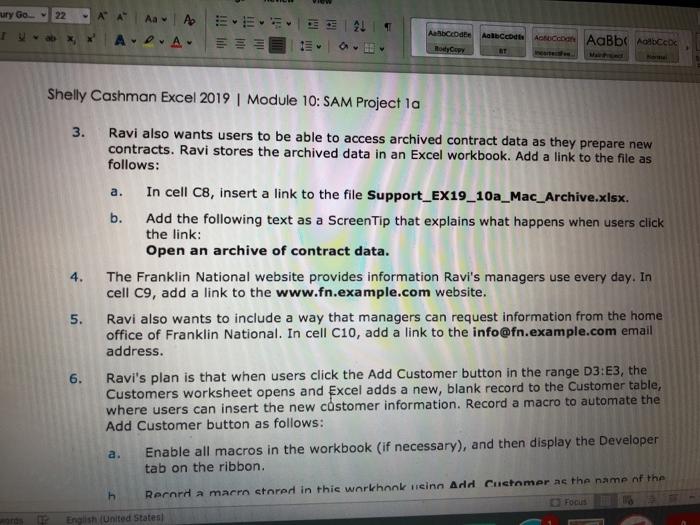
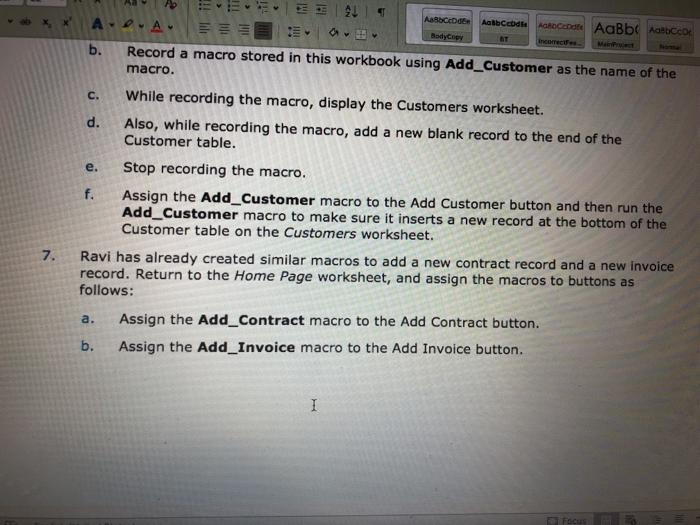
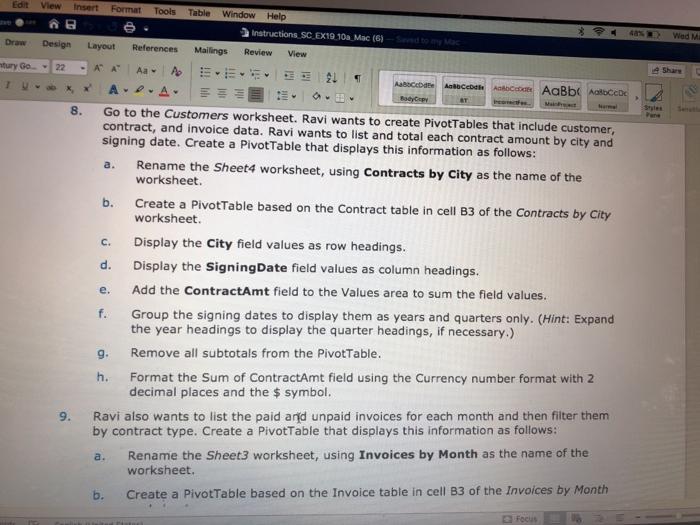
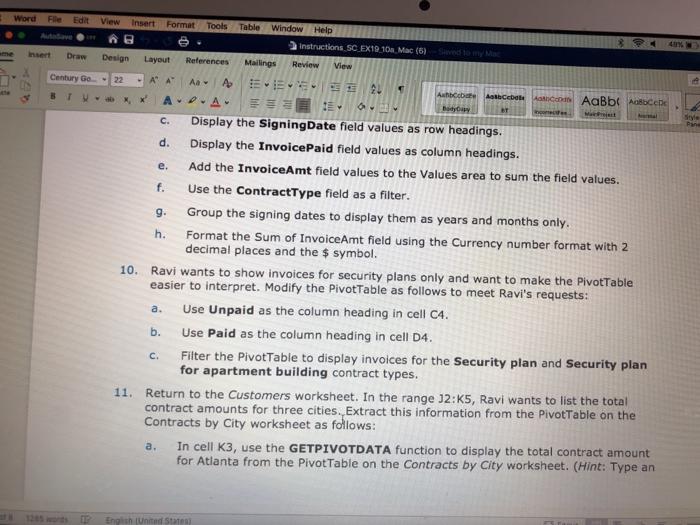
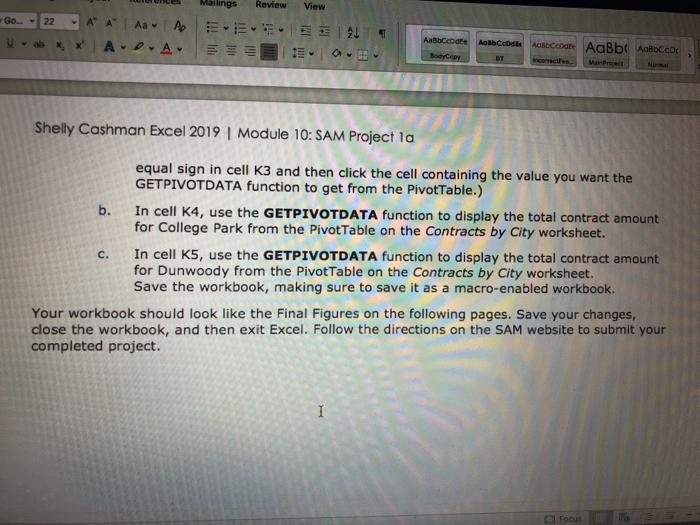
ury Go 22 A A Aa 21 ab ADA Abcode Moscopy Alle Cette schon AaBb ACCO a. Shelly Cashman Excel 2019 Module 10: SAM Project la 3. Ravi also wants users to be able to access archived contract data as they prepare new contracts. Ravi stores the archived data in an Excel workbook. Add a link to the file as follows: In cell C8, insert a link to the file Support_EX19_10a_Mac_Archive.xlsx. b. Add the following text as a ScreenTip that explains what happens when users click the link: Open an archive of contract data. 4. The Franklin National website provides information Ravi's managers use every day. In cell C9, add a link to the www.fn.example.com website. 5. Ravi also wants to include a way that managers can request information from the home office of Franklin National. In cell C10, add a link to the info@fn.example.com email address. 6. Ravi's plan is that when users click the Add Customer button in the range 03:E3, the Customers worksheet opens and excel adds a new, blank record to the Customer table, where users can insert the new customer information. Record a macro to automate the Add Customer button as follows: Enable all macros in the workbook (if necessary), and then display the Developer tab on the ribbon. a. Record a macro stored in this workchonk einn Add Customer as the name of the Focus English (United States 21 AaAccenia ACBb ACCO APA b. Record a macro stored in this workbook using Add_Customer as the name of the macro. ABCD BodyCey Albcode incorrect C. e. While recording the macro, display the Customers worksheet. d. Also, while recording the macro, add a new blank record to the end of the Customer table. Stop recording the macro. f. Assign the Add_Customer macro to the Add Customer button and then run the Add_Customer macro to make sure it inserts a new record at the bottom of the Customer table on the Customers worksheet. Ravi has already created similar macros to add a new contract record and a new invoice record. Return to the Home Page worksheet, and assign the macros to buttons as follows: Assign the Add_Contract macro to the Add Contract button. b. Assign the Add_Invoice macro to the Add Invoice button. 7. a. I Focus Edit View Insert Format Tools Table Window Help Instructions SC EX19 10 Mac (6) Mailings Review View Wed M Design Layout References tury Go 22 ' A By 8. c. e. Bocete nach AaBb Aalbo APA- Go to the Customers worksheet. Ravi wants to create PivotTables that include customer, contract, and invoice data. Ravi wants to list and total each contract amount by city and signing date. Create a Pivottable that displays this information as follows: Rename the Sheet4 worksheet, using Contracts by City as the name of the worksheet b. Create a PivotTable based on the Contract table in cell B3 of the Contracts by City worksheet Display the City field values as row headings. d. Display the signingDate field values as column headings. Add the ContractAmt field to the values area to sum the field values. f. Group the signing dates to display them as years and quarters only. (Hint: Expand the year headings to display the quarter headings, if necessary.) g Remove all subtotals from the PivotTable. h. Format the Sum of ContractAmt field using the Currency number format with 2 decimal places and the $ symbol. Ravi also wants to list the paid and unpaid invoices for each month and then filter them by contract type. Create a Pivottable that displays this information as follows: Rename the Sheet3 worksheet, using Invoices by Month as the name of the worksheet. b. Create a Pivot Table based on the Invoice table in cell B3 of the Invoices by Month Focus 9. a. Word File Edit View Insert Format n Tools Table Window Help Instructions SC EX19 10. Mac (6) 4 Insert Draw Design Layout References Mailings Review View Century Go22 APA A- F x Bywy C. A ==.. Autobat. Astele AaBb Acce APA 6 Display the SigningDate field values as row headings. d. Display the InvoicePaid field values as column headings. e. Add the InvoiceAmt field values to the Values area to sum the field values. Use the ContractType field as a filter. g Group the signing dates to display them as years and months only. h. Format the Sum of InvoiceAmt field using the Currency number format with 2 decimal places and the $ symbol. 10. Ravi wants to show invoices for security plans only and want to make the PivotTable easier to interpret. Modify the Pivot Table as follows to meet Ravi's requests: Use Unpaid as the column heading in cell 04. b. Use Paid as the column heading in cell 04. Filter the PivotTable to display invoices for the Security plan and Security plan for apartment building contract types. 11. Return to the Customers worksheet. In the range 12:K5, Ravi wants to list the total contract amounts for three cities. Extract this information from the PivotTable on the Contracts by City worksheet as follows: In cell K3, use the GETPIVOTDATA function to display the total contract amount for Atlanta from the Pivot Table on the Contracts by City worksheet. (Hint: Type an a. c. a. English (United States Mailings Review View Go 22 ' ' Abbcode Albcc A- ABECED AaBb Achbox Shelly Cashman Excel 2019 | Module 10: SAM Project la b. equal sign in cell K3 and then click the cell containing the value you want the GETPIVOTDATA function to get from the Pivottable.) In cell K4, use the GETPIVOTDATA function to display the total contract amount for College Park from the Pivot Table on the Contracts by City worksheet. In cell K5, use the GETPIVOTDATA function to display the total contract amount for Dunwoody from the PivotTable on the Contracts by City worksheet. Save the workbook, making sure to save it as a macro-enabled workbook. Your workbook should look like the Final Figures on the following pages. Save your changes, close the workbook, and then exit Excel. Follow the directions on the SAM website to submit your completed project. C. 1 Focus ury Go 22 A A Aa 21 ab ADA Abcode Moscopy Alle Cette schon AaBb ACCO a. Shelly Cashman Excel 2019 Module 10: SAM Project la 3. Ravi also wants users to be able to access archived contract data as they prepare new contracts. Ravi stores the archived data in an Excel workbook. Add a link to the file as follows: In cell C8, insert a link to the file Support_EX19_10a_Mac_Archive.xlsx. b. Add the following text as a ScreenTip that explains what happens when users click the link: Open an archive of contract data. 4. The Franklin National website provides information Ravi's managers use every day. In cell C9, add a link to the www.fn.example.com website. 5. Ravi also wants to include a way that managers can request information from the home office of Franklin National. In cell C10, add a link to the info@fn.example.com email address. 6. Ravi's plan is that when users click the Add Customer button in the range 03:E3, the Customers worksheet opens and excel adds a new, blank record to the Customer table, where users can insert the new customer information. Record a macro to automate the Add Customer button as follows: Enable all macros in the workbook (if necessary), and then display the Developer tab on the ribbon. a. Record a macro stored in this workchonk einn Add Customer as the name of the Focus English (United States 21 AaAccenia ACBb ACCO APA b. Record a macro stored in this workbook using Add_Customer as the name of the macro. ABCD BodyCey Albcode incorrect C. e. While recording the macro, display the Customers worksheet. d. Also, while recording the macro, add a new blank record to the end of the Customer table. Stop recording the macro. f. Assign the Add_Customer macro to the Add Customer button and then run the Add_Customer macro to make sure it inserts a new record at the bottom of the Customer table on the Customers worksheet. Ravi has already created similar macros to add a new contract record and a new invoice record. Return to the Home Page worksheet, and assign the macros to buttons as follows: Assign the Add_Contract macro to the Add Contract button. b. Assign the Add_Invoice macro to the Add Invoice button. 7. a. I Focus Edit View Insert Format Tools Table Window Help Instructions SC EX19 10 Mac (6) Mailings Review View Wed M Design Layout References tury Go 22 ' A By 8. c. e. Bocete nach AaBb Aalbo APA- Go to the Customers worksheet. Ravi wants to create PivotTables that include customer, contract, and invoice data. Ravi wants to list and total each contract amount by city and signing date. Create a Pivottable that displays this information as follows: Rename the Sheet4 worksheet, using Contracts by City as the name of the worksheet b. Create a PivotTable based on the Contract table in cell B3 of the Contracts by City worksheet Display the City field values as row headings. d. Display the signingDate field values as column headings. Add the ContractAmt field to the values area to sum the field values. f. Group the signing dates to display them as years and quarters only. (Hint: Expand the year headings to display the quarter headings, if necessary.) g Remove all subtotals from the PivotTable. h. Format the Sum of ContractAmt field using the Currency number format with 2 decimal places and the $ symbol. Ravi also wants to list the paid and unpaid invoices for each month and then filter them by contract type. Create a Pivottable that displays this information as follows: Rename the Sheet3 worksheet, using Invoices by Month as the name of the worksheet. b. Create a Pivot Table based on the Invoice table in cell B3 of the Invoices by Month Focus 9. a. Word File Edit View Insert Format n Tools Table Window Help Instructions SC EX19 10. Mac (6) 4 Insert Draw Design Layout References Mailings Review View Century Go22 APA A- F x Bywy C. A ==.. Autobat. Astele AaBb Acce APA 6 Display the SigningDate field values as row headings. d. Display the InvoicePaid field values as column headings. e. Add the InvoiceAmt field values to the Values area to sum the field values. Use the ContractType field as a filter. g Group the signing dates to display them as years and months only. h. Format the Sum of InvoiceAmt field using the Currency number format with 2 decimal places and the $ symbol. 10. Ravi wants to show invoices for security plans only and want to make the PivotTable easier to interpret. Modify the Pivot Table as follows to meet Ravi's requests: Use Unpaid as the column heading in cell 04. b. Use Paid as the column heading in cell 04. Filter the PivotTable to display invoices for the Security plan and Security plan for apartment building contract types. 11. Return to the Customers worksheet. In the range 12:K5, Ravi wants to list the total contract amounts for three cities. Extract this information from the PivotTable on the Contracts by City worksheet as follows: In cell K3, use the GETPIVOTDATA function to display the total contract amount for Atlanta from the Pivot Table on the Contracts by City worksheet. (Hint: Type an a. c. a. English (United States Mailings Review View Go 22 ' ' Abbcode Albcc A- ABECED AaBb Achbox Shelly Cashman Excel 2019 | Module 10: SAM Project la b. equal sign in cell K3 and then click the cell containing the value you want the GETPIVOTDATA function to get from the Pivottable.) In cell K4, use the GETPIVOTDATA function to display the total contract amount for College Park from the Pivot Table on the Contracts by City worksheet. In cell K5, use the GETPIVOTDATA function to display the total contract amount for Dunwoody from the PivotTable on the Contracts by City worksheet. Save the workbook, making sure to save it as a macro-enabled workbook. Your workbook should look like the Final Figures on the following pages. Save your changes, close the workbook, and then exit Excel. Follow the directions on the SAM website to submit your completed project. C. 1 Focus









 Study Help