



Question: Use Quickbook. 1. To enter adjusting entries, select Accountant Menu > Make General Journal Entries 2. Next, use the Make General Journal Entries window to
 Use Quickbook.
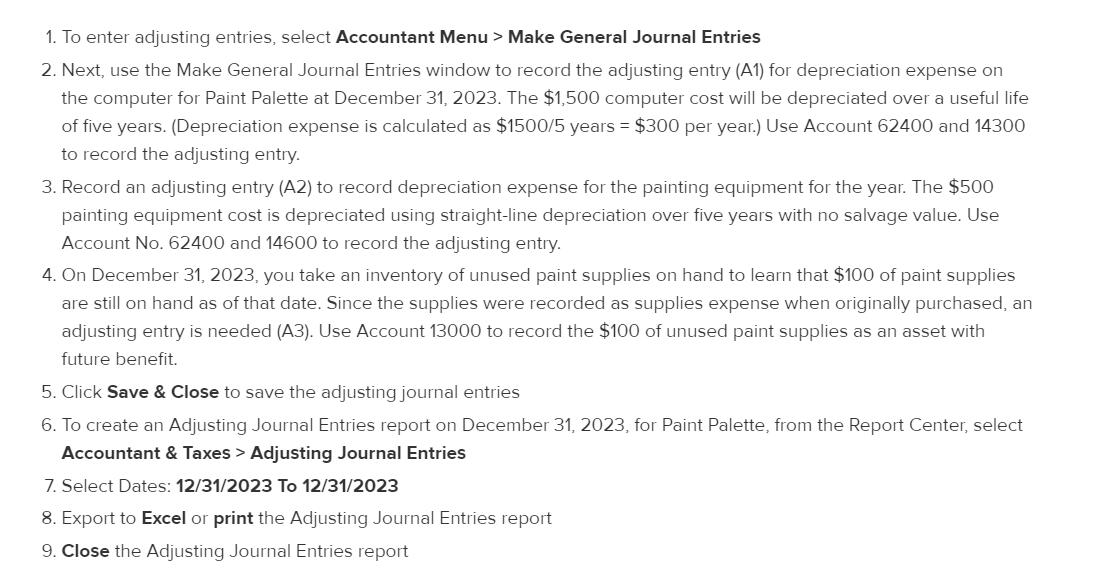
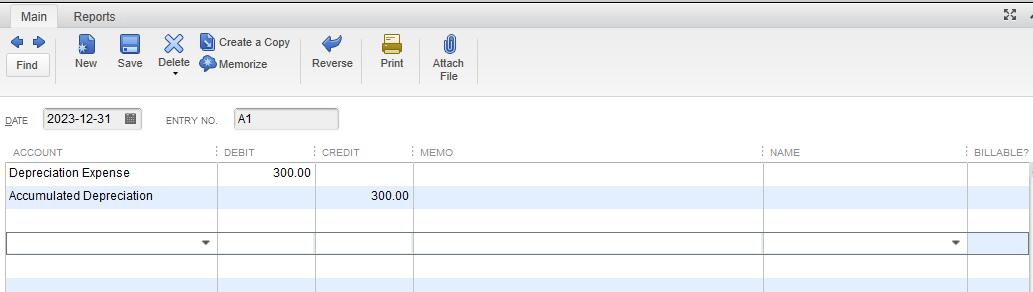
1. To enter adjusting entries, select Accountant Menu > Make General Journal Entries 2. Next, use the Make General Journal Entries window to record the adjusting entry (A1) for depreciation expense on the computer for Paint Palette at December 31, 2023. The $1,500 computer cost will be depreciated over a useful life of five years. (Depreciation expense is calculated as $1500/5 years = $300 per year.) Use Account 62400 and 14300 to record the adjusting entry. 3. Record an adjusting entry (A2) to record depreciation expense for the painting equipment for the year. The $500 painting equipment cost is depreciated using straight-line depreciation over five years with no salvage value. Use Account No. 62400 and 14600 to record the adjusting entry. 4. On December 31, 2023, you take an inventory of unused paint supplies on hand to learn that $100 of paint supplies are still on hand as of that date. Since the supplies were recorded as supplies expense when originally purchased, an adjusting entry is needed (A3). Use Account 13000 to record the $100 of unused paint supplies as an asset with future benefit. 5. Click Save & Close to save the adjusting journal entries 6. To create an Adjusting Journal Entries report on December 31, 2023, for Paint Palette, from the Report Center, select Accountant & Taxes > Adjusting Journal Entries 7. Select Dates: 12/31/2023 To 12/31/2023 8. Export to Excel or print the Adjusting Journal Entries report 9. Close the Adjusting Journal Entries report Main Reports E X Create a Copy Delete Memorize Find New Save Reverse Print Attach File DATE 2023-12-31 ENTRY NO. A1 DEBIT CREDIT E MEMO NAME BILLABLE? ACCOUNT Depreciation Expense Accumulated Depreciation 300.00 300.00
Step by Step Solution
There are 3 Steps involved in it

Get step-by-step solutions from verified subject matter experts