







Question: Use Spyder for below task Start with your program from previous task: 1. Modify the theme of your program. 2. Modify the program to add
Use Spyder for below task
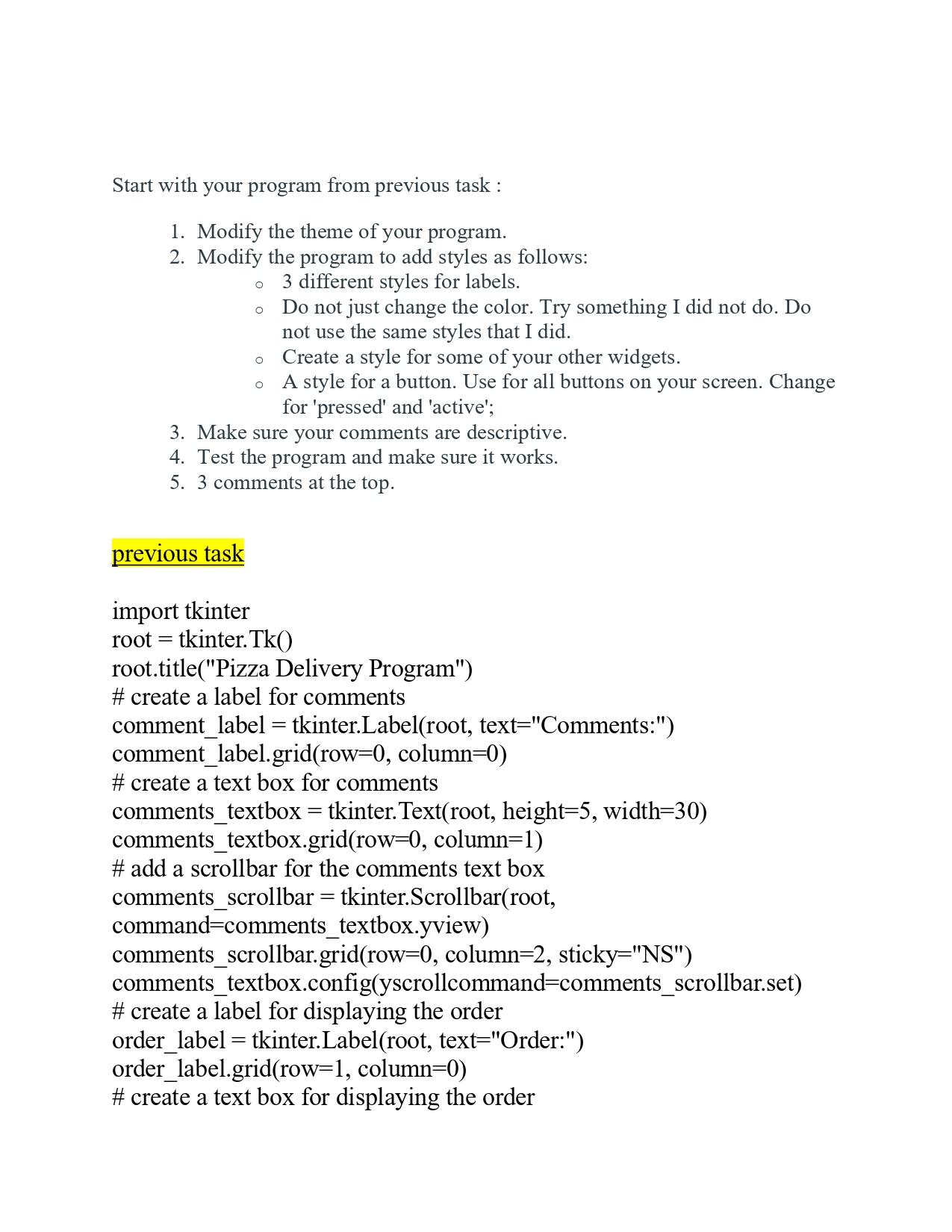
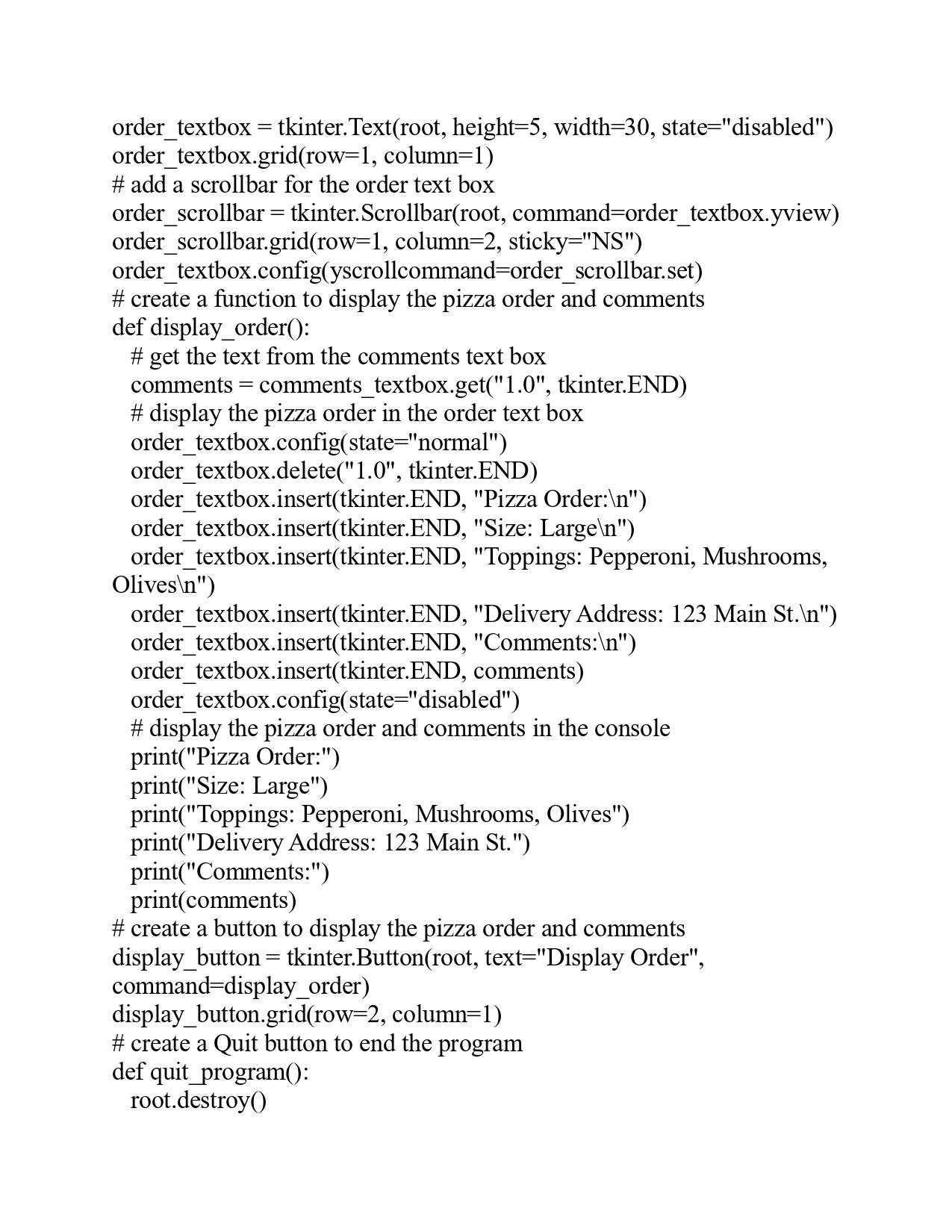
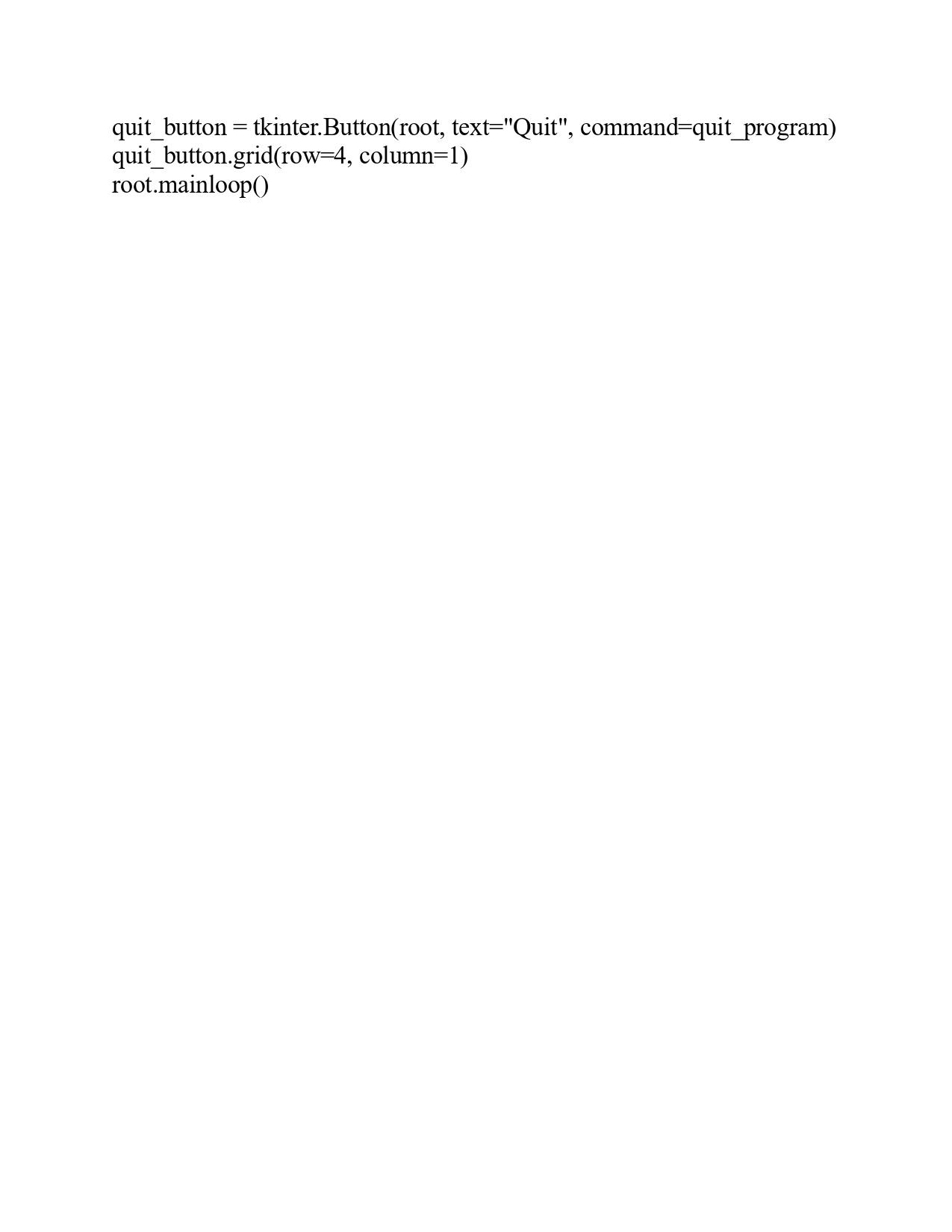
Start with your program from previous task: 1. Modify the theme of your program. 2. Modify the program to add styles as follows: 3 different styles for labels. Do not just change the color. Try something I did not do. Do not use the same styles that I did. Create a style for some of your other widgets. A style for a button. Use for all buttons on your screen. Change for 'pressed' and 'active'; 3. Make sure your comments are descriptive. 4. Test the program and make sure it works. 5. 3 comments at the top. previous task import tkinter root -tkinter.Tk() root.title("Pizza Delivery Program") # create a label for comments comment_label = tkinter.Label(root, text="Comments:") comment_label.grid(row=0, column=0) # create a text box for comments comments_textbox = tkinter.Text(root, height=5, width=30) comments_textbox.grid(row=0, column=1) # add a scrollbar for the comments text box comments_scrollbar = tkinter.Scrollbar(root, command=comments_textbox.yview) comments_scrollbar.grid(row=0, column=2, sticky="NS") comments_textbox.config(yscrollcommand=comments_scrollbar.set) # create a label for displaying the order order_label=tkinter. Label(root, text="Order:") order_label.grid(row=1, column=0) # create a text box for displaying the order
Step by Step Solution
There are 3 Steps involved in it

Get step-by-step solutions from verified subject matter experts
 Study Help