







Question: used the Rubric to do the NP HTML and CSS, 8evTutorial 2, Tutorial tss_styles.css file: Add the following style rules directly below the Heading Styles
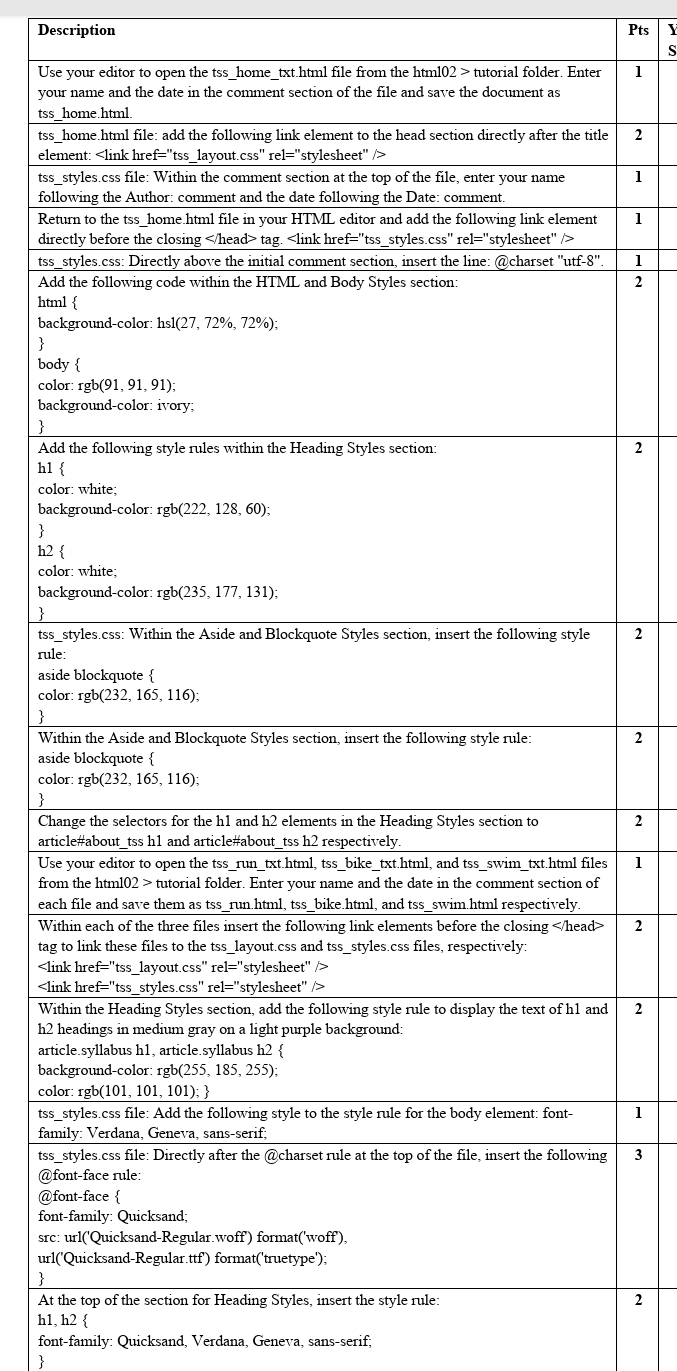
used the Rubric to do the NP HTML and CSS, 8evTutorial 2, Tutorial
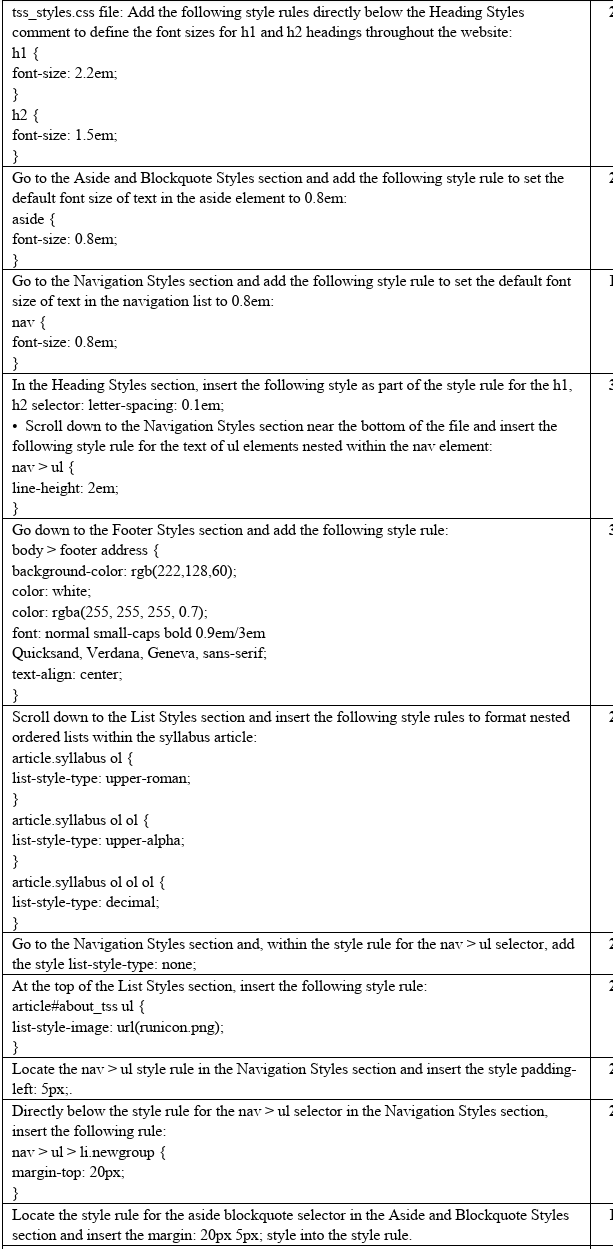
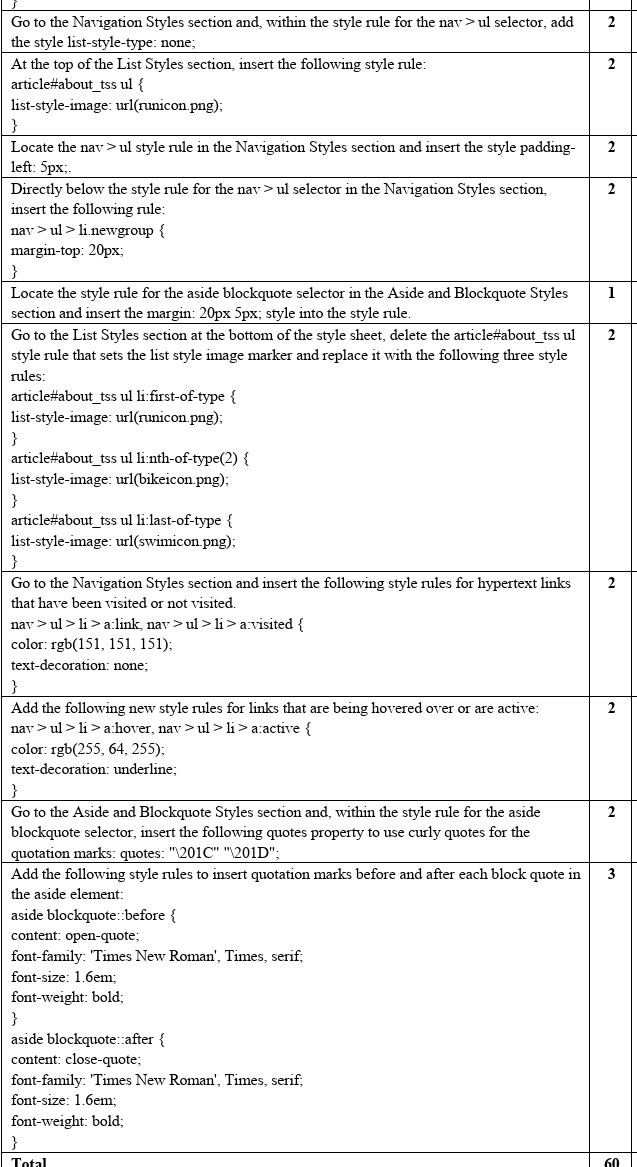
tss_styles.css file: Add the following style rules directly below the Heading Styles comment to define the font sizes for h1 and h2 headings throughout the website: h1 \{ font-size: 2.2em; \} h 2\{ font-size: 1.5em; \} Go to the Aside and Blockquote Styles section and add the following style rule to set the default font size of text in the aside element to 0.8em : aside \{ font-size: 0.8em; \} Go to the Navigation Styles section and add the following style rule to set the default font size of text in the navigation list to 0.8em : nav \{ font-size: 0.8em; \} In the Heading Styles section, insert the following style as part of the style rule for the h1, h2 selector: letter-spacing: 0.1em; - Scroll down to the Navigation Styles section near the bottom of the file and insert the following style rule for the text of ul elements nested within the nav element: nav >ul{ line-height: 2em; \} Go down to the Footer Styles section and add the following style rule: body > footer address \{ background-color: rgb(222,128,60); color: white; color: rgba(255,255,255,0.7) font: normal small-caps bold 0.9em/3em Quicksand, Verdana, Geneva, sans-serif; text-align: center; \} Scroll down to the List Styles section and insert the following style rules to format nested ordered lists within the syllabus article: article.syllabus ol \{ list-style-type: upper-roman; 3 article.syllabus ol ol \{ list-style-type: upper-alpha; \} article.syllabus ol ol ol \{ list-style-type: decimal; \} Go to the Navigation Styles section and, within the style rule for the nav > ul selector, add the style list-style-type: none; At the top of the List Styles section, insert the following style rule: article\#tabout_tss ul \{ list-style-image: url(runicon.png); \} Locate the nav >ul style rule in the Navigation Styles section and insert the style paddingleft: 5px;. Directly below the style rule for the nav >ul selector in the Navigation Styles section, insert the following rule: nav >ul> li.newgroup \{ margin-top: 20px; \} Locate the style rule for the aside blockquote selector in the Aside and Blockquote Styles section and insert the margin: 20px5px; style into the style rule
Step by Step Solution
There are 3 Steps involved in it

Get step-by-step solutions from verified subject matter experts
 Study Help