







Question: Using MS Project, based on the scenario, requirements and table below, please create a project file with appropriate tasks and their timing and links. Scenario:
Using MS Project, based on the scenario, requirements and table below, please create a project file with appropriate tasks and their timing and links.
Scenario: You have a part-time job working for Owl River Development, Inc., a general contracting company that manages residential construction projects. You currently are assigned to work on one of the companys projects, New Era Project. The project manager has asked you to use Project 2016 to set up a project file for the Project.
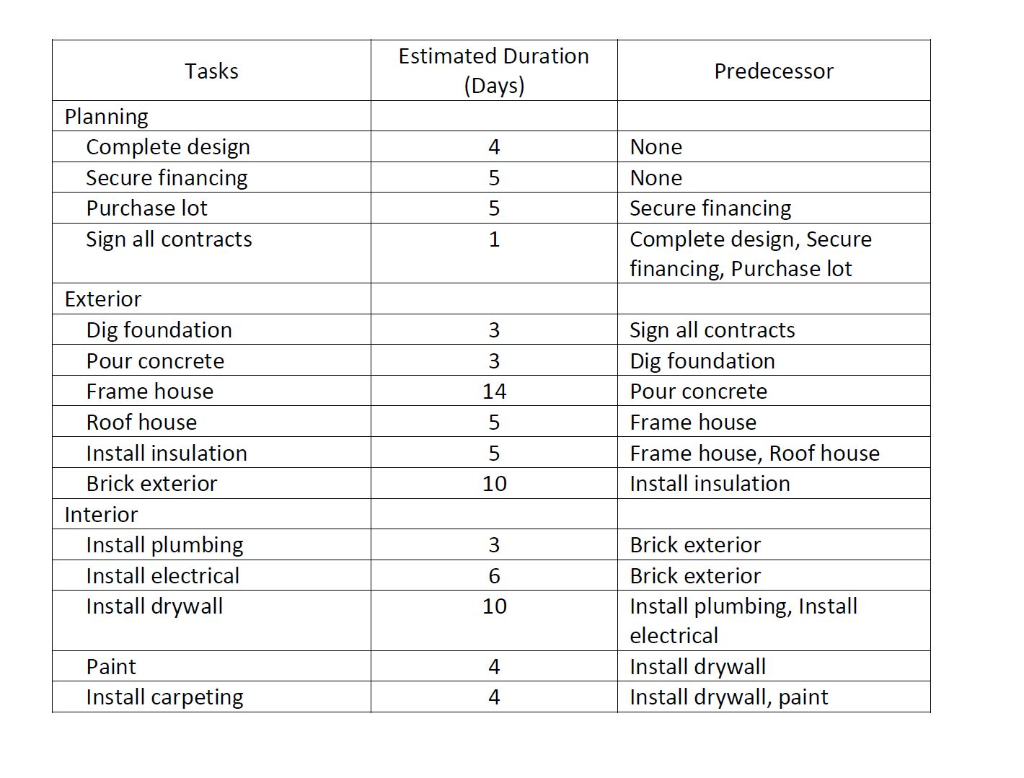
Requirements: 1. Set the project start date as Monday, June 30th, 2014 (make sure that you set it as 2014, not current year) 2. Create a project calendar called New Era and set it as the project calendar; add July 4th holiday (July 4th, 2014) as a non-working day 3. All tasks (including summary tasks) should be Auto Scheduled 4. All tasks must have a finish-to-start relationship with no delay or overlap except for the following: o There is a two-day overlap between Secure financing task and Purchase lot task (Purchase lot task can start two days before Secure financing task is complete) o Add a one-day lag to the link between the Pour concrete task and the Frame house task to give the concrete time to dry o Install drywall task can start one day before Install electrical task is completed o Paint task cannot start until one day after Install drywall task is complete o Install carpeting task cannot start until one day after paint task is complete 5. Use Planning, Exterior and Interior as summary tasks; milestones should be created for all three summary tasks, as well as the project summary task 6. Milestones should be Auto Scheduled, have a duration of zero, and driven by (i.e., linked to) the task that finishes last within a given block of tasks (please note that the position of milestones should follow the convention outlined in Tutorial 3: Creating Tasks: Creating a milestone task) 7. Make sure to show outline number, project summary task and summary tasks for the task list 8. Add Total Slack column to the project file in the Gantt View and make sure to show critical path and slack (to complete this, please check Tutorial 8: Fine-tuning the Project Schedule: Reviewing the critical path; make sure that you watch the whole segment and understand the concepts of slack, critical task and critical path) See activity list table on the next page.
Step by Step Solution
There are 3 Steps involved in it

Get step-by-step solutions from verified subject matter experts
 Study Help