







Question: using python program, thank you. art 3-Presenting a Scene With the story dictionary built its time to start telling your story. Let's start by displaying
using python program, thank you.
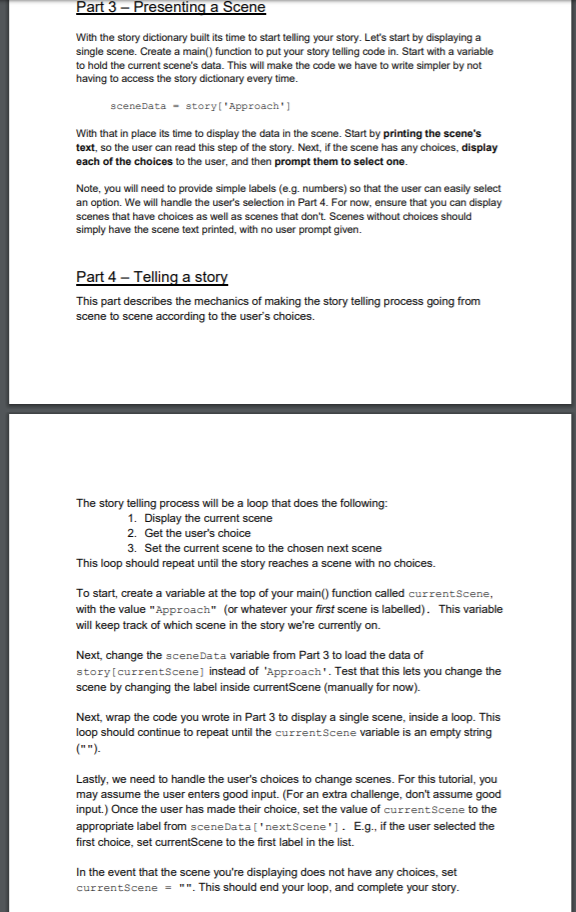
art 3-Presenting a Scene With the story dictionary built its time to start telling your story. Let's start by displaying a single scene. Create a main) function to put your story telling code in. Start with a variable to hold the current scene's data. This will make the code we have to write simpler by not having to access the story dictionary every time. sceneData storyl 'Approach'] With that in place its time to display the data in the scene. Start by printing the scene's text, so the user can read this step of the story. Next, if the scene has any choices, display each of the choices to the user, and then prompt them to select one. Note, you will need to provide simple labels (e.g. numbers) so that the user can easily select an option. We will handle the user's selection in Part 4. For now, ensure that you can display scenes that have choices as well as scenes that don't. Scenes without choices should simply have the scene text printed, with no user prompt given. Part 4- Telling a sto This part describes the mechanics of making the story telling process going from scene to scene according to the user's choices. The story telling process will be a loop that does the following: 1. Display the current scene 2. Get the user's choice 3. Set the current scene to the chosen next scene This loop should repeat until the story reaches a scene with no choices. To start, create a variable at the top of your main) function called currentScene, with the value "Approach" (or whatever your first scene is labelled). This variable will keep track of which scene in the story we're currently on. Next, change the sceneData variable from Part 3 to load the data of story[currentScene] instead of 'Approach'. Test that this lets you change the scene by changing the label inside currentScene (manually for now). Next, wrap the code you wrote in Part 3 to display a single scene, inside a loop. This loop should continue to repeat until the currentScene variable is an empty string Lastly, we need to handle the user's choices to change scenes. For this tutorial, you may assume the user enters good input. (For an extra challenge, don't assume good input.) Once the user has made their choice, set the value of currentScene to the appropriate label from sceneData['nextScene'. E.g., if the user selected the first choice, set currentScene to the first label in the list. In the event that the scene you're displaying does not have any choices, set currentScene "". This should end your loop, and complete your story. art 3-Presenting a Scene With the story dictionary built its time to start telling your story. Let's start by displaying a single scene. Create a main) function to put your story telling code in. Start with a variable to hold the current scene's data. This will make the code we have to write simpler by not having to access the story dictionary every time. sceneData storyl 'Approach'] With that in place its time to display the data in the scene. Start by printing the scene's text, so the user can read this step of the story. Next, if the scene has any choices, display each of the choices to the user, and then prompt them to select one. Note, you will need to provide simple labels (e.g. numbers) so that the user can easily select an option. We will handle the user's selection in Part 4. For now, ensure that you can display scenes that have choices as well as scenes that don't. Scenes without choices should simply have the scene text printed, with no user prompt given. Part 4- Telling a sto This part describes the mechanics of making the story telling process going from scene to scene according to the user's choices. The story telling process will be a loop that does the following: 1. Display the current scene 2. Get the user's choice 3. Set the current scene to the chosen next scene This loop should repeat until the story reaches a scene with no choices. To start, create a variable at the top of your main) function called currentScene, with the value "Approach" (or whatever your first scene is labelled). This variable will keep track of which scene in the story we're currently on. Next, change the sceneData variable from Part 3 to load the data of story[currentScene] instead of 'Approach'. Test that this lets you change the scene by changing the label inside currentScene (manually for now). Next, wrap the code you wrote in Part 3 to display a single scene, inside a loop. This loop should continue to repeat until the currentScene variable is an empty string Lastly, we need to handle the user's choices to change scenes. For this tutorial, you may assume the user enters good input. (For an extra challenge, don't assume good input.) Once the user has made their choice, set the value of currentScene to the appropriate label from sceneData['nextScene'. E.g., if the user selected the first choice, set currentScene to the first label in the list. In the event that the scene you're displaying does not have any choices, set currentScene "". This should end your loop, and complete your story
Step by Step Solution
There are 3 Steps involved in it

Get step-by-step solutions from verified subject matter experts
 Study Help