







Question: Using the essential elements ( format your formulas, use cell references, Double-check your mathematical operators and order, simplify with functions) Review the information abiut prospective
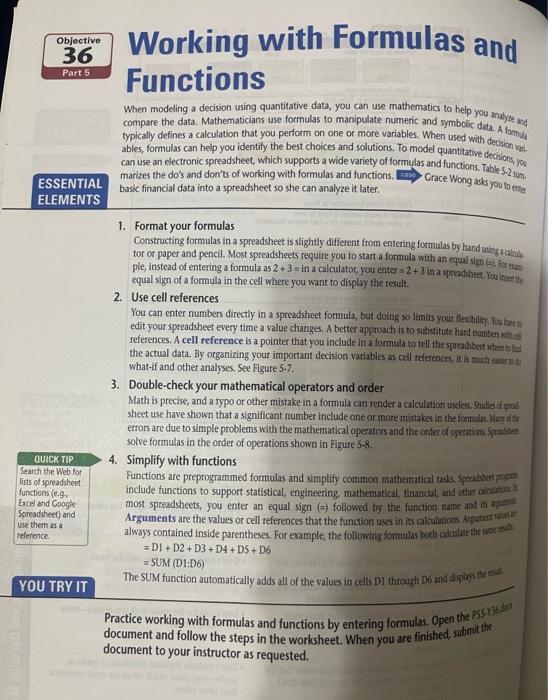
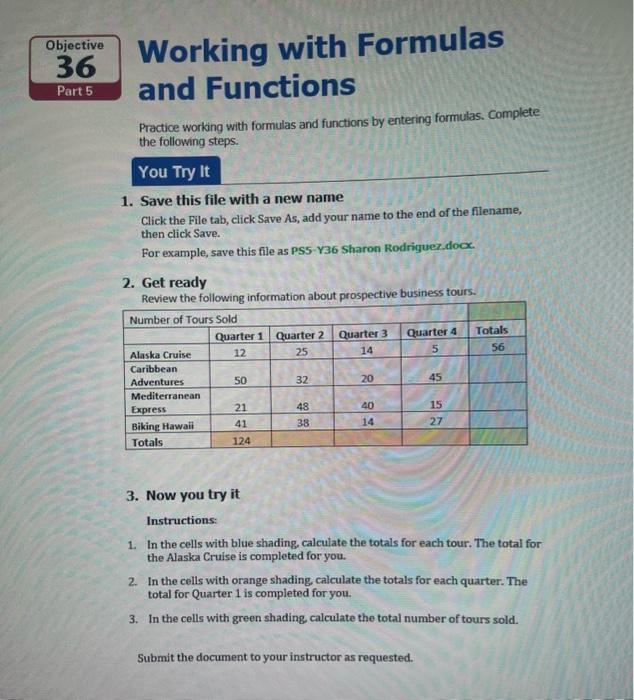
When modeling a decision using quantitative data, you can use mathematics to help you analyze and compare the data. Mathematicians use formulas to manipulate numeric and symbolic data. A fommh typically defines a calculation that you perform on one or more variables. When used with decision lari. ables, formulas can help you identify the best choices and solutions. To model quantitative deciaions you can use an electronic spreadsheet, which supports a wide variety of formulas and functions. Table 5.2 2um, ESSENTIAL marizes the do's and don'ts of working with formulas and functions. CaEs Crace Wong asks you to etrear ELEMENTS 1. Format your formulas Constructing formulas in a spreadsheet is slightly different from entering formulas by hand usingachas. tor or paper and penci. Most spreadsheets require you to start a formula with an equal sign ( =, For eus ple, instead of entering a formula as 2+3= in a calculator, you enter =2+3 in a spreadsteet. for inser the equal sign of a formula in the cell where you want to display the result. 2. Use cell references You can enter numbers directly in a spreadsheet formuia, but doing so limits your flectibility, You harea edit your spreadsheet every time a value changes. A better approach is to sabstitute hard numben wial at the actual data. By organizing your important decision variables as cell referencer, it is nhich asar tom what-if and other analyses, See Figure S-7. 3. Double-check your mathematical operators and order Math is precise, and a typo or other mistake in a formula can render a calculation Leless. Stulio of yriat sheet use have shown that a significant number include one or more mistakes in the formulas. Watr dar errors are due to simple problems with the mathematical ogerators and the order of cpention sprablen solve formulas in the order of operations shown in Figure 5.8 . The SUM function automatically adds all of the values in cells DI through D and equplag thic ia? Practice working with formulas and functions by entering formulas. Open the 255 w 35606 document and follow the steps in the worksheet. When you are finished, submit the document to your instructor as requested. Practice working with formulas and functions by entering formulas. Complete the following steps. 1. Save this file with a new name Click the File tab, click Save As, add your name to the end of the filename, then click Save. For example, save this file as PS5-Y36 Sharon Rodriguez docx. 2. Get ready Review the following information about prospective business tours. 3. Now you try it Instructions: 1. In the cells with blue shading, calculate the totals for each tour. The total for the Alaska Cruise is completed for you. 2. In the cells with orange shading, calculate the totals for each quarter. The total for Quarter 1 is completed for you. 3. In the cells with green shading, calculate the total number of tours sold. Submit the document to your instructor as requested. When modeling a decision using quantitative data, you can use mathematics to help you analyze and compare the data. Mathematicians use formulas to manipulate numeric and symbolic data. A fommh typically defines a calculation that you perform on one or more variables. When used with decision lari. ables, formulas can help you identify the best choices and solutions. To model quantitative deciaions you can use an electronic spreadsheet, which supports a wide variety of formulas and functions. Table 5.2 2um, ESSENTIAL marizes the do's and don'ts of working with formulas and functions. CaEs Crace Wong asks you to etrear ELEMENTS 1. Format your formulas Constructing formulas in a spreadsheet is slightly different from entering formulas by hand usingachas. tor or paper and penci. Most spreadsheets require you to start a formula with an equal sign ( =, For eus ple, instead of entering a formula as 2+3= in a calculator, you enter =2+3 in a spreadsteet. for inser the equal sign of a formula in the cell where you want to display the result. 2. Use cell references You can enter numbers directly in a spreadsheet formuia, but doing so limits your flectibility, You harea edit your spreadsheet every time a value changes. A better approach is to sabstitute hard numben wial at the actual data. By organizing your important decision variables as cell referencer, it is nhich asar tom what-if and other analyses, See Figure S-7. 3. Double-check your mathematical operators and order Math is precise, and a typo or other mistake in a formula can render a calculation Leless. Stulio of yriat sheet use have shown that a significant number include one or more mistakes in the formulas. Watr dar errors are due to simple problems with the mathematical ogerators and the order of cpention sprablen solve formulas in the order of operations shown in Figure 5.8 . The SUM function automatically adds all of the values in cells DI through D and equplag thic ia? Practice working with formulas and functions by entering formulas. Open the 255 w 35606 document and follow the steps in the worksheet. When you are finished, submit the document to your instructor as requested. Practice working with formulas and functions by entering formulas. Complete the following steps. 1. Save this file with a new name Click the File tab, click Save As, add your name to the end of the filename, then click Save. For example, save this file as PS5-Y36 Sharon Rodriguez docx. 2. Get ready Review the following information about prospective business tours. 3. Now you try it Instructions: 1. In the cells with blue shading, calculate the totals for each tour. The total for the Alaska Cruise is completed for you. 2. In the cells with orange shading, calculate the totals for each quarter. The total for Quarter 1 is completed for you. 3. In the cells with green shading, calculate the total number of tours sold. Submit the document to your instructor as requested
Step by Step Solution
There are 3 Steps involved in it

Get step-by-step solutions from verified subject matter experts
 Study Help