







Question: using this baseline Complete the following steps step 1 Adapt your backup script so that the directory to be backed up is set by a
using this baseline 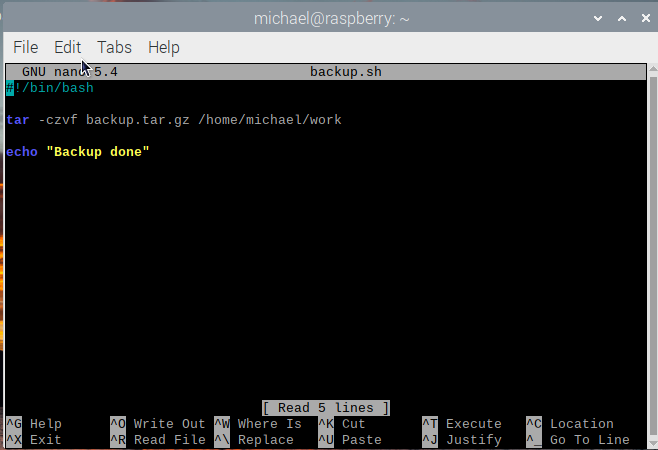
Complete the following steps
step 1
Adapt your backup script so that the directory to be backed up is set by a variable, for example srcdir. The name of the backup file can be set by another variable.
Remember that $ is required to use the value of a variable. Does your script back up the correct directory? Is the backup file that is produced named appropriately? Remember you can use the echo command to display the values of variables.
step 2
Adapt your backup script so that the filename used for the backup file includes todays date and the name of the directory being backed up, for example work-2022-12-25-archive.tgz.
Did you make use of the date command as in Activity 15? Were you able to combine variables? Did you echo a command to check the arguments before executing it?
Some other tips that might be useful:
- The date man page has many options for obtaining and formatting the date; the -I (capital i) option used previously is suitable.
- Avoid constructing a filename that contains spaces. You could use - (hyphen) instead; for example, "my-dir-2020-12-25.tgz" rather than "my dir 2020 Dec 25.tgz".
- Beware of ambiguity when combining variable names with literal strings. For example "my $var value" is fine, but "my$varvalue" may not mean what was intended; an alternative syntax "my${var}value" can be used to remove ambiguity.
- Use double quotes for strings containing variables: single-quoted strings are taken literally.
step 3
Your home directory contains several directories that should be backed up regularly, for example Documents, Music and Pictures. Create a script that will back up these directories. To reduce clutter, the script should move the backup files into a subdirectory called backups.
please do the steps in order adjusting the bash script as needed, do not skip steps or combine them, just do a step then re-adjust to whats needed
michael@raspberry: File Edit Tabs Help GNU nanh 5.4 backup.sh #!/ bin/bash tar -czvf backup.tar.gz /home/michael/work echo "Backup done" [ Read 5 lines ] 0 Write out W Where Is K Cut T Execute C Location R Read File \ Replace U Paste J Justify Go To Line
Step by Step Solution
There are 3 Steps involved in it

Get step-by-step solutions from verified subject matter experts
 Study Help