







Question: ***Using webGL*** Draw your shape that shows a specific direction (for example, an arrow). There are five inputs in this application: 1. Slider: controls the
***Using webGL***
Draw your shape that shows a specific direction (for example, an arrow). There are five inputs in this application:
1. Slider: controls the speed of your shapes movement.
2. Start button: starts the animation of the shapes movement.
3. Stop button: stops the animation of the shapes movement.
4. Change Direction button: changes the direction of the shapes movement.
5. Colour menu: the colour of the shape changes based on the menu option.
You are encouraged to come up with your unique shape (other than a simple arrow) such as a spaceship, airplane, car, rocket, train, boat, etc.
When your WebGL application is loaded into a browser, the shape is moving to the right (the shape should show the correction direction). With the available inputs, you can stop or start the movement and change the direction of the movement at any time. When the shape hits the wall on the right, it changes the direction of the movement (to the left) with the correct direction of the shape. It does the same thing with the left wall but in the opposite direction. You can change the speed of the movement with the slider: from the minimum speed to the maximum speed. You can also change the colour of the shape with the colour menu options.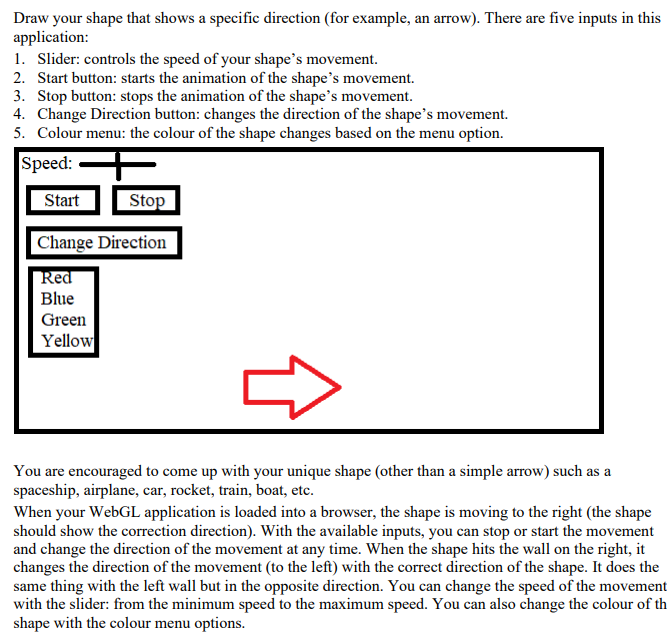
Draw your shape that shows a specific direction (for example, an arrow). There are five inputs in this application: 1. Slider: controls the speed of your shape's movement. 2. Start button: starts the animation of the shape's movement. 3. Stop button: stops the animation of the shape's movement. 4. Change Direction button: changes the direction of the shape's movement. 5. Colour menu: the colour of the shape changes based on the menu option. Speed: Start Stop Change Direction Red Blue Green Yellow You are encouraged to come up with your unique shape (other than a simple arrow) such as a spaceship, airplane, car, rocket, train, boat, etc. When your WebGL application is loaded into a browser, the shape is moving to the right (the shape should show the correction direction). With the available inputs, you can stop or start the movement and change the direction of the movement at any time. When the shape hits the wall on the right, it changes the direction of the movement (to the left) with the correct direction of the shape. It does the same thing with the left wall but in the opposite direction. You can change the speed of the movement with the slider: from the minimum speed to the maximum speed. You can also change the colour of th shape with the colour menu options. Draw your shape that shows a specific direction (for example, an arrow). There are five inputs in this application: 1. Slider: controls the speed of your shape's movement. 2. Start button: starts the animation of the shape's movement. 3. Stop button: stops the animation of the shape's movement. 4. Change Direction button: changes the direction of the shape's movement. 5. Colour menu: the colour of the shape changes based on the menu option. Speed: Start Stop Change Direction Red Blue Green Yellow You are encouraged to come up with your unique shape (other than a simple arrow) such as a spaceship, airplane, car, rocket, train, boat, etc. When your WebGL application is loaded into a browser, the shape is moving to the right (the shape should show the correction direction). With the available inputs, you can stop or start the movement and change the direction of the movement at any time. When the shape hits the wall on the right, it changes the direction of the movement (to the left) with the correct direction of the shape. It does the same thing with the left wall but in the opposite direction. You can change the speed of the movement with the slider: from the minimum speed to the maximum speed. You can also change the colour of th shape with the colour menu options
Step by Step Solution
There are 3 Steps involved in it

Get step-by-step solutions from verified subject matter experts
 Study Help