







Question: Visual Basic 2012 Try and Catch method does not work. Any other solutions? *IMPORTANT*- the boxes below total rainfall and average rainfall are LABELS Not
Visual Basic 2012 Try and Catch method does not work. Any other solutions? *IMPORTANT*- the boxes below total rainfall and average rainfall are LABELS Not text boxes
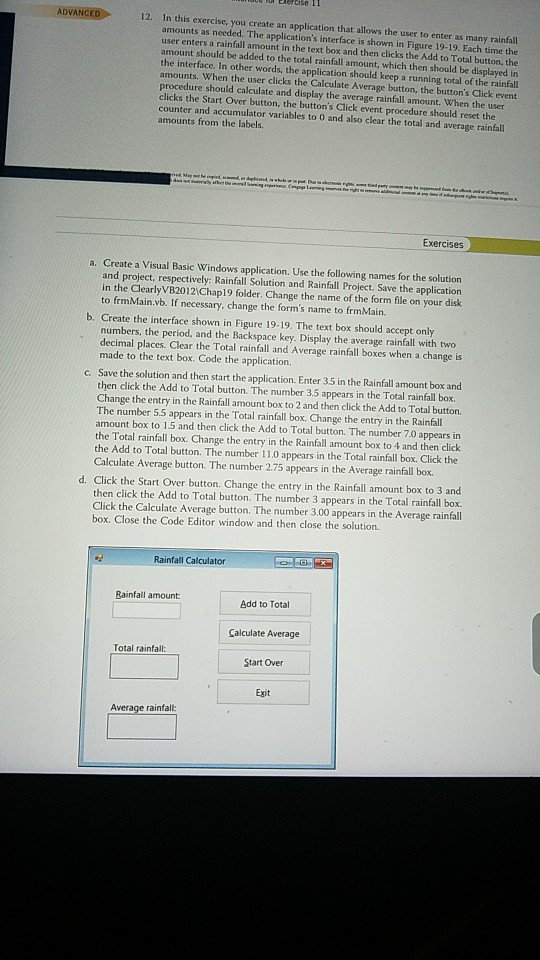
Cise 11 ADVANCED12. In this exercise, yo u create an application that allows the user to enter as many amounts as needed. The application's interface is shown in Figure 19-19. Each time the rainfal user enters a rainfall amount in the text box and then clicks the Add to Total button, the amount should be added to the total rainfall amount, which then should be di the interface. In other words, the application should keep a running total of the rainfall amounts. When the user clicks the Calculate Average procedure should calculate and display the average rainfall amount. When the user clicks the Start Over button, the button's Click event procedure should reset the counter and accumulator variables to 0 and also clear the total and average rainfall amounts from the labels button, the button's Click event and display the ant procedure Exercises a. Create a Visual Basic Windows application. Use the following names for the solution and project, respectively: Rainfall Solution and Rainfall Project. Save the application in the ClearlyVB20121Chap19 folder. Change the name of the form file on your disk to frmMain.vb. If necessary, change the form's name to frmMain. b. Create the interface shown in Figure 19-19. The text box should accept only numbers, the period, and the Backspace key. Display the average rainfall with two decimal places. Clear the Total rainfall and Average rainfall boxes when a change is made to the text box. Code the application. c. Save the solution and then start the application. Enter 3.5 in the Rainfall amount box and then click the Add to Total button. The number 3.5 appears in the Total rainfall box. Change the entry in the Rainfall amount box to 2 and then click the Add to Total button. The number 5.5 appears in the Total rainfall box. Change the entry in the Rainfall amount box to 1.5 and then click the Add to Total button. The number 7.0 appears in the Total rainfall box. Change the entry in the Rainfall amount box to 4 and then click the Add to Total button. The number 11.0 appears in the Total rainfall box. Click the Calculate Average button. The number 2.75 appears in the Average rainfall box. d. Click the Start Over button. Change the entry in the Rainfall amount box to 3 and then click the Add to Total button. The number 3 appears in the Total rainfall box. Click the Calculate Average button. The number 300 appears in the Average rainfall box. Close the Code Editor window and then close the solution. Rainfall Calculator Rainfall amount Add to Total Calculate Average Start Over Total rainfall: Exit Average rainfall
Step by Step Solution
There are 3 Steps involved in it

Get step-by-step solutions from verified subject matter experts
 Study Help