







Question: Visual Basic Summary: In this assignment you create project where you compute income tax. You enter your first and last names and your income. Then
Visual Basic
Summary: In this assignment you create project where you compute income tax. You enter your first and last names and your income. Then press on Calculate Tax button to calculate tax amount based on income levels. There are three brackets for calculating the tax. Once the tax amount is calculated, program displays your full name and tax amount in a Label control. See below screenshot for completed project. Instructions: Create a new project and name it as yourlastname-firstname-Assignment2. Save this project in VB folder you created earlier. Using forms Text property, change the title to: Your full name Assignment 2. Form contains four Labels, three TextBoxes, and three Button controls. You use labels to let user know what to enter and what will be displayed; TextBoxes to input your first name, last name, and your income. Buttons to Calculate Tax, Clear Input and Exit program. See below Form Layout with Controls for more details. Declare variables to store FirstName, LastName, Income, and what will be displayed in the fourth Label. See below Form. These variables are String type. Income and tax variables are "Currency" You will create IF ... Then ... ElseIf structure to calculate tax based on the three brackets. 10% tax for Income $0 - $10000 ; 20% tax for income between $10000 - $50000 ; 30% tax for income over $50000. Declare constants for three tax rates: 10%, 20%, and 30%. Note: VB does not use percentages. You must use numbers: 0.20 for 20% and so on. Const RATE1 As Decimal = 0.2 Items to note: variables names must follow the conventions and rules explained in this week's slides and must have proper data type for the values that will be stored in them. Appearance of the form is very important; Make sure that your design is clean; Spelling is important. Text property of controls must use the text shown in below Form. Clear Input button, clears TextBoxes and replaces the original text in fourth Label: "Your Name and Tax amount will be displayed here". Exit button, closes the Form. You will write the code for the three buttons. Avoid double-clicking on TextBox and Label Controls to create unnecessary code. Run the program, enter values for three TextBoxes then click Calculate Tax button, Your Tax displays on the label. Example: Joe Smith, your tax amount is: $12,450
Write a simple program.
Write down names for each textbox, button, and label.
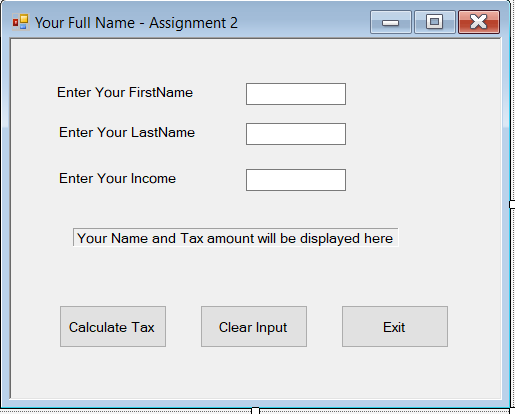
Your Full Name - Assignment 2 Enter Your FirstName Enter Your LastName Enter Your Income Your Name and Tax amount will be displayed here Calculate Tax Clear Input Exit
Step by Step Solution
There are 3 Steps involved in it

Get step-by-step solutions from verified subject matter experts
 Study Help