







Question: Week 2-Lab Create a new project file in Visual Studio checked into git well named Save the files and commit the initial build Add a
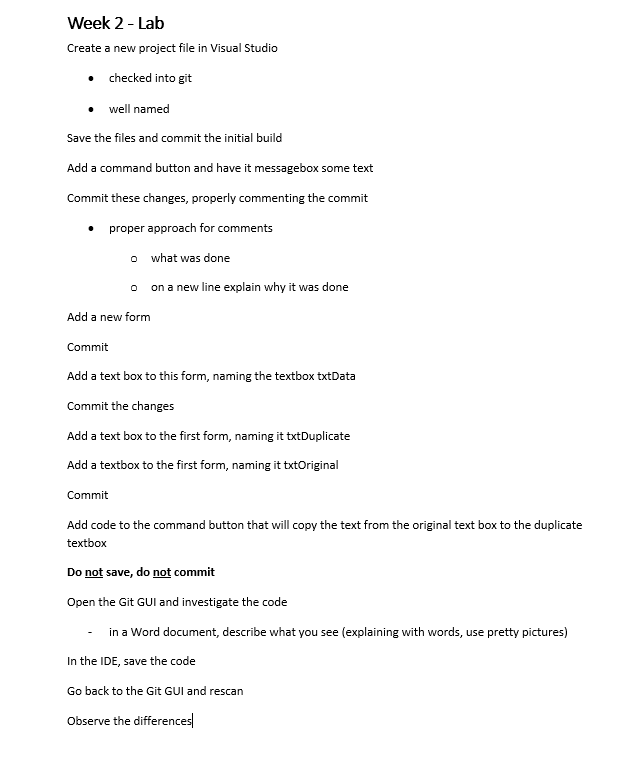
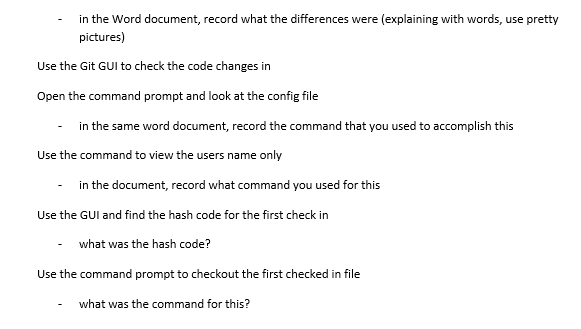
Week 2-Lab Create a new project file in Visual Studio checked into git well named Save the files and commit the initial build Add a command button and have it messagebox some text Commit these changes, properly commenting the commit proper approach for comments o what was done o on a new line explain why it was done Add a new form Commit Add a text box to this form, naming the textbox txtData Commit the changes Add a text box to the first form, naming it txtDuplicate Add a textbox to the first form, naming it txtOriginal Commit Add code to the command button that will copy the text from the original text box to the duplicate textbox Do not save, do not commit Open the Git GUI and investigate the code in a Word document, describe what you see (explaining with words, use pretty pictures) In the IDE, save the code Go back to the Git GUI and rescan Observe the differences Week 2-Lab Create a new project file in Visual Studio checked into git well named Save the files and commit the initial build Add a command button and have it messagebox some text Commit these changes, properly commenting the commit proper approach for comments o what was done o on a new line explain why it was done Add a new form Commit Add a text box to this form, naming the textbox txtData Commit the changes Add a text box to the first form, naming it txtDuplicate Add a textbox to the first form, naming it txtOriginal Commit Add code to the command button that will copy the text from the original text box to the duplicate textbox Do not save, do not commit Open the Git GUI and investigate the code in a Word document, describe what you see (explaining with words, use pretty pictures) In the IDE, save the code Go back to the Git GUI and rescan Observe the differences
Step by Step Solution
There are 3 Steps involved in it

Get step-by-step solutions from verified subject matter experts
 Study Help