







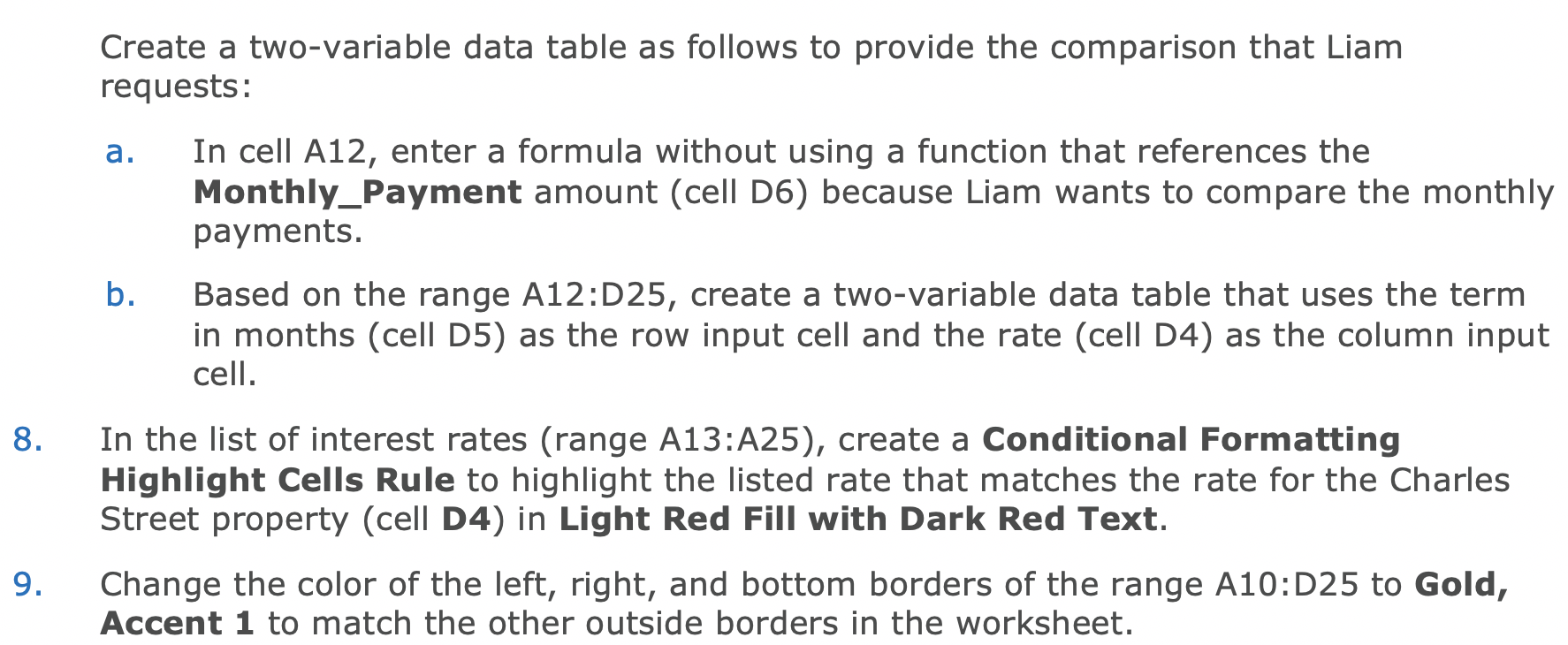
Question: What do I insert in the columns after 120? Create a two-variable data table as follows to provide the comparison that Liam requests: a. In
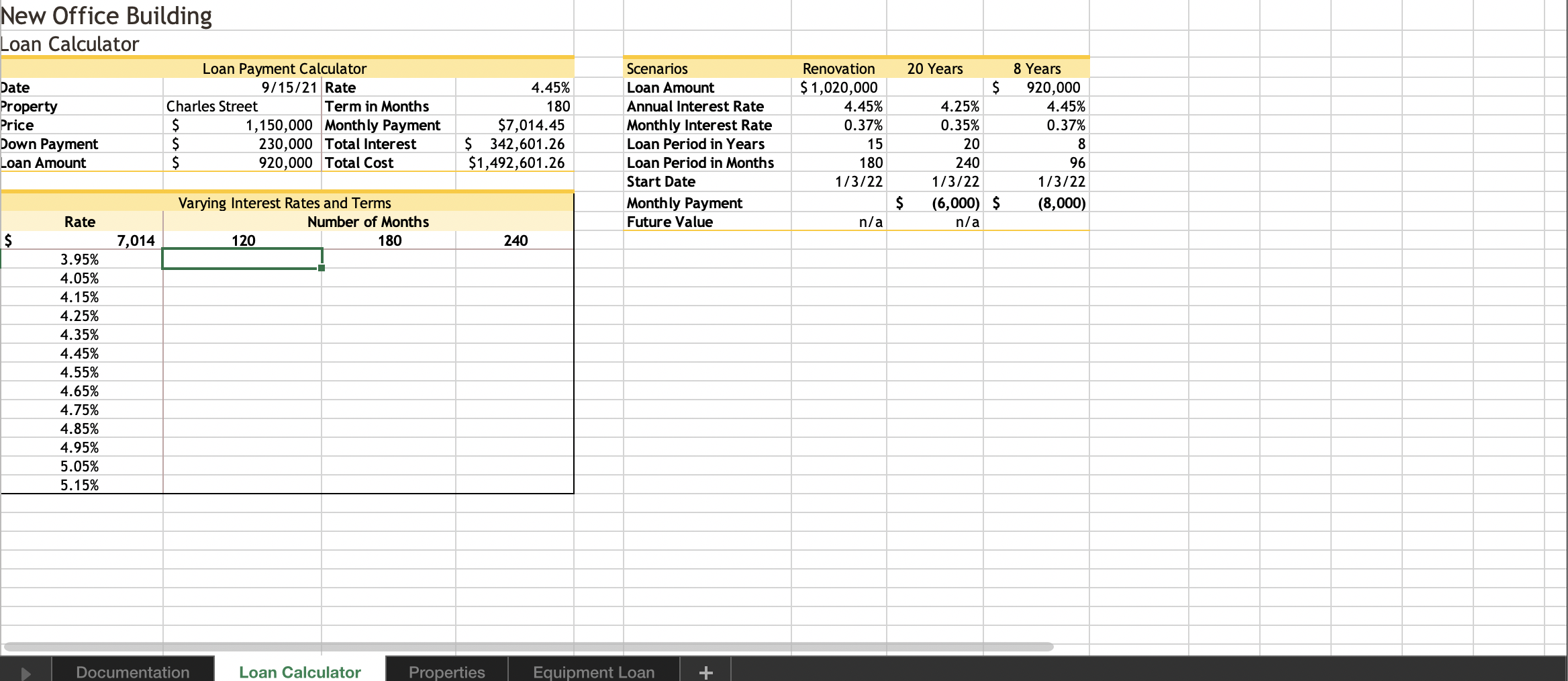 What do I insert in the columns after 120?
Create a two-variable data table as follows to provide the comparison that Liam requests: a. In cell A12, enter a formula without using a function that references the Monthly_Payment amount (cell D6) because Liam wants to compare the monthly payments. Based on the range A12:D25, create a two-variable data table that uses the term in months (cell D5) as the row input cell and the rate (cell D4) as the column input cell. b. 8. In the list of interest rates (range A13:A25), create a Conditional Formatting Highlight Cells Rule to highlight the listed rate that matches the rate for the Charles Street property (cell D4) in Light Red Fill with Dark Red Text. 9. Change the color of the left, right, and bottom borders of the range A10:D25 to Gold, Accent 1 to match the other outside borders in the worksheet. New Office Building Loan Calculator Loan Payment Calculator Date 9/15/21 Rate Property Charles Street Term in Months Price $ 1,150,000 Monthly Payment Down Payment $ 230,000 Total Interest Loan Amount $ 920,000 Total Cost 4.45% 180 $7,014.45 $ 342,601.26 $1,492,601.26 Scenarios Loan Amount Annual Interest Rate Monthly Interest Rate Loan Period in Years Loan Period in Months Start Date Monthly Payment Future Value Renovation $1,020,000 4.45% 0.37% 15 180 1/3/22 20 Years $ 4.25% 0.35% 20 240 1/3/22 $ (6,000) $ n/a 8 Years 920,000 4.45% 0.37% 8 96 1/3/22 (8,000) Rate Varying Interest Rates and Terms Number of Months 120 180 n/a $ 7,014 240 3.95% 4.05% 4.15% 4.25% 4.35% 4.45% 4.55% 4.65% 4.75% 4.85% 4.95% 5.05% 5.15% Documentation Loan Calculator Properties Equipment Loan + Create a two-variable data table as follows to provide the comparison that Liam requests: a. In cell A12, enter a formula without using a function that references the Monthly_Payment amount (cell D6) because Liam wants to compare the monthly payments. Based on the range A12:D25, create a two-variable data table that uses the term in months (cell D5) as the row input cell and the rate (cell D4) as the column input cell. b. 8. In the list of interest rates (range A13:A25), create a Conditional Formatting Highlight Cells Rule to highlight the listed rate that matches the rate for the Charles Street property (cell D4) in Light Red Fill with Dark Red Text. 9. Change the color of the left, right, and bottom borders of the range A10:D25 to Gold, Accent 1 to match the other outside borders in the worksheet. New Office Building Loan Calculator Loan Payment Calculator Date 9/15/21 Rate Property Charles Street Term in Months Price $ 1,150,000 Monthly Payment Down Payment $ 230,000 Total Interest Loan Amount $ 920,000 Total Cost 4.45% 180 $7,014.45 $ 342,601.26 $1,492,601.26 Scenarios Loan Amount Annual Interest Rate Monthly Interest Rate Loan Period in Years Loan Period in Months Start Date Monthly Payment Future Value Renovation $1,020,000 4.45% 0.37% 15 180 1/3/22 20 Years $ 4.25% 0.35% 20 240 1/3/22 $ (6,000) $ n/a 8 Years 920,000 4.45% 0.37% 8 96 1/3/22 (8,000) Rate Varying Interest Rates and Terms Number of Months 120 180 n/a $ 7,014 240 3.95% 4.05% 4.15% 4.25% 4.35% 4.45% 4.55% 4.65% 4.75% 4.85% 4.95% 5.05% 5.15% Documentation Loan Calculator Properties Equipment Loan +
Step by Step Solution
There are 3 Steps involved in it

Get step-by-step solutions from verified subject matter experts
 Study Help