







Question: what info you need Select the Summary sheet. Sort the data by Apartment Complex in alphabetical order and further sort it by # Bed (the
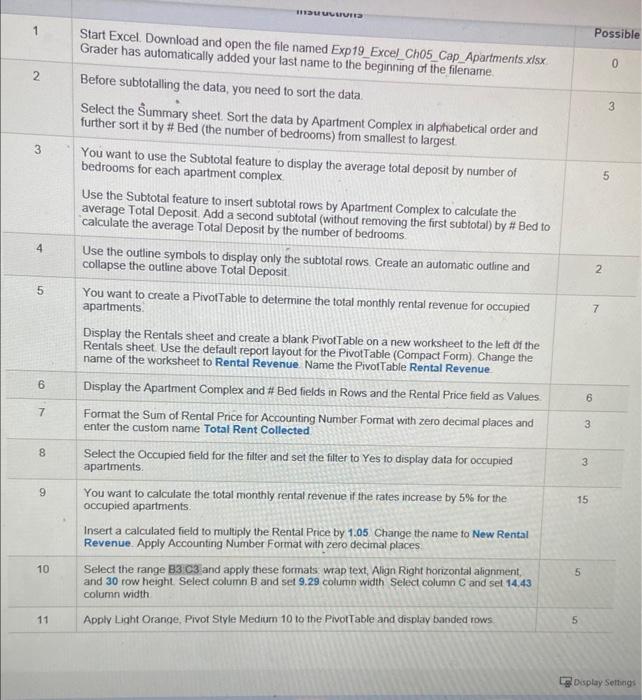
Select the Summary sheet. Sort the data by Apartment Complex in alphabetical order and further sort it by \# Bed (the number of bedrooms) from smallest to largest. You want to use the Subtotal feature to display the average total deposit by number of bedrooms for each apartment complex. Use the Subtotal feature to insert subtotal rows by Apartment Complex to calculate the average Total Deposit. Add a second subtotal (without removing the first subtotal) by # Bed to Use the outline symbols to display only the subtotal rows. Create an automatic outline and collapse the outline above Total Deposit. You want to create a PivotTable to determine the total monthly rental revenue for occupied Display the Rentals sheet and create a blank PivotTable on a new worksheet to the left of the Rentals sheet. Use the default report layout for the PivotTable (Compact Form). Change the name of the worksheet to Rental Revenue Name the PivotTable Rental Revenue \begin{tabular}{|c|l|} \hline 6 & Display the Apartment Complex and \# Bed fields in Rows and the Rental Price field as Values: \\ \hline 7 & FormattheSumofRentalPriceforAccountingNumberFormatwithzerodecimalplacesandenterthecustomnameTotalRentCollected \\ \hline 8 & SelecttheOccupiedfieldforthefiterandsetthefitertoYestodisplaydataforoccupiedapartments. \\ \hline 9 & Youwanttocalculatethetotalmonthlyrentalrevenueittheratesincreaseby5%fortheoccupiedapartments.InsertacalculatedfieldtomultiplytheRentalPriceby1.05ChangethenametoNewRentalRevenue.ApplyAccountingNumberFormatwithzerodecimalplaces. \\ \hline 10 & SelecttherangeB3C3andapplytheseformats.wraptext,AlignRighthorizontalalignment,and30rowheight.SelectcolumnBandset9.29columnwidthSelectcolumnCandset14.43columnwidth \\ Apply Light Orange, Pivot Style Medium 10 to the Pivot able and display banded rows. \end{tabular} Select the Summary sheet. Sort the data by Apartment Complex in alphabetical order and further sort it by \# Bed (the number of bedrooms) from smallest to largest. You want to use the Subtotal feature to display the average total deposit by number of bedrooms for each apartment complex. Use the Subtotal feature to insert subtotal rows by Apartment Complex to calculate the average Total Deposit. Add a second subtotal (without removing the first subtotal) by # Bed to Use the outline symbols to display only the subtotal rows. Create an automatic outline and collapse the outline above Total Deposit. You want to create a PivotTable to determine the total monthly rental revenue for occupied Display the Rentals sheet and create a blank PivotTable on a new worksheet to the left of the Rentals sheet. Use the default report layout for the PivotTable (Compact Form). Change the name of the worksheet to Rental Revenue Name the PivotTable Rental Revenue \begin{tabular}{|c|l|} \hline 6 & Display the Apartment Complex and \# Bed fields in Rows and the Rental Price field as Values: \\ \hline 7 & FormattheSumofRentalPriceforAccountingNumberFormatwithzerodecimalplacesandenterthecustomnameTotalRentCollected \\ \hline 8 & SelecttheOccupiedfieldforthefiterandsetthefitertoYestodisplaydataforoccupiedapartments. \\ \hline 9 & Youwanttocalculatethetotalmonthlyrentalrevenueittheratesincreaseby5%fortheoccupiedapartments.InsertacalculatedfieldtomultiplytheRentalPriceby1.05ChangethenametoNewRentalRevenue.ApplyAccountingNumberFormatwithzerodecimalplaces. \\ \hline 10 & SelecttherangeB3C3andapplytheseformats.wraptext,AlignRighthorizontalalignment,and30rowheight.SelectcolumnBandset9.29columnwidthSelectcolumnCandset14.43columnwidth \\ Apply Light Orange, Pivot Style Medium 10 to the Pivot able and display banded rows. \end{tabular}
Step by Step Solution
There are 3 Steps involved in it

Get step-by-step solutions from verified subject matter experts
 Study Help