







Question: when the primary fails. AP Fallback ensures that APs return to the primary controller when it recovers, minimizing downtime for clients. Part 2 : Implementing
when the primary fails. AP Fallback ensures that APs return to the primary controller when it recovers, minimizing downtime for clients.
Part : Implementing FlexConnect for Remote Office Deployment
Setting Up FlexConnect Mode
In this part you will use APs in FlexConnect mode, allowing them to locally switch traffic at the branch office while being managed by a central WLC
Steps:
Configure WLC for FlexConnect:
Open the WLC in Packet Tracer.
Go to Wireless FlexConnect Groups.
Create a new FlexConnect Group and add the APs.
Configure APs for FlexConnect:
Select each AP and go to the High Availability tab.
Set the APs to FlexConnect Mode under Wireless FlexConnect Mode.
Configure SSID for Local Switching
Configure SSID with FlexConnect:
Go to the WLC Wireless WLANs.
Edit the WLAN profile for the SSID used by the APs.
Set the FlexConnect Local Switching option for this SSID.
Set VLANs for Local Traffic:
Semester Test
Page of
For local switching, map the SSID to the appropriate VLANs based on the network design.
Under WLAN VLAN Mapping, map the SSID to a local VLAN.
Test FlexConnect Mode
Disconnect the WAN Link:
Disconnect or simulate a WAN failure by disabling the link between the branch office AP and the WLC
Test Local Switching:
Test FlexConnect Mode
Disconnect the WAN Link:
Disconnect or simulate a WAN failure by disabling the link between the branch office AP and the WLC
Test Local Switching:
Test local traffic on the AP by connecting a laptop or mobile device to the AP
Verify that the AP continues to switch traffic locally even without WAN connectivity.
Reconnect WAN Link:
Restore the WAN link and observe the AP reconnecting to the WLC
FlexConnect allows APs in remote offices to switch traffic locally, reducing latency and conserving WAN bandwidth. The APs can continue to operate in Standalone Mode during WAN outages, ensuring local traffic is not disrupted.
Part : Implementing Redundancy and FlexConnect Best Practices
Configuring FlexConnect Smart AP Image Upgrade
Create a FlexConnect Group:
In the WLC go to Wireless FlexConnect Groups.
Create a group for the APs at the branch office.
Page of
Semester Test
Configure Smart AP Image Upgrade:
In the FlexConnect Group, select Image Upgrade.
Configure the Master AP to manage the upgrade process for the entire group.
Set up fallback and retry options to handle failures in the upgrade process.
Test Smart Image Upgrade
Trigger AP Upgrade:
Initiate a firmware upgrade for the APs in the FlexConnect group.
Verify that the Master AP distributes the upgrade to other APs.
Observe Upgrade Process:
Monitor the upgrade process and ensure that all APs receive the new image via the master AP reducing WAN load.
Mode
WAN Link:
ct or simulate a WAN failure by disabling the link between the bra and the WLC
tching:
traffic on the AP by connecting a laptop or mobile device to the at the AP continues to switch traffic locally even without W ity.
N Link:
he WAN link and observe the AP reconnecting to the WLC
Ps in remote offices to switch traffic locally, reducing latency dwidth. The APs can continue to operate in Standalone Mode du gg local traffic is not disrupted.
g Redundancy and FlexConnect Best Practices
Connect Smart AP Image Upgrade
Test FlexConnect Mode
Disconnect the WAN Link:
Disconnect or simulate a WAN failure by disabling the link between the branch office AP and the WLC
Test Local Switching:
Test local traffic on the AP by connecting a laptop or mobile device to the AP
Verify that the AP continues to switch traffic locally even without WAN connectivity.
Reconnect WAN Link:
Restore the WAN link and observe the AP reconnecting to the WLC
FlexConnect allows APs in remote offices to switch traffic locally, reducing latency and conserving WAN bandwidth. The APs can continue to operate in Standalone Mode during WAN outages, ensuring local traffic is not disrupted.
Part : Implementing Redundancy and FlexConnect Best Practices
Configuring FlexConnect Smart AP Image Upgrade
Create a FlexConnect Group:
In the WLC go to Wireless FlexConnect Groups.
Create a group for the APs at the branch office.
Semester Test
Page of
Configure Smart AP Image Upgrade:
In the FlexConnect Group, select Image Upgrade.
Configure the Master AP to manage the upgrade process for the entire group.
Set up fallback and retry options to handle failures in the upgrade process.
Test Smart Image Upgrade
Trigger AP Upgrade:
Initiate a firmware upgrade for the APs in the FlexConnect group.
Verify that the Master AP distributes the upgrade to other APs.
Observe Upgrade Process:
Monitor the upgrade process and ensure that all APs receive the new image via the master AP reducing WAN load.
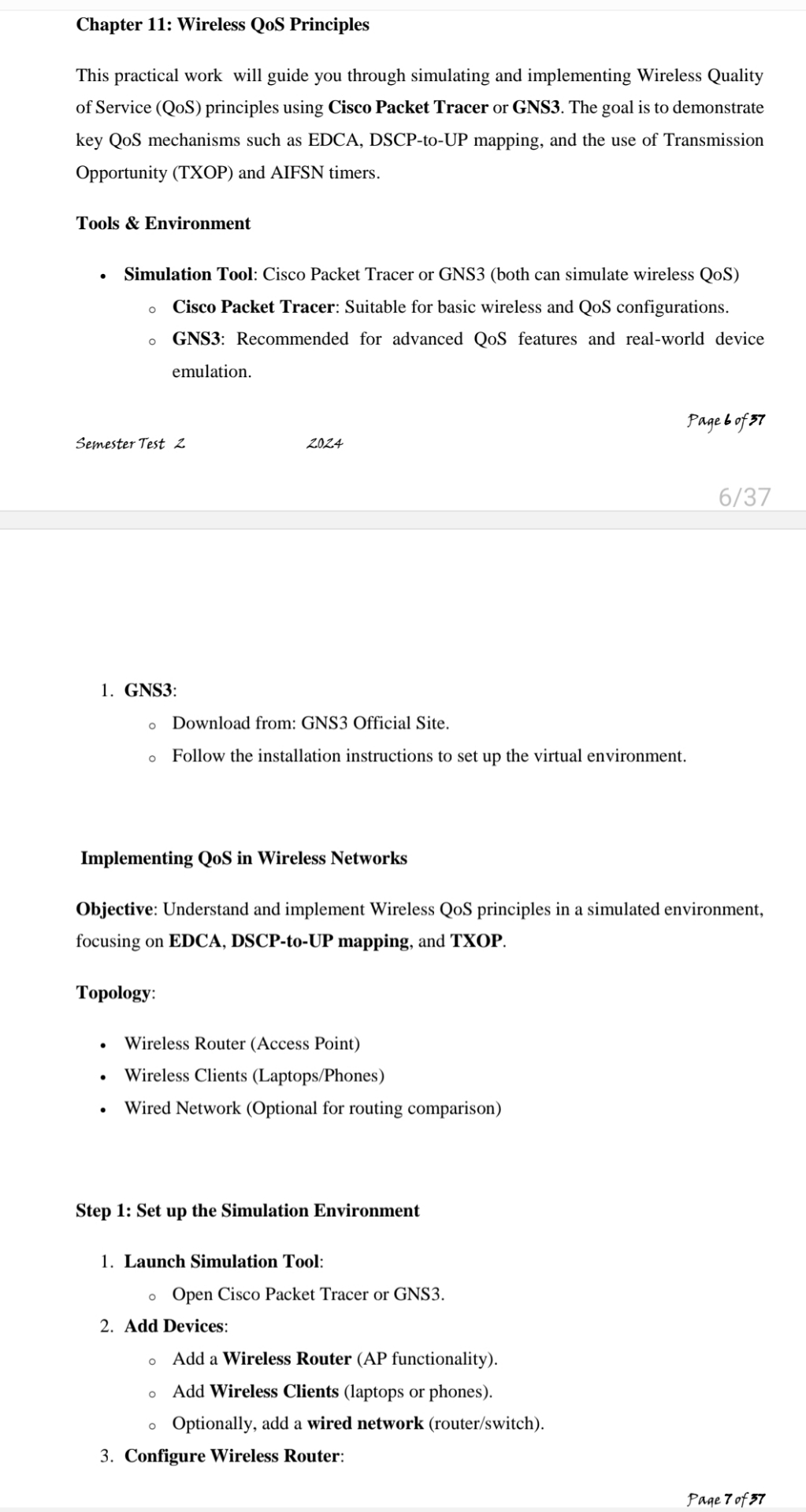
Chapter : Wireless QoS Principles
Chapter : Wireless QoS Principles
This practical work will guide you through simulating and impleme
Step by Step Solution
There are 3 Steps involved in it
1 Expert Approved Answer
Step: 1 Unlock

Question Has Been Solved by an Expert!
Get step-by-step solutions from verified subject matter experts
Step: 2 Unlock
Step: 3 Unlock
 Study Help