







Question: When you first install Windows PowerShell, the default value for the execution policy will be set to Restricted. 1. To display the current execution policy,
When you first install Windows PowerShell, the default value for the execution policy will be set to Restricted.
1. To display the current execution policy, type the following command, and then press ENTER. PS >Get-ExecutionPolicy
2. Before running a script file, you will have to change the execution policy. To change the execution policy to RemoteSigned and verify the change, type the following commands, pressing ENTER after each one.
PS >Set-ExecutionPolicy Unrestricted
PS > Get-ExecutionPolicy
Changing the execution policy requires administrative privileges.
3. To create the script file, on the taskbar, right-click the Windows PowerShell icon, and then click Windows PowerShell ISE.
AllSigned Only scripts signed by a trusted publisher can be run.
To create script files, you dont need a special editor. In this example you will use the Windows PowerShell Integrated Scripting Environment (ISE). The Windows PowerShell ISE is a host application that enables you to run commands, write, test, and debug scripts in a friendly, syntax-colored, Unicode-compliant environment.
4. On the View menu, click Show Script Pane.
The ISE has two windows, or panes, so you do not need to edit text in a separate application.
script pane at the top allows you to compose, edit, debug, and run functions and scripts. Note that the script pane is not displayed by default. To display the script pane, on the View menu, click Script Pane.
console pane at the bottom is used for running interactive commands, just as you would in the Windows PowerShell text-based console.
5. In the script pane, type the following commands, pressing ENTER after each line.
# test.ps1 # Show Hello and time. "" # Blank Line "Hello " + $env:UserName + "!" "Time is " + "{0:HH}:{0:mm}" -f (Get-Date) "" # Blank Line
6. To save the file as a Windows PowerShell script file, on the File menu, click Save As.
7. In the file name, type test.ps1, in the location, type C:\users\Administrator\Desktop, and then click Save.
When you create your script file, the filename must have a .ps1 extension.
8. Click in the command pane, type the following command, and then press ENTER.
>cd C:\users\Administrator\Desktop
9. To execute the script file you created in the previous step, type the following command, and then press ENTER.
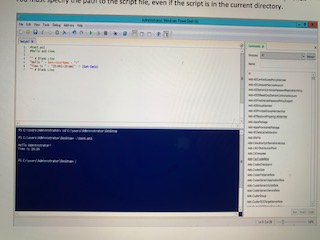
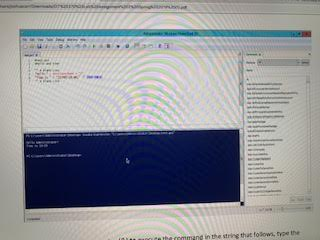
10. To use the Invoke-Expression command as an alternative way of running the same script, type the following command, and then press ENTER.
PS >Invoke-Expression "C:\Users\Administrator\Desktop\test.ps1"
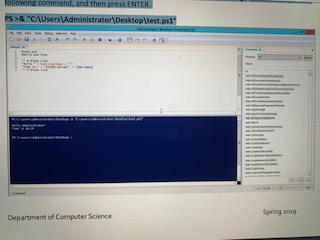
11. To use the invoke operator (&) to execute the command in the string that follows, type the following command, and then press ENTER. PS >& "C:\Users\Administrator\Desktop\test.ps1"
12. To close the test.ps1 script, on the test.ps1 tab, click the X. As an alternative, on the File menu, click Close.
SHOW ALL INPUT AND OUT PUT AS WELL AS A SCREEN SHOT WITH THE FINAL OUTPUT
t1e pu t eipt ile, even if the script is in the current directo mman in the string thut folows, tyoe te
Step by Step Solution
There are 3 Steps involved in it

Get step-by-step solutions from verified subject matter experts
 Study Help