







Question: With data in data.ws, Create a sub call manipulateObjects() with VBA Please also screenshot the code (A1)Technology Aptitude Test scores for employees of Digital Next
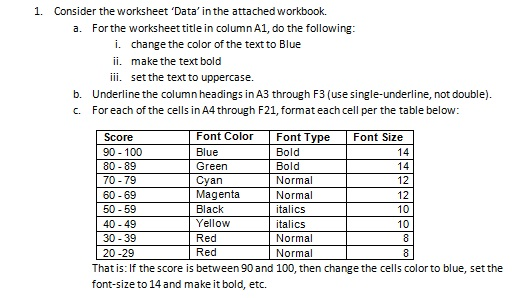
With data in data.ws, Create a sub call manipulateObjects() with VBA
Please also screenshot the code
| (A1)Technology Aptitude Test scores for employees of Digital Next Company(/A1) | |||||
| Employee | Score1 | Score2 | Score3 | Score4 | Score5 |
| 1 | 90 | 87 | 76 | 95 | 86 |
| 2 | 78 | 90 | 99 | 84 | 84 |
| 3 | 72 | 60 | 84 | 58 | 69 |
| 4 | 82 | 66 | 81 | 69 | 72 |
| 5 | 95 | 85 | 82 | 77 | 93 |
| 6 | 90 | 93 | 66 | 88 | 93 |
| 7 | 90 | 100 | 57 | 70 | 89 |
| 8 | 90 | 98 | 61 | 56 | 83 |
| 9 | 96 | 67 | 85 | 56 | 97 |
| 10 | 87 | 69 | 77 | 78 | 76 |
| 11 | 81 | 68 | 61 | 66 | 93 |
| 12 | 58 | 57 | 72 | 75 | 77 |
| 13 | 70 | 92 | 59 | 99 | 85 |
| 14 | 69 | 71 | 89 | 68 | 72 |
| 15 | 85 | 94 | 66 | 78 | 67 |
| 16 | 55 | 79 | 99 | 98 | 76 |
| 17 | 60 | 75 | 63 | 67 | 90 |
| 18 | 83 | 93 | 88 | 58 | 56 |
Show transcribed image text
1. Consider the worksheet 'Data' in the attached workbook. a. For the worksheet title in column A1, do the following i. ii. iii. change the color of the text to Blue make the text bold set the text to uppercase. b. Underline the column headings in A3 through F3 (use single-underline, not double). c. Foreach of the cells in A4 through F21, format each cell per the table below Font Color Font T Blue Green Cyan Magenta Black Yellow Red Red Font Size Score 90-100 80 -89 70-79 60-69 50-59 40-49 30-39 20-29 Bold Bold Normal Normal italics talics Normal Normal 12 10 10 Thatis: If the score is between 90 and 100, then change the cells color to blue, set the font-size to 14 and make it bold, etc
Step by Step Solution
There are 3 Steps involved in it
To create a VBA subroutine called manipulateObjects to format the worksheet as described follow thes... View full answer

Get step-by-step solutions from verified subject matter experts
 Study Help