







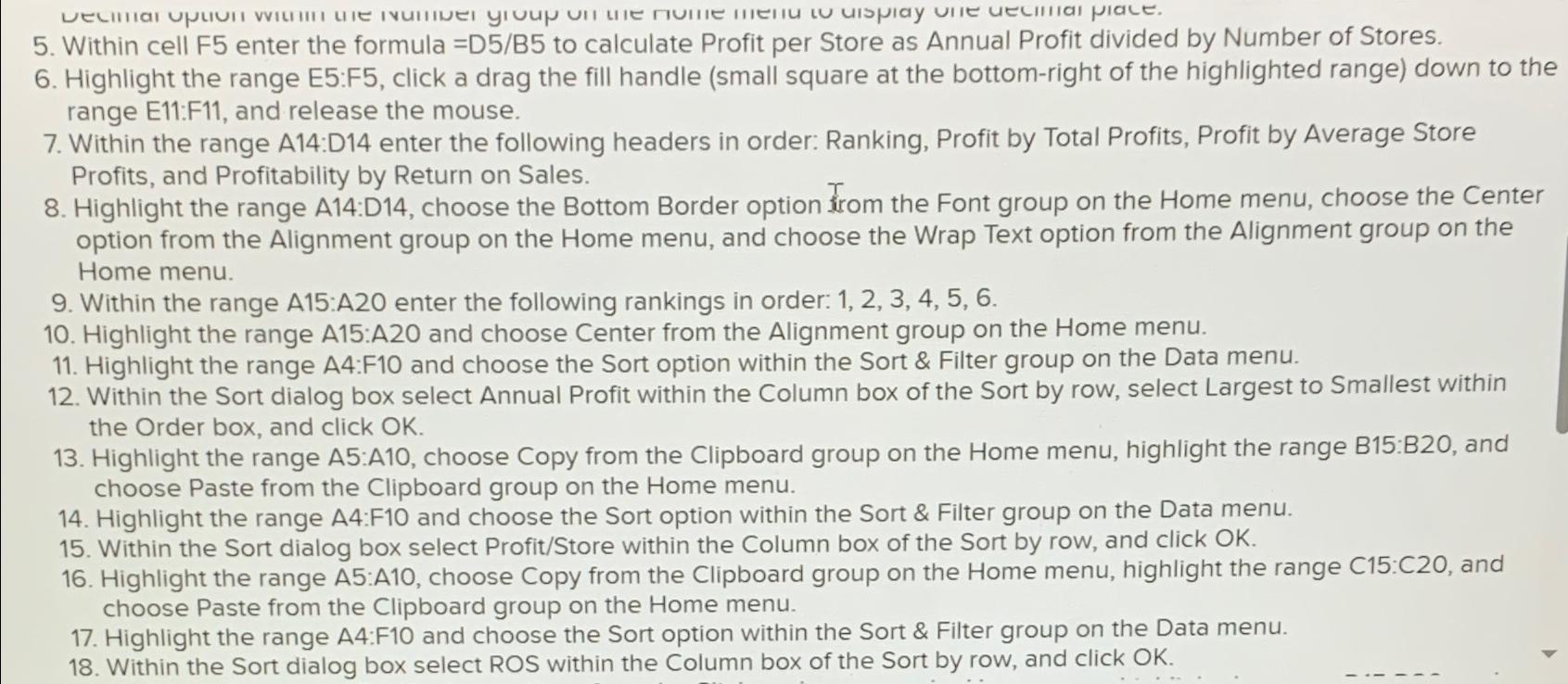
Question: Within cell F 5 enter the formula = D 5 / B 5 to calculate Profit per Store as Annual Profit divided by Number of
Within cell F enter the formula DB to calculate Profit per Store as Annual Profit divided by Number of Stores.
Highlight the range E:F click a drag the fill handle small square at the bottomright of the highlighted range down to the range E:F and release the mouse.
Within the range A:D enter the following headers in order: Ranking, Profit by Total Profits, Profit by Average Store Profits, and Profitability by Return on Sales.
Highlight the range A:D choose the Bottom Border option from the Font group on the Home menu, choose the Center option from the Alignment group on the Home menu, and choose the Wrap Text option from the Alignment group on the Home menu.
Within the range A:A enter the following rankings in order:
Highlight the range A:A and choose Center from the Alignment group on the Home menu.
Highlight the range A:F and choose the Sort option within the Sort & Filter group on the Data menu.
Within the Sort dialog box select Annual Profit within the Column box of the Sort by row, select Largest to Smallest within the Order box, and click OK
Highlight the range : choose Copy from the Clipboard group on the Home menu, highlight the range : and choose Paste from the Clipboard group on the Home menu.
Highlight the range A:F and choose the Sort option within the Sort & Filter group on the Data menu.
Within the Sort dialog box select ProfitStore within the Column box of the Sort by row, and click OK
Highlight the range A:A choose Copy from the Clipboard group on the Home menu, highlight the range : and choose Paste from the Clipboard group on the Home menu.
Highlight the range A:F and choose the Sort option within the Sort & Filter group on the Data menu.
Within the Sort dialog box select ROS within the Column box of the Sort by row, and click OK
Step by Step Solution
There are 3 Steps involved in it
1 Expert Approved Answer
Step: 1 Unlock

Question Has Been Solved by an Expert!
Get step-by-step solutions from verified subject matter experts
Step: 2 Unlock
Step: 3 Unlock
 Study Help