







Question: YO16_XL_GRADER_CASE5 - Coffee 1.1 Project Description: Chloe Jants is fulfilling her long-term dream of opening a coffee shop on a busy corner of her hometown.
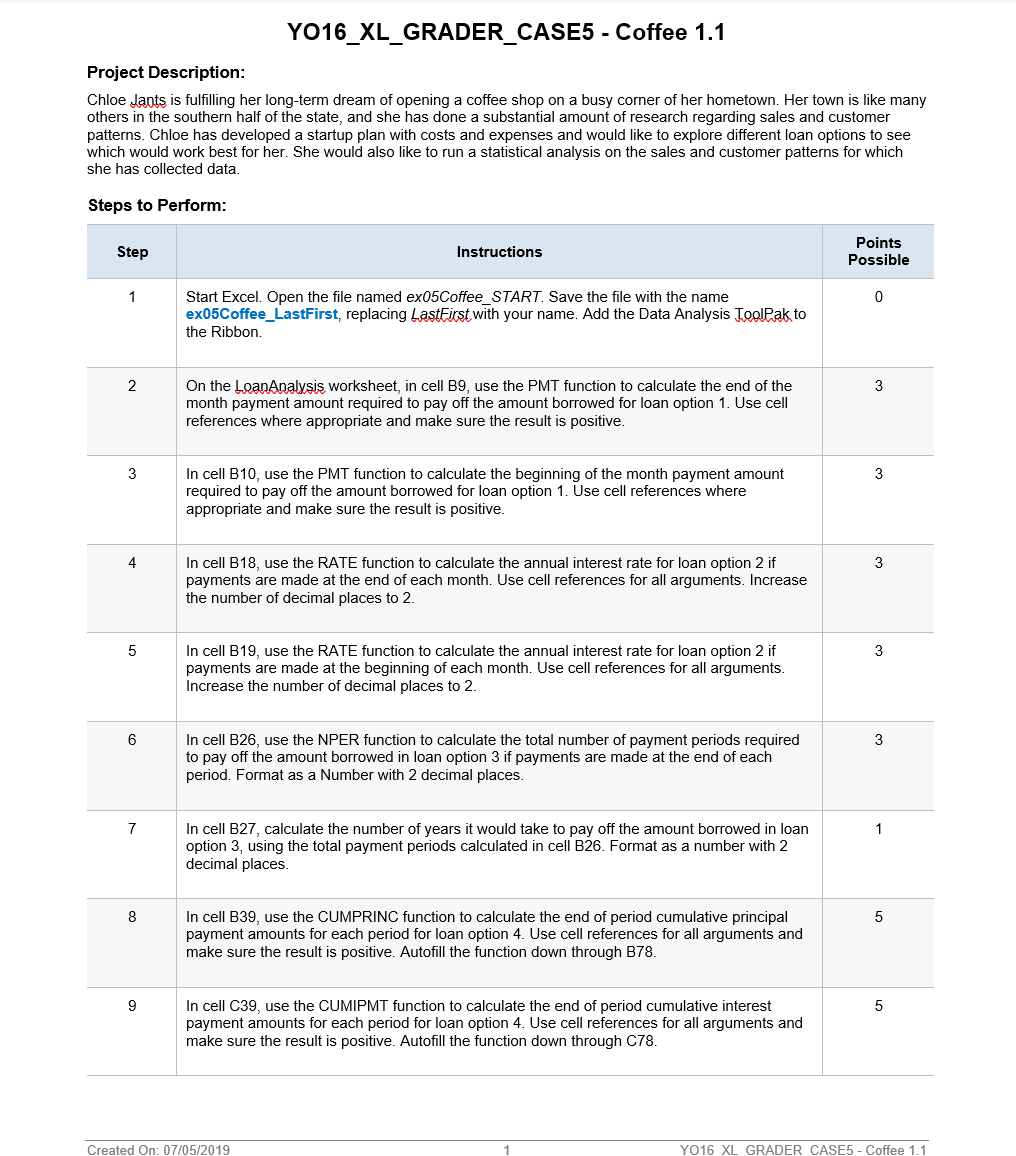
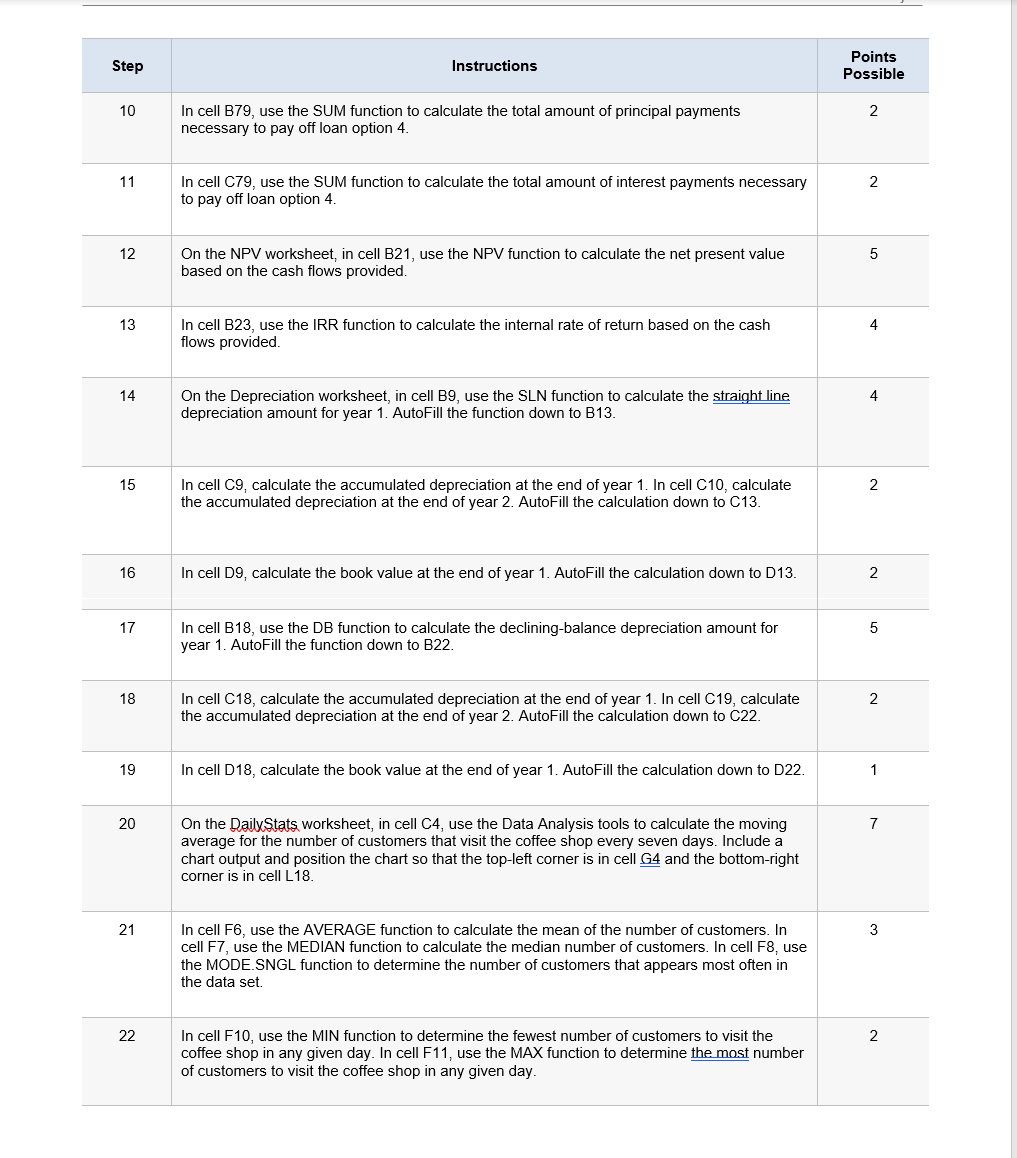
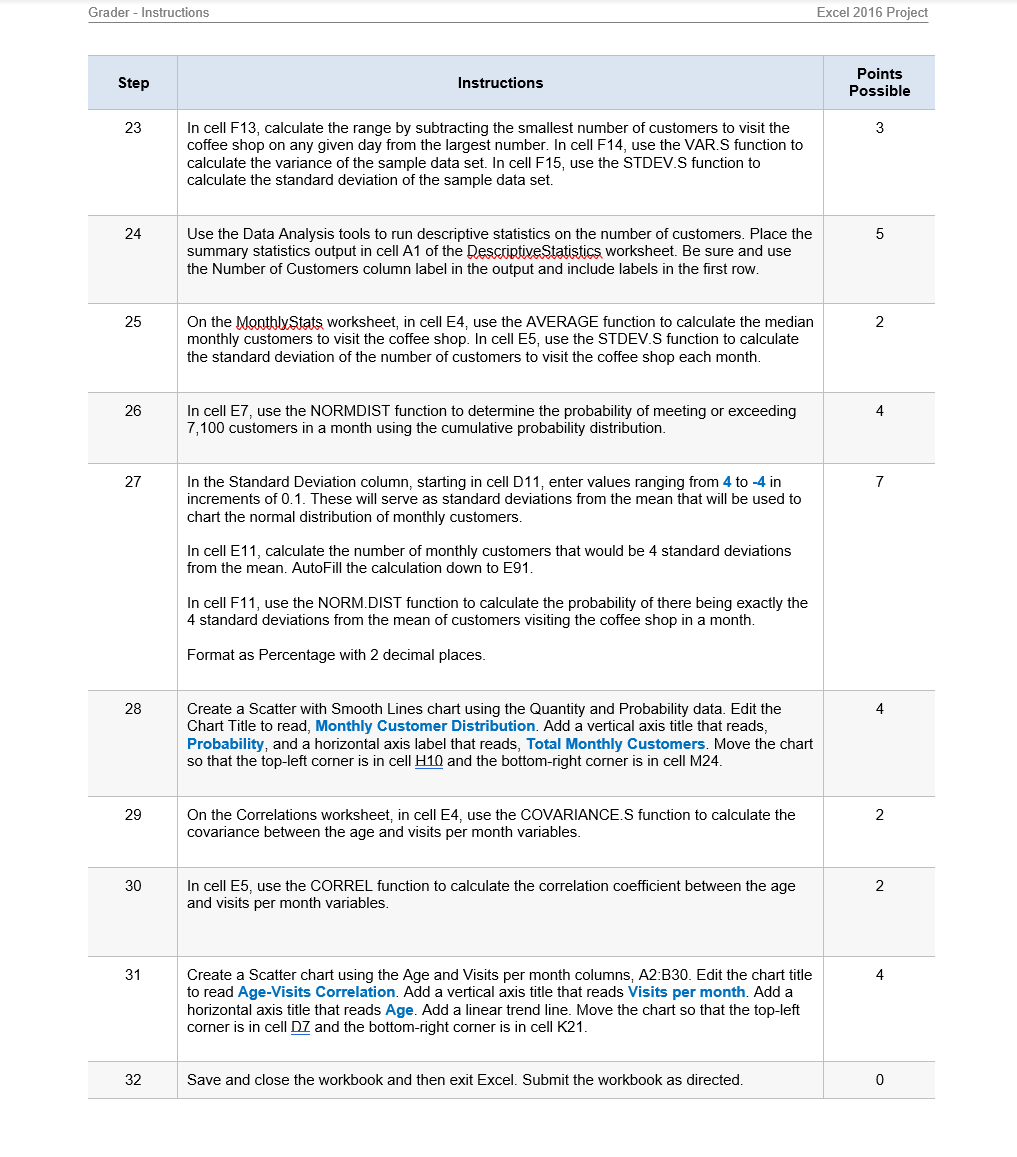
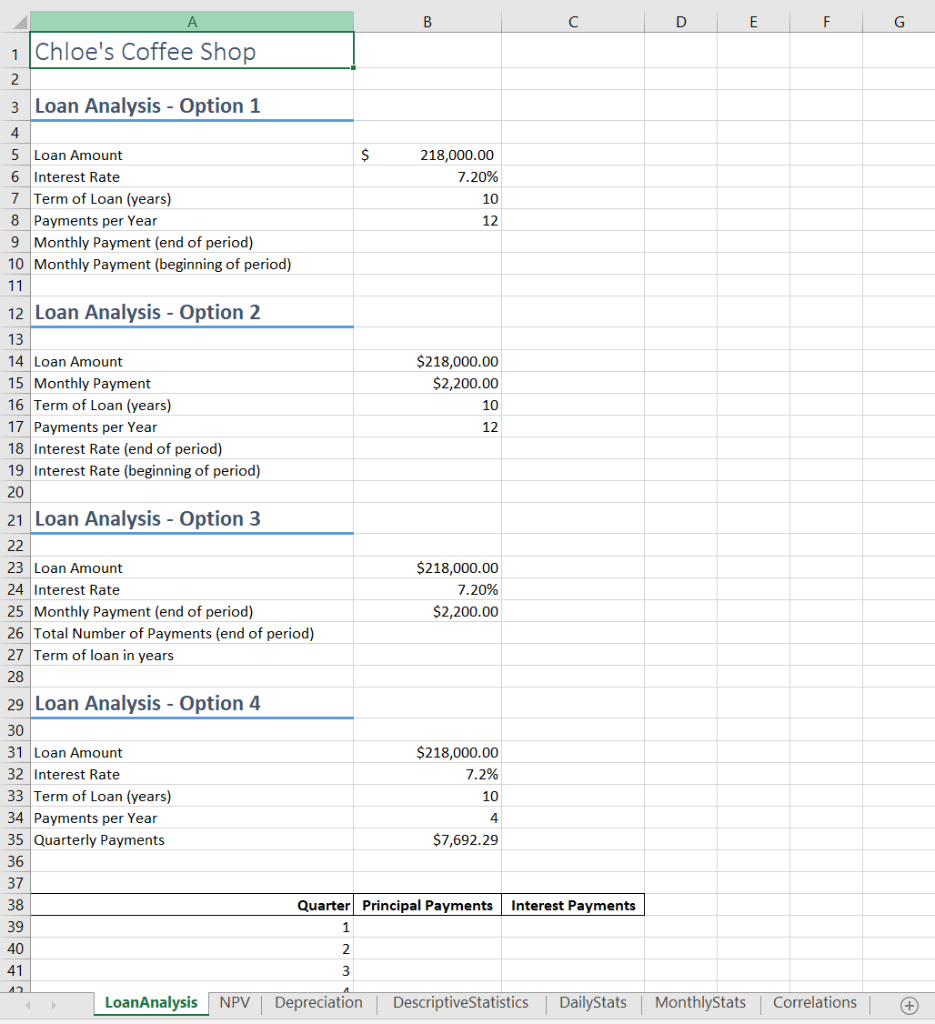
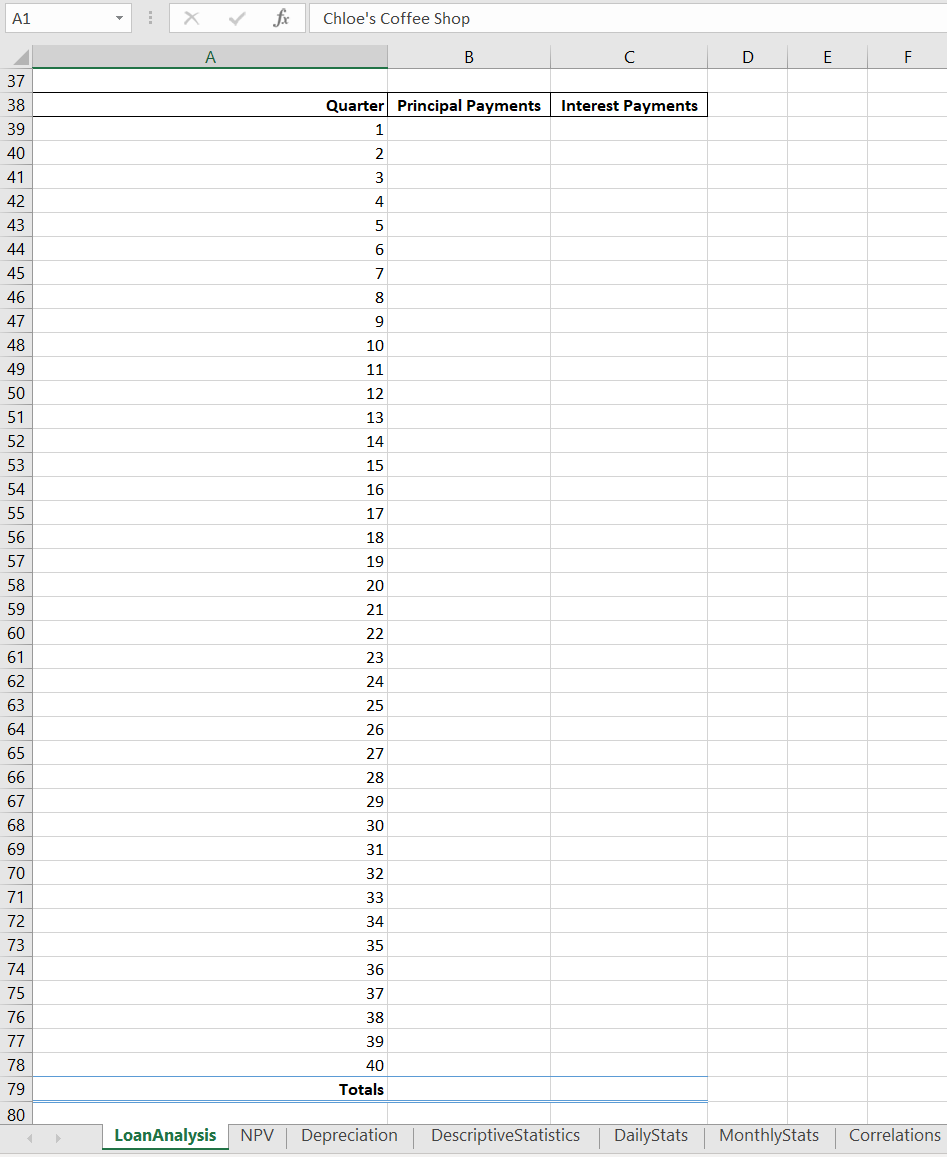
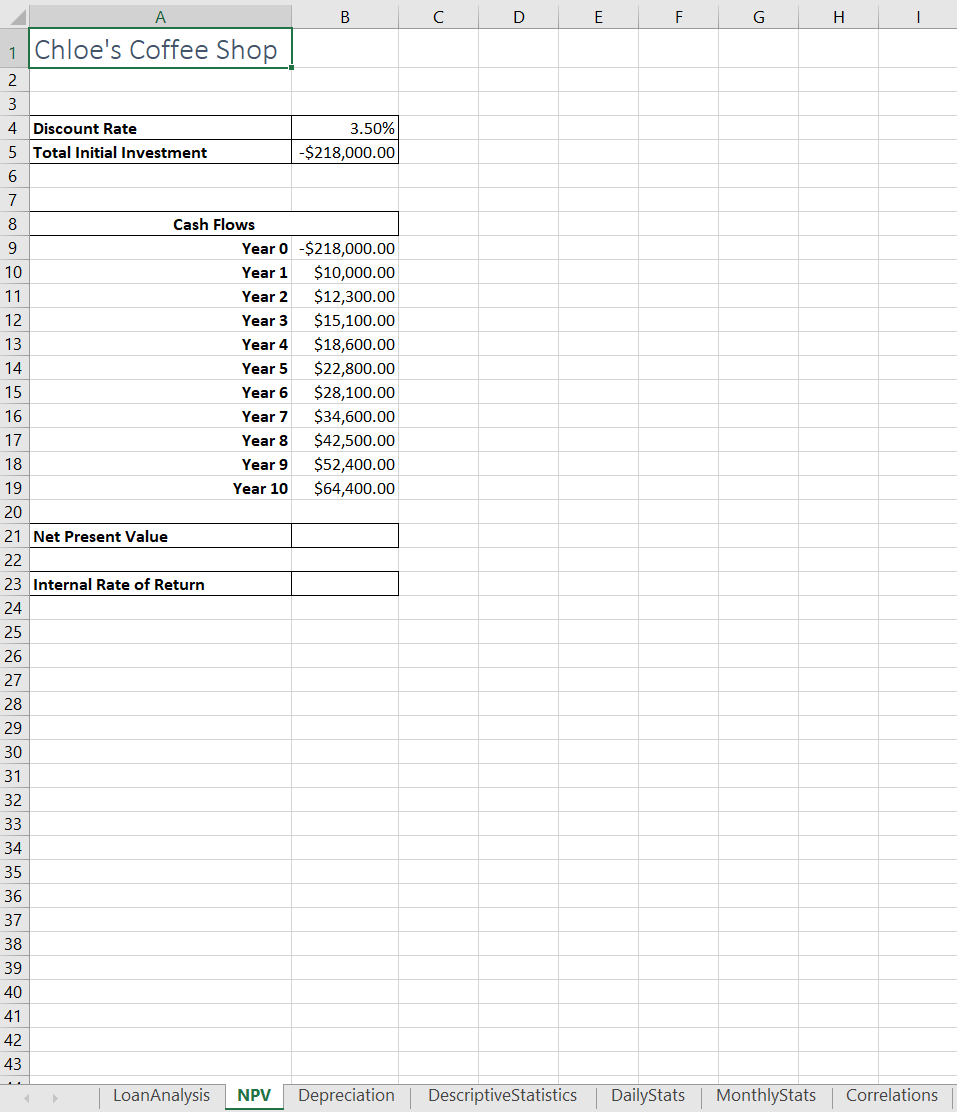
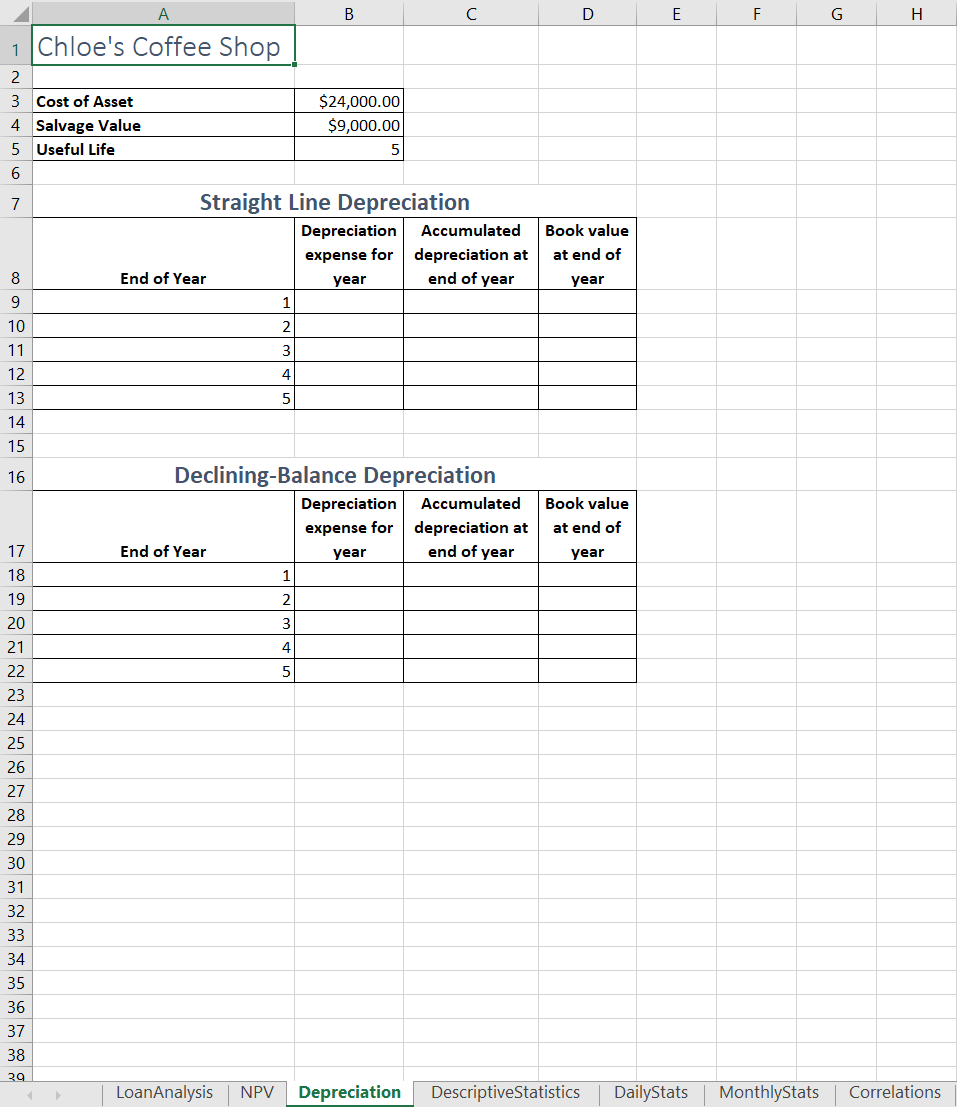
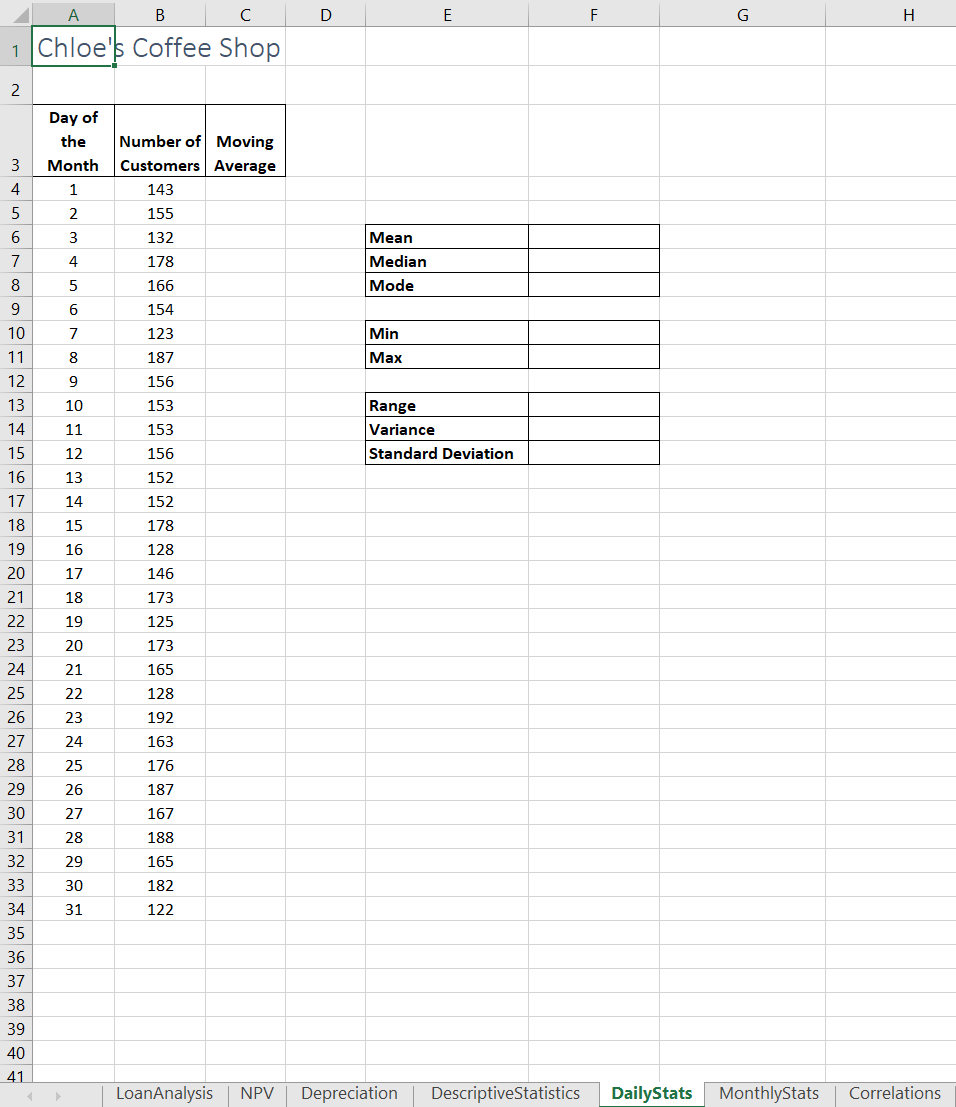
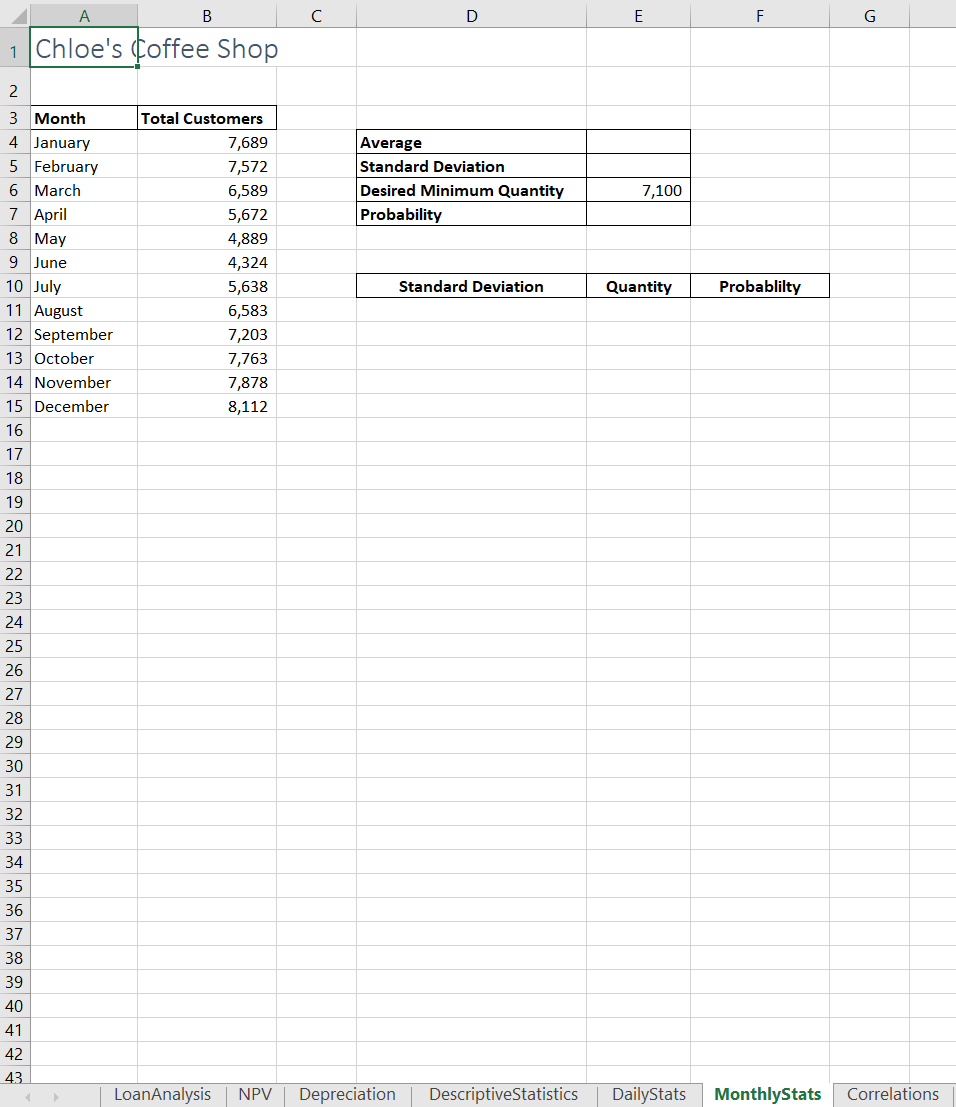
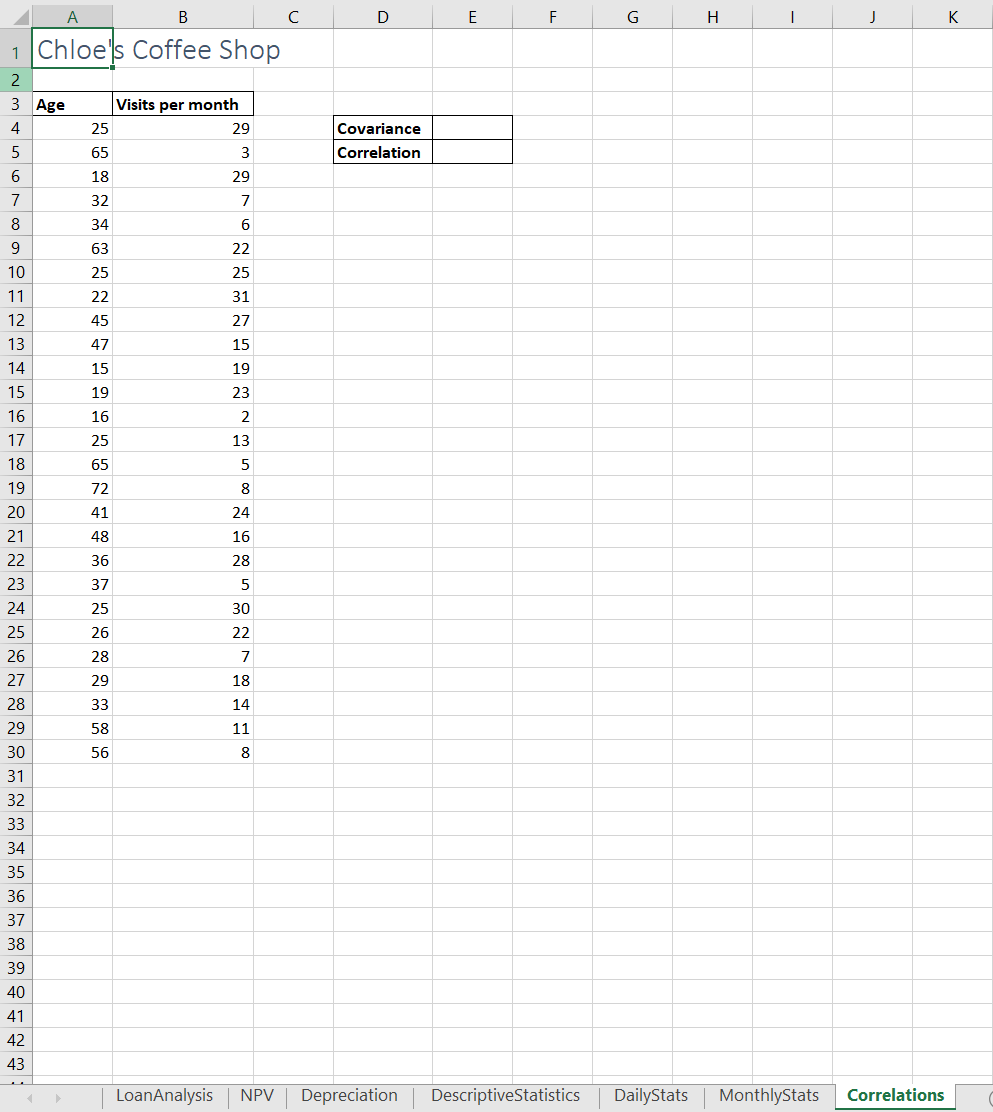
YO16_XL_GRADER_CASE5 - Coffee 1.1 Project Description: Chloe Jants is fulfilling her long-term dream of opening a coffee shop on a busy corner of her hometown. Her town is like many others in the southern half of the state, and she has done a substantial amount of research regarding sales and customer patterns. Chloe has developed a startup plan with costs and expenses and would like to explore different loan options to see which would work best for her. She would also like to run a statistical analysis on the sales and customer patterns for which she has collected data. Steps to Perform: Points Step Instructions Possible 1 0 Start Excel. Open the file named ex05Coffee_START. Save the file with the name ex05Coffee_LastFirst, replacing LastFirst with your name. Add the Data Analysis ToolPak to the Ribbon. 2 3 On the Loan Analysis worksheet, in cell B9, use the PMT function to calculate the end of the month payment amount required to pay off the amount borrowed for loan option 1. Use cell references where appropriate and make sure the result is positive. 3 3 In cell B10, use the PMT function to calculate the beginning of the month payment amount required to pay off the amount borrowed for loan option 1. Use cell references where appropriate and make sure the result is positive. 4 3 In cell B18, use the RATE function to calculate the annual interest rate for loan option 2 if payments are made at the end of each month. Use cell references for all arguments. Increase the number of decimal places to 2. 5 3 In cell B19, use the RATE function to calculate the annual interest rate for loan option 2 if payments are made at the beginning of each month. Use cell references for all arguments. Increase the number of decimal places to 2. 6 3 In cell B26, use the NPER function to calculate the total number of payment periods required to pay off the amount borrowed in loan option 3 if payments are made at the end of each period. Format as a Number with 2 decimal places. 7 1 In cell B27, calculate the number of years it would take to pay off the amount borrowed in loan option 3, using the total payment periods calculated in cell B26. Format as a number with 2 decimal places. 8 5 In cell B39, use the CUMPRINC function to calculate the end of period cumulative principal payment amounts for each period for loan option 4. Use cell references for all arguments and make sure the result is positive. Autofill the function down through B78. 9 5 In cell C39, use the CUMIPMT function to calculate the end of period cumulative interest payment amounts for each period for loan option 4. Use cell references for all arguments and make sure the result is positive. Autofill the function down through C78. Created On: 07/05/2019 YO16 XL GRADER CASE5 - Coffee 1.1 Step Instructions Points Possible 10 2 In cell B79, use the SUM function to calculate the total amount of principal payments necessary to pay off loan option 4. 11 2 In cell C79, use the SUM function to calculate the total amount of interest payments necessary to pay off loan option 4. 12 5 On the NPV worksheet, in cell B21, use the NPV function to calculate the net present value based on the cash flows provided. 13 4 In cell B23, use the IRR function to calculate the internal rate of return based on the cash flows provided. 14 4 On the Depreciation worksheet, in cell B9, use the SLN function to calculate the straight line depreciation amount for year 1. AutoFill the function down to B13. 15 2 In cell C9, calculate the accumulated depreciation at the end of year 1. In cell C10, calculate the accumulated depreciation at the end of year 2. AutoFill the calculation down to C13. 16 In cell D9, calculate the book value at the end of year 1. AutoFill the calculation down to D13. 2 17 5 In cell B18, use the DB function to calculate the declining-balance depreciation amount for year 1. AutoFill the function down to B22. 18 2 In cell C18, calculate the accumulated depreciation at the end of year 1. In cell C19, calculate the accumulated depreciation at the end of year 2. AutoFill the calculation down to C22. 19 In cell D18, calculate the book value at the end of year 1. AutoFill the calculation down to D22. 20 7 On the Daily Stats worksheet, in cell C4, use the Data Analysis tools to calculate the moving average for the number of customers that visit the coffee shop every seven days. Include a chart output and position the chart so that the top-left corner is in cell G4 and the bottom-right corner is in cell L18. 21 3 In cell F6, use the AVERAGE function to calculate the mean of the number of customers. In cell F7, use the MEDIAN function to calculate the median number of customers. In cell F8, use the MODE.SNGL function to determine the number of customers that appears most often in the data set. 22 2 In cell F10, use the MIN function to determine the fewest number of customers to visit the coffee shop in any given day. In cell F11, use the MAX function to determine the most number of customers to visit the coffee shop in any given day. Grader - Instructions Excel 2016 Project Step Instructions Points Possible 23 3 In cell F13, calculate the range by subtracting the smallest number of customers to visit the coffee shop on any given day from the largest number. In cell F14, use the VAR. S function to calculate the variance of the sample data set. In cell F15, use the STDEV.S function to calculate the standard deviation of the sample data set. 24 5 Use the Data Analysis tools to run descriptive statistics on the number of customers. Place the summary statistics output in cell A1 of the DescriptiveStatistics worksheet. Be sure and use the Number of Customers column label in the output and include labels in the first row. 25 2 On the Monthly Stats worksheet, in cell E4, use the AVERAGE function to calculate the median monthly customers to visit the coffee shop. In cell E5, use the STDEV.S function to calculate the standard deviation of the number of customers to visit the coffee shop each month. 26 4 In cell E7, use the NORMDIST function to determine the probability of meeting or exceeding 7,100 customers in a month using the cumulative probability distribution. 27 7 In the Standard Deviation column, starting in cell D11, enter values ranging from 4 to 4 in increments of 0.1. These will serve as standard deviations from the mean that will be used to chart the normal distribution of monthly customers. In cell E11, calculate the number of monthly customers that would be 4 standard deviations from the mean. AutoFill the calculation down to E91. In cell F11, use the NORM.DIST function to calculate the probability of there being exactly the 4 standard deviations from the mean of customers visiting the coffee shop in a month. Format as Percentage with 2 decimal places. 28 4 Create a Scatter with Smooth Lines chart using the Quantity and Probability data. Edit the Chart Title to read, Monthly Customer Distribution. Add a vertical axis title that reads, Probability, and a horizontal axis label that reads, Total Monthly Customers. Move the chart so that the top-left corner is in cell H10 and the bottom-right corner is in cell M24. 29 2 On the Correlations worksheet, in cell E4, use the COVARIANCE. S function to calculate the covariance between the age and visits per month variables. 30 2 In cell E5, use the CORREL function to calculate the correlation coefficient between the age and visits per month variables. 31 4 Create a Scatter chart using the Age and Visits per month columns, A2:B30. Edit the chart title to read Age-Visits Correlation. Add a vertical axis title that reads Visits per month. Add a horizontal axis title that reads Age. Add a linear trend line. Move the chart so that the top-left corner is in cell D7 and the bottom-right corner is in cell K21. 32 Save and close the workbook and then exit Excel. Submit the workbook as directed. 0 B D E F G a 1 Chloe's Coffee Shop 2 3 Loan Analysis - Option 1 4 5 Loan Amount $ 218,000.00 6 Interest Rate 7.20% 7 Term of Loan (years) 10 8 Payments per Year 12 9 Monthly Payment (end of period) 10 Monthly Payment (beginning of period) 11 12 Loan Analysis - Option 2 13 14 Loan Amount $218,000.00 15 Monthly Payment $2,200.00 16 Term of Loan (years) 10 17 Payments per Year 12 18 Interest Rate (end of period) 19 Interest Rate (beginning of period) 20 21 Loan Analysis - Option 3 22 23 Loan Amount $218,000.00 24 Interest Rate 7.20% 25 Monthly Payment (end of period) $2,200.00 26 Total Number of Payments (end of period) 27 Term of loan in years 28 29 Loan Analysis - Option 4 30 31 Loan Amount $218,000.00 32 Interest Rate 7.2% 33 Term of Loan (years) 10 34 Payments per Year 4 35 Quarterly Payments $7,692.29 36 37 38 Quarter Principal Payments Interest Payments 39 1 40 2 41 3 A5 LoanAnalysis NPV Depreciation DescriptiveStatistics DailyStats MonthlyStats Correlations + A1 X fic Chloe's Coffee Shop A B D E F Quarter Principal Payments Interest Payments 1 2 3 4 5 6 7 37 38 39 40 41 42 43 44 45 46 47 48 49 50 51 52 53 54 8 9 10 11 12 13 14 15 16 17 56 18 19 88g 4ggggggg8g 5858895884518588272 20 21 22 23 24 25 26 60 61 62 63 64 65 66 67 68 69 70 27 28 29 30 31 32 33 34 35 36 73 74 75 76 77 78 79 37 38 39 40 Totals 80 LoanAnalysis NPV Depreciation DescriptiveStatistics DailyStats MonthlyStats Correlations B C D E F G H 1 Chloe's Coffee Shop nm 700 4 Discount Rate 5 Total Initial Investment 3.50% -$218,000.00 Cash Flows Year 0 - $218,000.00 10 Year 1 $10,000.00 11 Year 2 $12,300.00 12 Year 3 $15,100.00 13 Year 4 $18,600.00 14 Year 5 $22,800.00 15 Year 6 $28,100.00 16 Year 7 $34,600.00 17 Year 8 $42,500.00 18 Year 9 $52,400.00 19 Year 10 $64,400.00 20 21 Net Present Value 22 23 Internal Rate of Return 24 25 26 27 28 29 30 31 32 33 34 35 36 37 38 39 40 41 42 43 LoanAnalysis NPV Depreciation DescriptiveStatistics DailyStats MonthlyStats Correlations A B D E F G H year 1 Chloe's Coffee Shop 2 3 Cost of Asset $24,000.00 4 Salvage Value $9,000.00 5 Useful Life 5 6 7 Straight Line Depreciation Depreciation Accumulated Book value expense for depreciation at at end of 8 End of Year year end of year 9 1 10 2 11 3 12 4 13 5 14 15 16 Declining-Balance Depreciation Depreciation Accumulated Book value expense for depreciation at at end of 17 End of Year year end of year year 18 1 19 2 20 3 21 22 5 23 24 25 26 27 28 29 30 31 32 33 34 35 36 37 38 29 LoanAnalysis NPV Depreciation DescriptiveStatistics DailyStats 4 MonthlyStats Correlations A B . D E F G H K L 3 - am to 00 OE 7 9 10 11 12 13 14 15 16 17 18 19 20 21 22 23 24 25 26 27 28 29 30 31 32 33 34 35 36 37 38 39 40 41 42 43 44 LoanAnalysis NPV Depreciation DescriptiveStatistics Daily Stats MonthlyStats Correlations A B D E F G H 1 Chloe's Coffee Shop 2 Day of the Month 1 3 Number of Moving Customers Average 143 4 155 5 6 2 3 132 Mean 7 4 178 Median Mode 8 5 166 9 6 154 123 10 7 Min 8 | 9 10 187 156 153 11 153 Range Variance Standard Deviation 12 156 13 14 152 152 178 15 16 128 146 17 18 173 125 19 20 173 21 165 22 128 11 12 13 14 15 16 17 18 19 20 21 22 23 24 25 26 27 28 29 30 31 32 33 34 35 36 37 38 39 40 41 23 192 24 163 176 25 26 187 27 167 28 188 29 165 182 30 31 122 LoanAnalysis NPV Depreciation DescriptiveStatistics DailyStats MonthlyStats Correlations B D E F G 1 Chloe's Coffee Shop Average Standard Deviation Desired Minimum Quantity Probability 7,100 2 3 Month 4 January 5 February 6 March 7 April 8 May 9 June 10 July 11 August 12 September 13 October 14 November 15 December 16 Total Customers 7,689 7,572 6,589 5,672 4,889 4,324 5,638 6,583 7,203 7,763 7,878 8,112 Standard Deviation Quantity Probablilty 17 18 19 20 21 22 23 24 25 26 27 28 29 30 31 32 33 34 35 36 37 38 39 40 41 42 43 LoanAnalysis NPV Depreciation DescriptiveStatistics DailyStats MonthlyStats Correlations B D E F G H 1 j 1 Chloe's Coffee Shop 2 3 Age 4 Covariance Correlation 5 6 7 8 9 10 11 12 13 Visits per month 25 29 65 3 18 29 32 7 34 6 63 22 25 25 22 31 45 27 47 15 15 19 19 23 16 2 25 13 65 5 72 41 24 48 16 14 15 16 17 18 19 20 21 22 23 24 25 26 27 28 29 30 36 co to Nou cou no 28 37 25 30 26 22 28 29 18 33 14 58 11 56 31 32 33 34 35 36 37 38 39 40 41 42 43 LoanAnalysis NPV Depreciation DescriptiveStatistics DailyStats MonthlyStats Correlations YO16_XL_GRADER_CASE5 - Coffee 1.1 Project Description: Chloe Jants is fulfilling her long-term dream of opening a coffee shop on a busy corner of her hometown. Her town is like many others in the southern half of the state, and she has done a substantial amount of research regarding sales and customer patterns. Chloe has developed a startup plan with costs and expenses and would like to explore different loan options to see which would work best for her. She would also like to run a statistical analysis on the sales and customer patterns for which she has collected data. Steps to Perform: Points Step Instructions Possible 1 0 Start Excel. Open the file named ex05Coffee_START. Save the file with the name ex05Coffee_LastFirst, replacing LastFirst with your name. Add the Data Analysis ToolPak to the Ribbon. 2 3 On the Loan Analysis worksheet, in cell B9, use the PMT function to calculate the end of the month payment amount required to pay off the amount borrowed for loan option 1. Use cell references where appropriate and make sure the result is positive. 3 3 In cell B10, use the PMT function to calculate the beginning of the month payment amount required to pay off the amount borrowed for loan option 1. Use cell references where appropriate and make sure the result is positive. 4 3 In cell B18, use the RATE function to calculate the annual interest rate for loan option 2 if payments are made at the end of each month. Use cell references for all arguments. Increase the number of decimal places to 2. 5 3 In cell B19, use the RATE function to calculate the annual interest rate for loan option 2 if payments are made at the beginning of each month. Use cell references for all arguments. Increase the number of decimal places to 2. 6 3 In cell B26, use the NPER function to calculate the total number of payment periods required to pay off the amount borrowed in loan option 3 if payments are made at the end of each period. Format as a Number with 2 decimal places. 7 1 In cell B27, calculate the number of years it would take to pay off the amount borrowed in loan option 3, using the total payment periods calculated in cell B26. Format as a number with 2 decimal places. 8 5 In cell B39, use the CUMPRINC function to calculate the end of period cumulative principal payment amounts for each period for loan option 4. Use cell references for all arguments and make sure the result is positive. Autofill the function down through B78. 9 5 In cell C39, use the CUMIPMT function to calculate the end of period cumulative interest payment amounts for each period for loan option 4. Use cell references for all arguments and make sure the result is positive. Autofill the function down through C78. Created On: 07/05/2019 YO16 XL GRADER CASE5 - Coffee 1.1 Step Instructions Points Possible 10 2 In cell B79, use the SUM function to calculate the total amount of principal payments necessary to pay off loan option 4. 11 2 In cell C79, use the SUM function to calculate the total amount of interest payments necessary to pay off loan option 4. 12 5 On the NPV worksheet, in cell B21, use the NPV function to calculate the net present value based on the cash flows provided. 13 4 In cell B23, use the IRR function to calculate the internal rate of return based on the cash flows provided. 14 4 On the Depreciation worksheet, in cell B9, use the SLN function to calculate the straight line depreciation amount for year 1. AutoFill the function down to B13. 15 2 In cell C9, calculate the accumulated depreciation at the end of year 1. In cell C10, calculate the accumulated depreciation at the end of year 2. AutoFill the calculation down to C13. 16 In cell D9, calculate the book value at the end of year 1. AutoFill the calculation down to D13. 2 17 5 In cell B18, use the DB function to calculate the declining-balance depreciation amount for year 1. AutoFill the function down to B22. 18 2 In cell C18, calculate the accumulated depreciation at the end of year 1. In cell C19, calculate the accumulated depreciation at the end of year 2. AutoFill the calculation down to C22. 19 In cell D18, calculate the book value at the end of year 1. AutoFill the calculation down to D22. 20 7 On the Daily Stats worksheet, in cell C4, use the Data Analysis tools to calculate the moving average for the number of customers that visit the coffee shop every seven days. Include a chart output and position the chart so that the top-left corner is in cell G4 and the bottom-right corner is in cell L18. 21 3 In cell F6, use the AVERAGE function to calculate the mean of the number of customers. In cell F7, use the MEDIAN function to calculate the median number of customers. In cell F8, use the MODE.SNGL function to determine the number of customers that appears most often in the data set. 22 2 In cell F10, use the MIN function to determine the fewest number of customers to visit the coffee shop in any given day. In cell F11, use the MAX function to determine the most number of customers to visit the coffee shop in any given day. Grader - Instructions Excel 2016 Project Step Instructions Points Possible 23 3 In cell F13, calculate the range by subtracting the smallest number of customers to visit the coffee shop on any given day from the largest number. In cell F14, use the VAR. S function to calculate the variance of the sample data set. In cell F15, use the STDEV.S function to calculate the standard deviation of the sample data set. 24 5 Use the Data Analysis tools to run descriptive statistics on the number of customers. Place the summary statistics output in cell A1 of the DescriptiveStatistics worksheet. Be sure and use the Number of Customers column label in the output and include labels in the first row. 25 2 On the Monthly Stats worksheet, in cell E4, use the AVERAGE function to calculate the median monthly customers to visit the coffee shop. In cell E5, use the STDEV.S function to calculate the standard deviation of the number of customers to visit the coffee shop each month. 26 4 In cell E7, use the NORMDIST function to determine the probability of meeting or exceeding 7,100 customers in a month using the cumulative probability distribution. 27 7 In the Standard Deviation column, starting in cell D11, enter values ranging from 4 to 4 in increments of 0.1. These will serve as standard deviations from the mean that will be used to chart the normal distribution of monthly customers. In cell E11, calculate the number of monthly customers that would be 4 standard deviations from the mean. AutoFill the calculation down to E91. In cell F11, use the NORM.DIST function to calculate the probability of there being exactly the 4 standard deviations from the mean of customers visiting the coffee shop in a month. Format as Percentage with 2 decimal places. 28 4 Create a Scatter with Smooth Lines chart using the Quantity and Probability data. Edit the Chart Title to read, Monthly Customer Distribution. Add a vertical axis title that reads, Probability, and a horizontal axis label that reads, Total Monthly Customers. Move the chart so that the top-left corner is in cell H10 and the bottom-right corner is in cell M24. 29 2 On the Correlations worksheet, in cell E4, use the COVARIANCE. S function to calculate the covariance between the age and visits per month variables. 30 2 In cell E5, use the CORREL function to calculate the correlation coefficient between the age and visits per month variables. 31 4 Create a Scatter chart using the Age and Visits per month columns, A2:B30. Edit the chart title to read Age-Visits Correlation. Add a vertical axis title that reads Visits per month. Add a horizontal axis title that reads Age. Add a linear trend line. Move the chart so that the top-left corner is in cell D7 and the bottom-right corner is in cell K21. 32 Save and close the workbook and then exit Excel. Submit the workbook as directed. 0 B D E F G a 1 Chloe's Coffee Shop 2 3 Loan Analysis - Option 1 4 5 Loan Amount $ 218,000.00 6 Interest Rate 7.20% 7 Term of Loan (years) 10 8 Payments per Year 12 9 Monthly Payment (end of period) 10 Monthly Payment (beginning of period) 11 12 Loan Analysis - Option 2 13 14 Loan Amount $218,000.00 15 Monthly Payment $2,200.00 16 Term of Loan (years) 10 17 Payments per Year 12 18 Interest Rate (end of period) 19 Interest Rate (beginning of period) 20 21 Loan Analysis - Option 3 22 23 Loan Amount $218,000.00 24 Interest Rate 7.20% 25 Monthly Payment (end of period) $2,200.00 26 Total Number of Payments (end of period) 27 Term of loan in years 28 29 Loan Analysis - Option 4 30 31 Loan Amount $218,000.00 32 Interest Rate 7.2% 33 Term of Loan (years) 10 34 Payments per Year 4 35 Quarterly Payments $7,692.29 36 37 38 Quarter Principal Payments Interest Payments 39 1 40 2 41 3 A5 LoanAnalysis NPV Depreciation DescriptiveStatistics DailyStats MonthlyStats Correlations + A1 X fic Chloe's Coffee Shop A B D E F Quarter Principal Payments Interest Payments 1 2 3 4 5 6 7 37 38 39 40 41 42 43 44 45 46 47 48 49 50 51 52 53 54 8 9 10 11 12 13 14 15 16 17 56 18 19 88g 4ggggggg8g 5858895884518588272 20 21 22 23 24 25 26 60 61 62 63 64 65 66 67 68 69 70 27 28 29 30 31 32 33 34 35 36 73 74 75 76 77 78 79 37 38 39 40 Totals 80 LoanAnalysis NPV Depreciation DescriptiveStatistics DailyStats MonthlyStats Correlations B C D E F G H 1 Chloe's Coffee Shop nm 700 4 Discount Rate 5 Total Initial Investment 3.50% -$218,000.00 Cash Flows Year 0 - $218,000.00 10 Year 1 $10,000.00 11 Year 2 $12,300.00 12 Year 3 $15,100.00 13 Year 4 $18,600.00 14 Year 5 $22,800.00 15 Year 6 $28,100.00 16 Year 7 $34,600.00 17 Year 8 $42,500.00 18 Year 9 $52,400.00 19 Year 10 $64,400.00 20 21 Net Present Value 22 23 Internal Rate of Return 24 25 26 27 28 29 30 31 32 33 34 35 36 37 38 39 40 41 42 43 LoanAnalysis NPV Depreciation DescriptiveStatistics DailyStats MonthlyStats Correlations A B D E F G H year 1 Chloe's Coffee Shop 2 3 Cost of Asset $24,000.00 4 Salvage Value $9,000.00 5 Useful Life 5 6 7 Straight Line Depreciation Depreciation Accumulated Book value expense for depreciation at at end of 8 End of Year year end of year 9 1 10 2 11 3 12 4 13 5 14 15 16 Declining-Balance Depreciation Depreciation Accumulated Book value expense for depreciation at at end of 17 End of Year year end of year year 18 1 19 2 20 3 21 22 5 23 24 25 26 27 28 29 30 31 32 33 34 35 36 37 38 29 LoanAnalysis NPV Depreciation DescriptiveStatistics DailyStats 4 MonthlyStats Correlations A B . D E F G H K L 3 - am to 00 OE 7 9 10 11 12 13 14 15 16 17 18 19 20 21 22 23 24 25 26 27 28 29 30 31 32 33 34 35 36 37 38 39 40 41 42 43 44 LoanAnalysis NPV Depreciation DescriptiveStatistics Daily Stats MonthlyStats Correlations A B D E F G H 1 Chloe's Coffee Shop 2 Day of the Month 1 3 Number of Moving Customers Average 143 4 155 5 6 2 3 132 Mean 7 4 178 Median Mode 8 5 166 9 6 154 123 10 7 Min 8 | 9 10 187 156 153 11 153 Range Variance Standard Deviation 12 156 13 14 152 152 178 15 16 128 146 17 18 173 125 19 20 173 21 165 22 128 11 12 13 14 15 16 17 18 19 20 21 22 23 24 25 26 27 28 29 30 31 32 33 34 35 36 37 38 39 40 41 23 192 24 163 176 25 26 187 27 167 28 188 29 165 182 30 31 122 LoanAnalysis NPV Depreciation DescriptiveStatistics DailyStats MonthlyStats Correlations B D E F G 1 Chloe's Coffee Shop Average Standard Deviation Desired Minimum Quantity Probability 7,100 2 3 Month 4 January 5 February 6 March 7 April 8 May 9 June 10 July 11 August 12 September 13 October 14 November 15 December 16 Total Customers 7,689 7,572 6,589 5,672 4,889 4,324 5,638 6,583 7,203 7,763 7,878 8,112 Standard Deviation Quantity Probablilty 17 18 19 20 21 22 23 24 25 26 27 28 29 30 31 32 33 34 35 36 37 38 39 40 41 42 43 LoanAnalysis NPV Depreciation DescriptiveStatistics DailyStats MonthlyStats Correlations B D E F G H 1 j 1 Chloe's Coffee Shop 2 3 Age 4 Covariance Correlation 5 6 7 8 9 10 11 12 13 Visits per month 25 29 65 3 18 29 32 7 34 6 63 22 25 25 22 31 45 27 47 15 15 19 19 23 16 2 25 13 65 5 72 41 24 48 16 14 15 16 17 18 19 20 21 22 23 24 25 26 27 28 29 30 36 co to Nou cou no 28 37 25 30 26 22 28 29 18 33 14 58 11 56 31 32 33 34 35 36 37 38 39 40 41 42 43 LoanAnalysis NPV Depreciation DescriptiveStatistics DailyStats MonthlyStats Correlations
Step by Step Solution
There are 3 Steps involved in it

Get step-by-step solutions from verified subject matter experts
 Study Help