







Question: You I click the Convert to Range button in the Tools group to remove the table definition. The only indication that the table has been
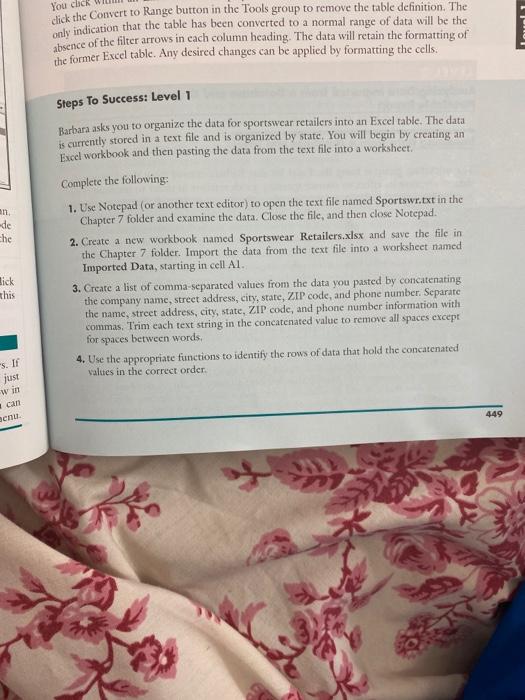
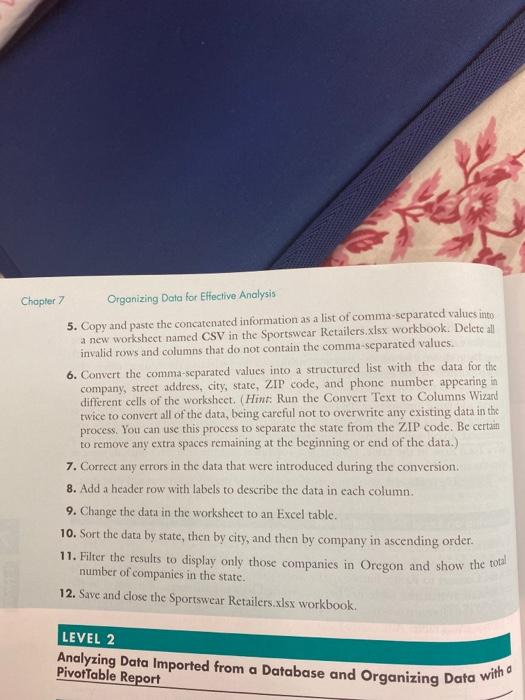
You I click the Convert to Range button in the Tools group to remove the table definition. The only indication that the table has been converted to a normal range of data will be the absence of the filter arrows in each column heading. The data will retain the formatting of the former Excel table. Any desired changes can be applied by formatting the cells. an de che Steps To Success: Level 1 Barbara asks you to organize the data for sportswear retailers into an Excel table. The data is currently stored in a text file and is organized by state. You will begin by creating an Excel workbook and then pasting the data from the text file into a worksheet. Complete the following: 1. Use Notepad (or another text editor) to open the text file named Sportswr.txt in the Chapter 7 folder and examine the data. Close the file, and then close Notepad. 2. Create a new workbook named Sportswear Retailers.xlsx and save the file in the Chapter 7 folder. Import the data from the text file into a worksheet named Imported Data, starting in cell Al. 3. Create a list of comma-separated values from the data you pasted by concatenating the company name, street address, city, state, ZIP code, and phone number. Separate the name, street address, city, state, ZIP code, and phone number information with commas. Trim each text string in the concatenated value to remove all spaces except for spaces between words, 4. Use the appropriate functions to identify the rows of data that hold the concatenated values in the correct order. Sick this 's. If just w in can 449 Analyzing Data Imported from a Database and Organizing Data with a Chapter 7 Organizing Data for Effective Analysis 5. Copy and paste the concatenated information as a list of comma-separated values into a new worksheet named CSV in the Sportswear Retailers.xlsx workbook. Delete all invalid rows and columns that do not contain the comma-separated values. 6. Convert the comma-separated values into a structured list with the data for the company, strect address, city, state, ZIP code, and phone number appearing in different cells of the worksheet. (Hint: Run the Convert Text to Columns Wizard twice to convert all of the data, being careful not to overwrite any existing data in the process. You can use this process to separate the state from the ZIP code. Be certain to remove any extra spaces remaining at the beginning or end of the data.) 7. Correct any errors in the data that were introduced during the conversion. 8. Add a header row with labels to describe the data in cach column. 9. Change the data in the worksheet to an Excel table. 10. Sort the data by state, then by city, and then by company in ascending order. 11. Filter the results to display only those companies in Oregon and show the total number of companies in the state. 12. Save and close the Sportswear Retailers.xlsx workbook. LEVEL 2 Table Report You I click the Convert to Range button in the Tools group to remove the table definition. The only indication that the table has been converted to a normal range of data will be the absence of the filter arrows in each column heading. The data will retain the formatting of the former Excel table. Any desired changes can be applied by formatting the cells. an de che Steps To Success: Level 1 Barbara asks you to organize the data for sportswear retailers into an Excel table. The data is currently stored in a text file and is organized by state. You will begin by creating an Excel workbook and then pasting the data from the text file into a worksheet. Complete the following: 1. Use Notepad (or another text editor) to open the text file named Sportswr.txt in the Chapter 7 folder and examine the data. Close the file, and then close Notepad. 2. Create a new workbook named Sportswear Retailers.xlsx and save the file in the Chapter 7 folder. Import the data from the text file into a worksheet named Imported Data, starting in cell Al. 3. Create a list of comma-separated values from the data you pasted by concatenating the company name, street address, city, state, ZIP code, and phone number. Separate the name, street address, city, state, ZIP code, and phone number information with commas. Trim each text string in the concatenated value to remove all spaces except for spaces between words, 4. Use the appropriate functions to identify the rows of data that hold the concatenated values in the correct order. Sick this 's. If just w in can 449 Analyzing Data Imported from a Database and Organizing Data with a Chapter 7 Organizing Data for Effective Analysis 5. Copy and paste the concatenated information as a list of comma-separated values into a new worksheet named CSV in the Sportswear Retailers.xlsx workbook. Delete all invalid rows and columns that do not contain the comma-separated values. 6. Convert the comma-separated values into a structured list with the data for the company, strect address, city, state, ZIP code, and phone number appearing in different cells of the worksheet. (Hint: Run the Convert Text to Columns Wizard twice to convert all of the data, being careful not to overwrite any existing data in the process. You can use this process to separate the state from the ZIP code. Be certain to remove any extra spaces remaining at the beginning or end of the data.) 7. Correct any errors in the data that were introduced during the conversion. 8. Add a header row with labels to describe the data in cach column. 9. Change the data in the worksheet to an Excel table. 10. Sort the data by state, then by city, and then by company in ascending order. 11. Filter the results to display only those companies in Oregon and show the total number of companies in the state. 12. Save and close the Sportswear Retailers.xlsx workbook. LEVEL 2 Table Report
Step by Step Solution
There are 3 Steps involved in it

Get step-by-step solutions from verified subject matter experts
 Study Help