







Question: YOU MUST CREATE AN HTML AND A JAVASCRIPT FILE FOR THIS PROJECT****** Description: This web page will provide a form in which users can enter
YOU MUST CREATE AN HTML AND A JAVASCRIPT FILE FOR THIS PROJECT******
Description: This web page will provide a form in which users can enter a series of numbers (5 to 20 values between 0 and 100) separated by spaces and display the results of eight (8) statistical calculations. Some examples are provided at the bottom.
How it works: Type in numbers with spaces in between in the Enter Numbers text box. Once the Calculate button is clicked, the textboxes populate with the correct calculation.
Statistical Calculator Page (HTML PAGE)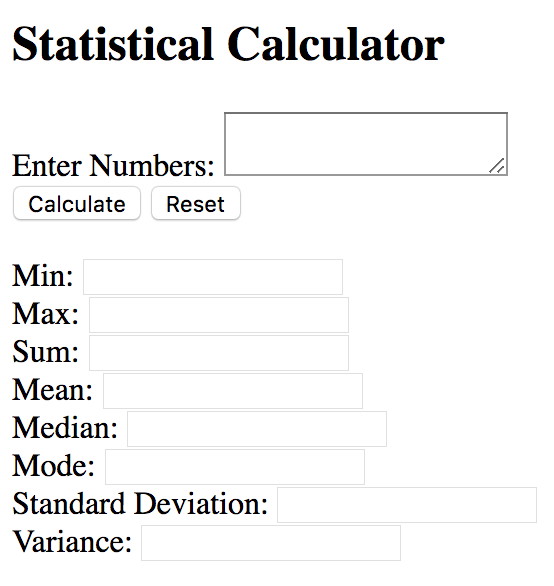
Create a Statistical Calculator web page using the filename index.html in the module3 folder.
Give the page a descriptive title
Display Statistical Calculator along the top of the page using an tag
One (1) textarea field
Note: The textarea field should be configured as required.
This control will accept the user input
Eight (8) text fields
Note 1: All text fields should be configured as readonly.
Note 2: The order of the text fields is not important as long as they are organized.
Max
Mean
Median
Min
Mode
Standard Deviation
Can be abbreviated as Std Dev
Sum
Variance
Two (2) buttons
Reset
Submit
Note: The reset and submit buttons should be placed near the textarea control.
At the bottom of the page, include one (1) additional hyperlink to your ePortfolio
Use a relative URL for the ePortfolio link
External JavaScript File
Create an external JavaScript file with the filename script.js
Import the script.js file into the HTML page
Add the following functions to the script.js file.
Note 1: Use a global variable for the array of values.
Note 2: ALL of the functions except calcMode() and performStatistics() MUST return a value to two (2) decimal places.
Note 3: Students can use Excel to verify the output of their functions.
In Excel, use VAR.P and STDEV.P to calculate Variance and Standard Deviation
Note 4: Only the performStatistics() function should interact directly with the form controls.
None of the other functions should contain statements like document.getElementById("sum")
Note 5: DO NOT duplicate any code. If a function performs a required operation, call that function rather than duplicate the code within another function.
For example, the calcMean() function calculates the sum of the array values before calculating the mean value; therefore, call the calcSum() function rather than calculating the sum in the calcMean() function.
In this context, duplicate code refers to exact same statements or exact same functionality
Required functions:
calcMean()
calcMedian()
calcMode() - This function MUST handle bimodal and multimodal conditions correctly - Separate the bimodal or multimodal values using spaces
calcStdDev()
calcSum()
calcVariance()
findMax()
findMin()
performStatistics() - No Input, Process- Create an array of the values entered in the textarea control, Call each of the eight (8) functions (in some order), Calling the functions in the correct logical order will help reduce duplicate code, Store the value returned by each function in the value property of the respective control. Example: document.getElementById("sum").value=calcSum(); - OutputAlways return false
Otherwise, the web browser may display an error message
Examples
Example #1
Entered Values: 5 3 10 0 3 2 10 3 7 8
| Max | Mean | Median | Min | Mode | Std Dev | Sum | Variance |
| 10.00 | 5.10 | 4.00 | 0.00 | 3 | 3.30 | 51.00 | 10.89 |
Example #2
Entered Values: 42 80 78 59 76 76 41 30 80 51 (contains two pairs of values)
| Max | Mean | Median | Min | Mode * | Std Dev | Sum | Variance |
| 80.00 | 61.30 | 67.50 | 30.00 | 76 80 | 18.13 | 613.00 | 328.61 |
* Bimodal and multimodal values can be displayed in any order.
Step by Step Solution
There are 3 Steps involved in it

Get step-by-step solutions from verified subject matter experts
 Study Help