You will need Green file to finish this assignment, this file is attached and also in module files.
Your job is to finish the following tasks:
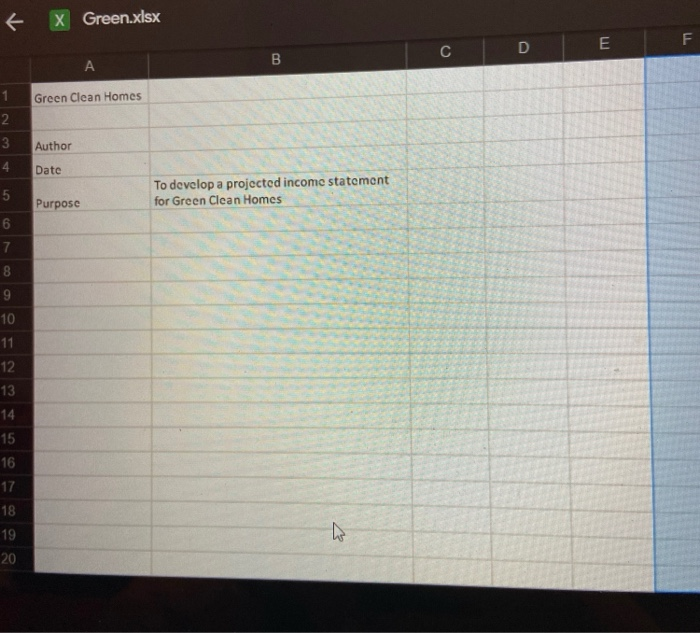
1. Open the Green workbook, and then save the workbook as Green Clean in the location specified by your instructor.
2. In the Documentation sheet, enter your name in cell B3 and the date in cell B4.
3. Display the date in cell B4 in the Long Date format and left-aligned.
4. Change the theme of the workbook to Facet.
5. Make the following formatting changes to the Documentation sheet:
a. Merge and center cells A1 and B1.
b. Apply the Accent2 cell style to the merged cell A1 and to the range A3:A5.
c. In cell A1, set the font size to 22 points and bold the text. Italicize the word Clean in the company name.
d. Add borders around each cell in the range A3:B5. Top-align the text in the range A3:B5.
e. Change the font color of the text in the range B3:B5 to Dark Green, Accent 2.
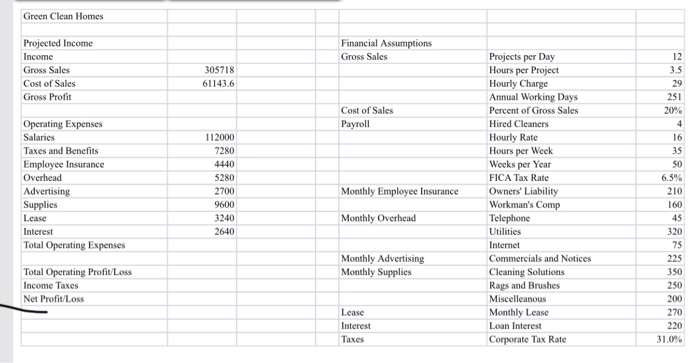
6. In the Income Statement worksheet, merge and center the range A1:C1, and then apply the Accent2 cell style to the merged cell. Change the font size to 24 points and the text style to bold. Italicize the word Clean within the company name.
7. Make the following changes to the Income Statement worksheet:
a. Format the range A3:C3 with the Heading 1 cell style.
b. Format the range A4:C4,A9:C9 with the 40% - Accent1 cell style.
c. Format cell B5 in the Accounting style with no decimal places.
d. Format cell B6 and the range B10:B17 in the Comma style with no decimal places.
8. Add the following calculations to the workbook:
a. In cell C7, calculate the gross profit, which is equal to the gross sales minus the cost of sales.
b. In cell C18, calculate the companys total operating expenses, which is equal to the sum of the values in the range B10:B17. Format the value in the Accounting format with no decimal places.
c. In cell C20, calculate the companys operating profit, which is equal to its gross profit minus its total operating expenses.
d. In cell C21, calculate the companys incomes taxes by multiplying its total operating profit by the corporate tax rate (cell G25). Format the value in the Accounting format with no decimal places.
e. In cell C22, calculate the companys net profit, which is equal to the total operating profit minus the income taxes.
9. Finalize the formatting of the Projected Income statement by adding the following:
a. Add a bottom border to the ranges A6:C6, A17:C17, and A20:C20. Add a single top border and a double bottom border to the range A22:C22.
b. Indent the expenses categories in the range A10:A17 twice.
10. Format the Financial Assumptions section as follows: a. Add borders around all of the cells in the range E4:G25.
b. Format the range E3:G3 with the Heading 1 cell style.
c. Merge the cells in the ranges E4:E7, E9:E13, E14:E15, E16:E18, and E20:E22.
d. Top-align and left-align the range E4:E25.
e. Change the fill color of the range E4:F25 to Green, Accent 1, Lighter 60%.
X Green.xlsx E F C D B 1 Green Clean Homes 2 3 Author 4 Date 5 To develop a projected income statement for Green Clean Homes Purpose 6 7 8 9 10 11 12 13 14 15 16 17 18 19 20 hi Green Clean Homes Financial Assumptions Gross Sales Projected Income Income Gross Sales Cost of Sales Gross Profit 305718 61143.6 Cost of Sales Payroll per Operating Expenses Salaries Taxes and Benefits Employee Insurance Overhead Advertising Supplies Lease Interest Total Operating Expenses Total Operating Profit Loss Income Taxes Net Profit Loss 112000 7280 4440 5280 2700 9600 3240 2640 Monthly Employee Insurance Projects per Day Hours per Project Hourly Charge Annual Working Days Percent of Gross Sales Hired Cleaners Hourly Rate Hours Week Weeks per Year FICA Tax Rate Owners' Liability Workman's Comp Telephone Utilities Internet Commercials and Notices Cleaning Solutions Rags and Brushes Miscellenous Monthly Lease Loan Interest Corporate Tax Rate 12 3.5 29 251 20% 4 16 35 50 6.5% 210 160 45 320 75 225 350 250 200 270 220 31.0% Monthly Overhead Monthly Advertising Monthly Supplies Lease Interest Taxes