







Question: You will need to open PowerShell as administrator In the users profile folder under documents create an folder called HTTP In the HTTP directory
- You will need to open PowerShell as administrator
- In the users profile folder under documents create an folder called HTTP
- In the HTTP directory create an file called MyWebPage.html . You can copy and paste the code.
Lab6 Body {
background-color: gray;
}
H1 {
color: white;
text-align: center;
}
My First HTTP Response from MyPowerShellSite
Send by
The web code should be self explanatory, if you do not understand part of the code, see your instructor..
4. In the same directory we will create an simple HTTP server program. You can use the PowerShell ISE to create the file, BUT YOU CAN NOT RUN THE FILE IN THE ISE. Copy and paste the code intohe ISE. Read the code comments to understand what it is doing. This simple program will only make 1 connection. The client will send an http request for the file MyWebPage.html. The server will then check its local directory http for the file and send it to the browser. Since the file is a markup file with formatting the browser will display the formatted text. Name the file
_Lab6.ps1 #Simple HTTP Web Server
#creates Window Tile Description
$host.UI.RawUI.WindowTitle = "MyPowerShellSite"#create http listener
$listener = New-Object System.Net.HttpListener#server to listen on URL address localhost on port 8888. You can change the port if you want
$listener.Prefixes.Add("http://localhost:8888/")#start the listener
$listener.Start()#Sets the www root directory to the current directory
#Required to prevent traversal attacks using ..\..\
New-PSDrive -Name MyPowerShellSite -PSProvider FileSystem -Root $PWD.Path#using the get context method to create a synchronous object
$Context = $listener.GetContext()#gets the files in the local path and sends to browser
$URL = $Context.Request.Url.LocalPath$Content = Get-Content -Encoding Byte -Path "MyPowerShellSite:$URL"
$Context.Response.OutputStream.Write($Content, 0, $Content.Length)
$Context.Response.Close()
5.Once your server program is completed. Once the PowerShell console and navigate to the HTTP directory.
Note:
- if you file does not run, any you get error messages, you will need to close PowerShell console, reopen it and start again.
- In some systems the newer version of Powershell ISE does not support this -EncodingByte name, so replace it with -AsByteStream [3rd line from the end: $Content = Get-Content -Encoding Byte -Path "MyPowerShellSite:$URL"
6.Type: . \
_Lab6.ps1 
Your server should now be running.
Note:
- if you get an Execution policy restriction error message then change the execution policy of the power shell by following the steps given below and then run server program again.
7.Open another PowerShell console window
8. Type the following: netstat -ano | select-string "8888"
What is protocol is used to make the connection? ________________________________________
What is the status of the port? ______________________________________________________
9. Open your browser
10. Type the following: http://localhost:8888/MyWebPage.html
If you used a different port number replace the port with the one you identified in the server program. Take a screen shot of the web page and name it LearnName_Lab6.jpeg [0.675 Marks]
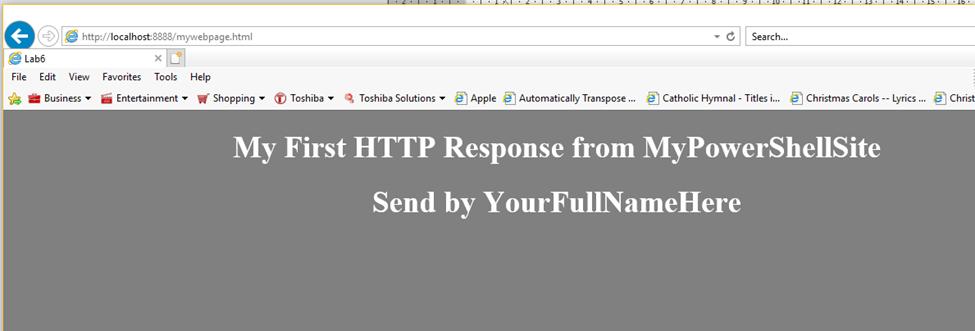
11. Type: netstat -ano | select-string "8888"
What are the port numbers used in the request communication to the server?
_________________________________________________________________________
What port numbers did the server use in the http response message to the browswer?
____________________________________________________________________ _
What is the status of the TCP ports? _______________________________________
12. Close the browser window
13.Type: netstat -ano | select-string "8888"
What is the status of the port numbers now?
>MyPowerShellSite PS C:\Users\Danny\documents\http> .\LearnNameHere_Lab6.ps1 Name Used (GB) Free (GB) Provider MyPower... 0.00 315.40 FileSystem Root ---- C:\Users\Danny\documents\http
Step by Step Solution
There are 3 Steps involved in it

Get step-by-step solutions from verified subject matter experts
 Study Help