







Question: You will practice modifying and centering a web page in this Hands - On Practice as you update the index.html file from Hands - On
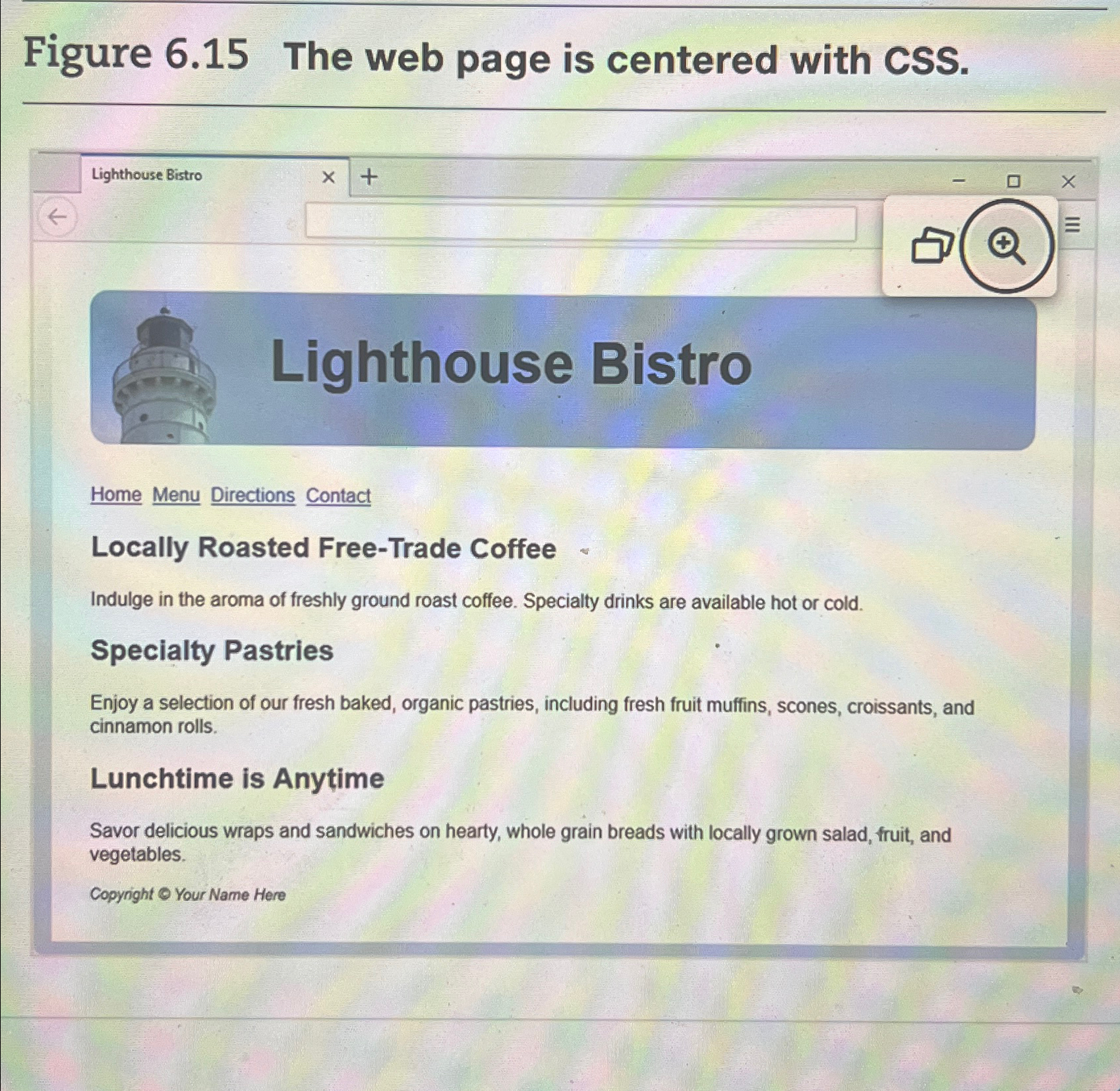
You will practice modifying and centering a web page in this HandsOn Practice as you update the index.html file from HandsOn Practice shown in Figure A common design practice is to configure the background color of the wrapper or container to be a light, neutral color that provides good contrast with text. When complete, your web page will be similar to the one shown in Figure
Create a new folder called centerch Copy the index.html background.jpg and lighthouselogo.jpg files from the chapter folder.
Launch a text editor and open the index.html file
Edit the embedded CSS and configure the h selector. Remove the width style declaration. Configure a medium blue #DBDC background color and a top margin use the margintop property
Edit the embedded CSS and configure a new selector, an id named container. Addstyle declarations for the backgroundcolor, padding, width, minwidth, marginleft, and marginright properties as follows:
#container backgroundcolor: #FFFFFF; padding: em; marginleft: auto; marginright: auto; width: ; minwidth: px;
Edit the HTML Configure a div element assigned to the id container that wraps or contains the code within the body section. Code an opening div tag on a new line after the opening body tag. Assign the div to the id named container. Code the closing div tag on a new line before the closing body tag.
Save the file. When you test your index.html file in a browser, it should look similar to Figure The student files contain a sample solution in the chapter folder. A common design practice is to configure the background color of the wrapper or container to be a light, neutral color that provides good contrast with text.
Step by Step Solution
There are 3 Steps involved in it
1 Expert Approved Answer
Step: 1 Unlock

Question Has Been Solved by an Expert!
Get step-by-step solutions from verified subject matter experts
Step: 2 Unlock
Step: 3 Unlock
 Study Help