







Question: 07 X fx B D E F G H 1 Click on the Horizontal tab and enter your name in Cell C1. If Cell
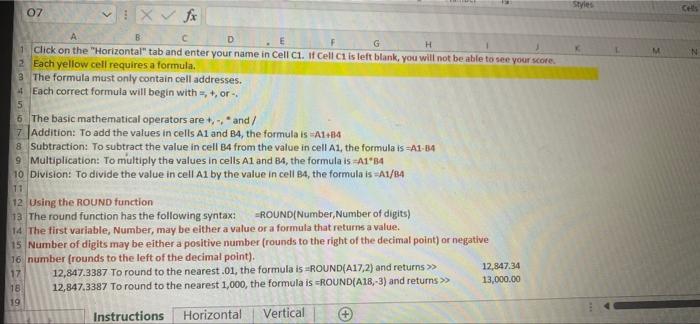
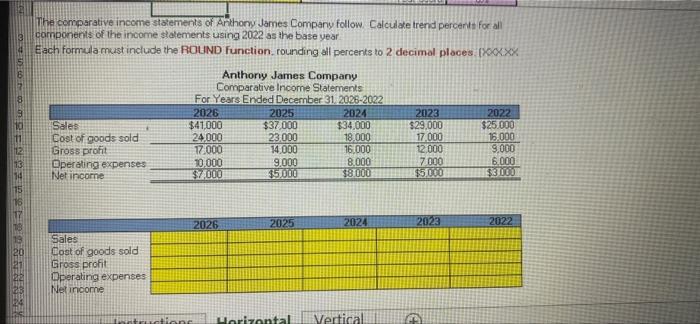
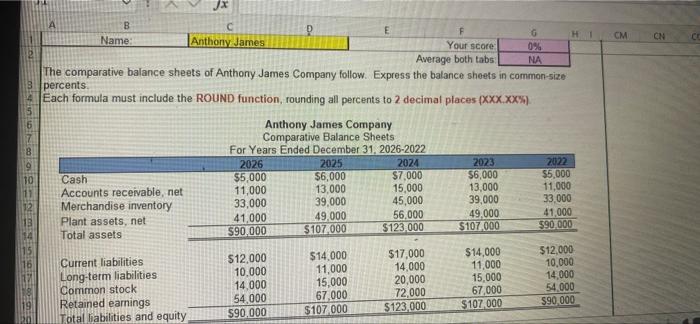
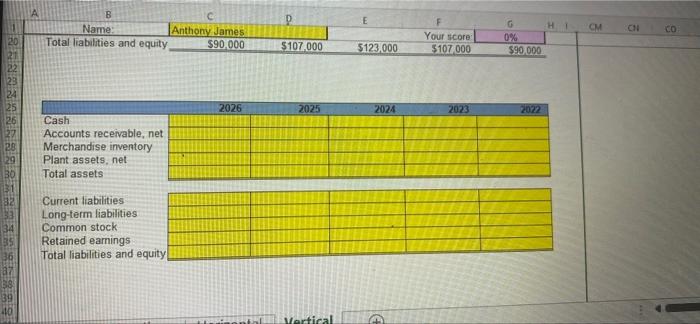
07 X fx B D E F G H 1 Click on the "Horizontal" tab and enter your name in Cell C1. If Cell C1 is left blank, you will not be able to see your score. 2 Each yellow cell requires a formula. 3 The formula must only contain cell addresses. 4 Each correct formula will begin with, +, or -. 5 6 The basic mathematical operators are +, -, and/ 7 Addition: To add the values in cells A1 and B4, the formula is A1+84 8 Subtraction: To subtract the value in cell B4 from the value in cell A1, the formula is -A1-84 9 Multiplication: To multiply the values in cells A1 and 84, the formula is =A1*84 10 Division: To divide the value in cell A1 by the value in cell B4, the formula is =A1/84 71 12 Using the ROUND function 13 The round function has the following syntax: ROUND(Number, Number of digits) 14 The first variable, Number, may be either a value or a formula that returns a value. 15 Number of digits may be either a positive number (rounds to the right of the decimal point) or negative 16 number (rounds to the left of the decimal point). 17 183 19 12,847.3387 To round to the nearest .01, the formula is ROUND(A17,2) and returns >> 12,847.3387 To round to the nearest 1,000, the formula is -ROUND(A18,-3) and returns>> Instructions Horizontal Vertical + 12,847.34 13,000.00 Styles M Cells
Step by Step Solution
There are 3 Steps involved in it

Get step-by-step solutions from verified subject matter experts
 Study Help