







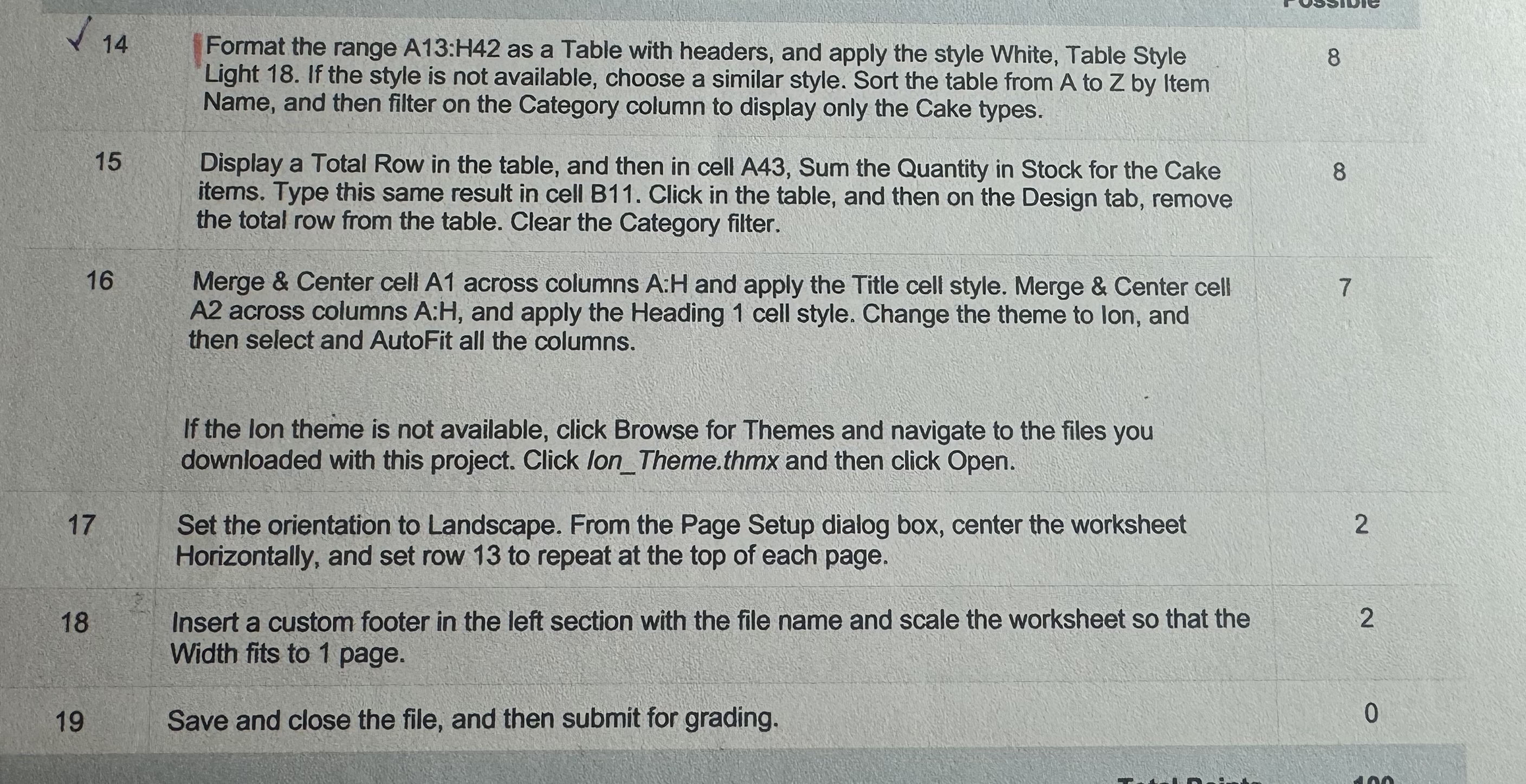
Question: 1 4 Format the range A 1 3 :H 4 2 as a Table with headers, and apply the style White, Table Style Light 1
Format the range A:H as a Table with headers, and apply the style White, Table Style Light If the style is not available, choose a similar style. Sort the table from to by Item Name, and then filter on the Category column to display only the Cake types.
Display a Total Row in the table, and then in cell A Sum the Quantity in Stock for the Cake
items. Type this same result in cell B Click in the table, and then on the Design tab, remove the total row from the table. Clear the Category filter.
Merge & Center cell A across columns A:H and apply the Title cell style. Merge & Center cell
A across columns A:H and apply the Heading cell style. Change the theme to lon, and then select and AutoFit all the columns.
If the lon theme is not available, click Browse for Themes and navigate to the files you downloaded with this project. Click lonTheme.thmx and then click Open.
Set the orientation to Landscape. From the Page Setup dialog box, center the worksheet
Horizontally, and set row to repeat at the top of each page.
Insert a custom footer in the left section with the file name and scale the worksheet so that the
Width fits to page.
Save and close the file, and then submit for grading.
Step by Step Solution
There are 3 Steps involved in it
1 Expert Approved Answer
Step: 1 Unlock

Question Has Been Solved by an Expert!
Get step-by-step solutions from verified subject matter experts
Step: 2 Unlock
Step: 3 Unlock
 Study Help