







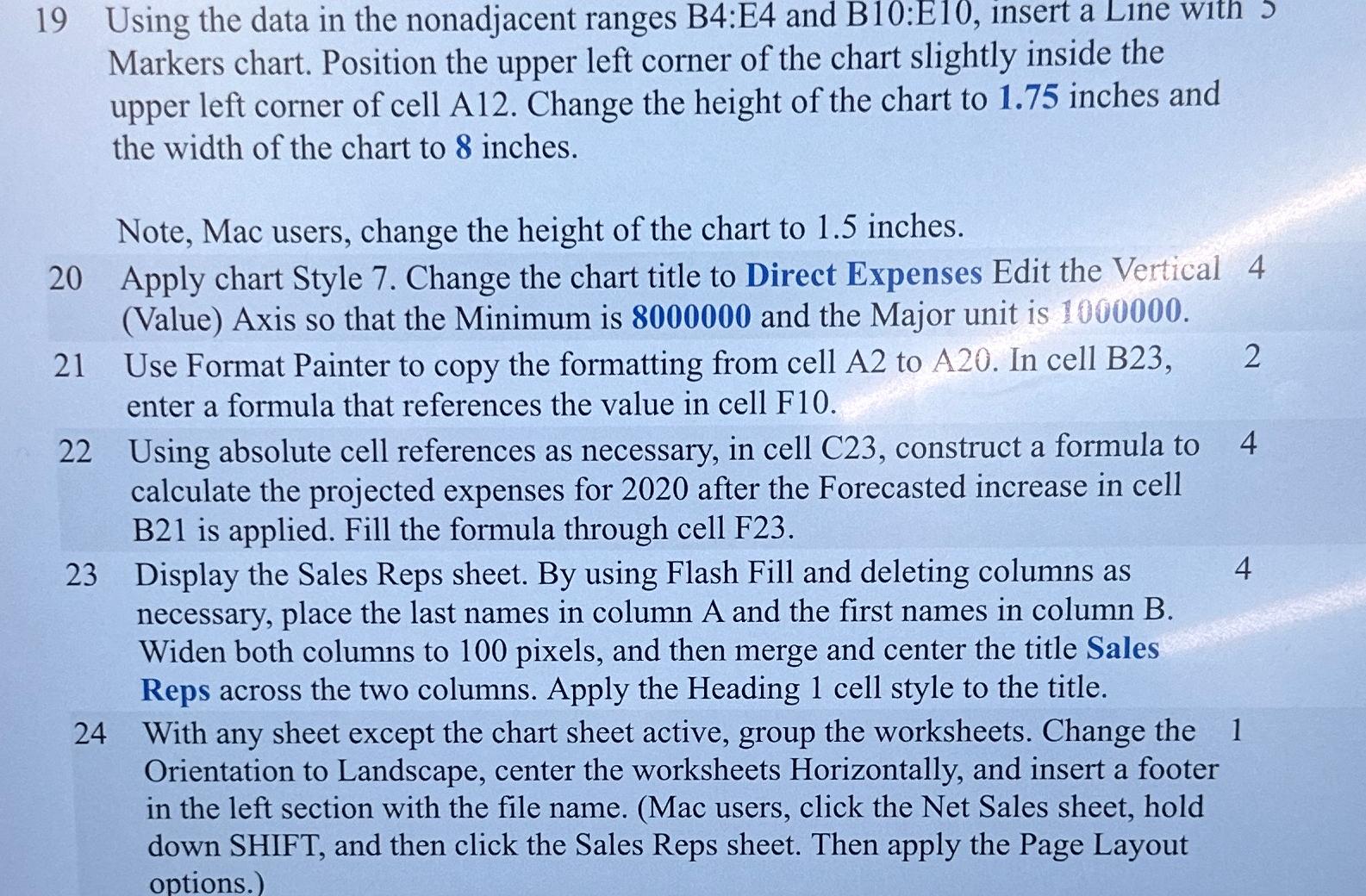
Question: 1 9 Using the data in the nonadjacent ranges B 4 :E 4 and B 1 0 :E 1 0 , insert a Line with
Using the data in the nonadjacent ranges B:E and B:E insert a Line with Markers chart. Position the upper left corner of the chart slightly inside the upper left corner of cell A Change the height of the chart to inches and the width of the chart to inches.
Note, Mac users, change the height of the chart to inches.
Apply chart Style Change the chart title to Direct Expenses Edit the Vertical Value Axis so that the Minimum is and the Major unit is
Use Format Painter to copy the formatting from cell A to A In cell B
enter a formula that references the value in cell F
Using absolute cell references as necessary, in cell construct a formula to
calculate the projected expenses for after the Forecasted increase in cell B is applied. Fill the formula through cell F
Display the Sales Reps sheet. By using Flash Fill and deleting columns as
necessary, place the last names in column A and the first names in column B Widen both columns to pixels, and then merge and center the title Sales Reps across the two columns. Apply the Heading cell style to the title.
With any sheet except the chart sheet active, group the worksheets. Change the Orientation to Landscape, center the worksheets Horizontally, and insert a footer in the left section with the file name. Mac users, click the Net Sales sheet, hold down SHIFT, and then click the Sales Reps sheet. Then apply the Page Layout options.
Step by Step Solution
There are 3 Steps involved in it
1 Expert Approved Answer
Step: 1 Unlock

Question Has Been Solved by an Expert!
Get step-by-step solutions from verified subject matter experts
Step: 2 Unlock
Step: 3 Unlock
 Study Help