







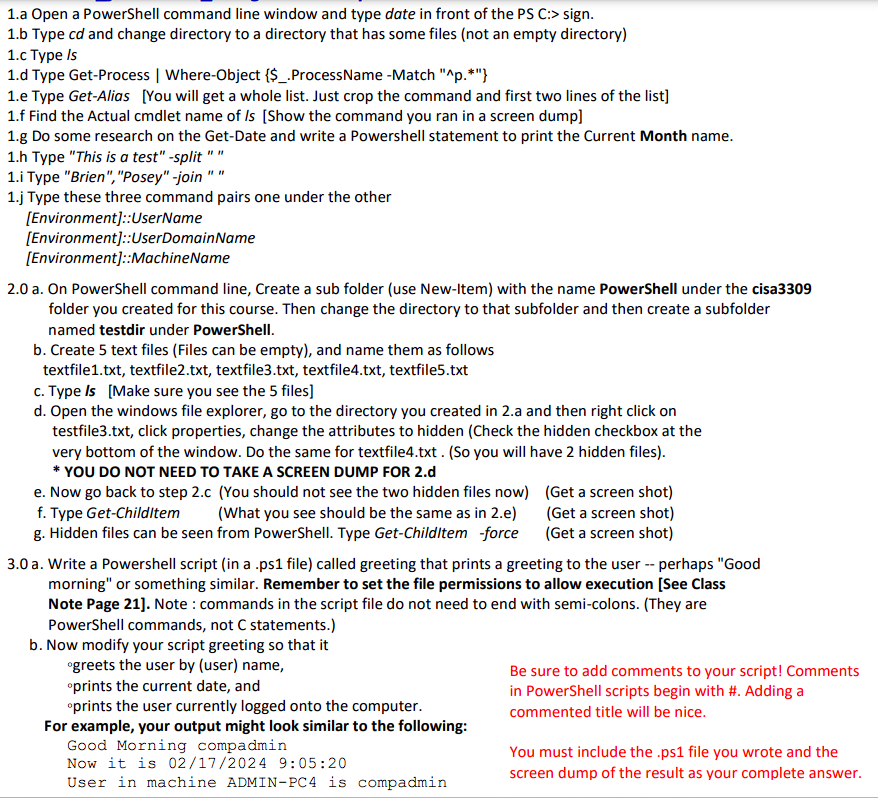
Question: 1 . a Open a PowerShell command line window and type date in front of the PS C: > sign. 1 . b Type cd
a Open a PowerShell command line window and type date in front of the PS C: sign.
b Type cd and change directory to a directory that has some files not an empty directory
c Type ls
d Type GetProcess WhereObject $ProcessName Match p
e Type GetAlias You will get a whole list. Just crop the command and first two lines of the list
f Find the Actual cmdlet name of ls Show the command you ran in a screen dump
g Do some research on the GetDate and write a Powershell statement to print the Current Month name.
h Type "This is a test" split
i Type "Brien","Posey" join
j Type these three command pairs one under the other
Environment::UserName
Environment::UserDomainName
Environment::MachineName
a On PowerShell command line, Create a sub folder use NewItem with the name PowerShell under the cisa
folder you created for this course. Then change the directory to that subfolder and then create a subfolder
named testdir under PowerShell.
b Create text files Files can be empty and name them as follows
textfiletxt textfiletxt textfiletxt textfiletxt textfiletxt
c Type ls Make sure you see the files
d Open the windows file explorer, go to the directory you created in a and then right click on
testfiletxt click properties, change the attributes to hidden Check the hidden checkbox at the
very bottom of the window. Do the same for textfiletxt So you will have hidden files
YOU DO NOT NEED TO TAKE A SCREEN DUMP FOR d
e Now go back to step c You should not see the two hidden files nowGet a screen shot
f Type GetChildItem What you see should be the same as in eGet a screen shot
g Hidden files can be seen from PowerShell. Type GetChildItem force Get a screen shot
a Write a Powershell script in a ps file called greeting that prints a greeting to the user perhaps "Good
morning" or something similar. Remember to set the file permissions to allow execution See Class
Note Page Note : commands in the script file do not need to end with semicolons. They are
PowerShell commands, not C statements.
b Now modify your script greeting so that it
greets the user by user name,
prints the current date, and
prints the user currently logged onto the computer.
For example, your output might look similar to the following:
Good Morning compadmin
Now it is ::
User in machine ADMINPC is compadmina Open a PowerShell command line window and type date in front of the PS C: sign.
b Type and change directory to a directory that has some files not an empty directory
c Type Is
d Type GetProcess WhereObject $ProcessName Match p
e Type GetAlias You will get a whole list. Just crop the command and first two lines of the list
f Find the Actual cmdlet name of Show the command you ran in a screen dump
g Do some research on the GetDate and write a Powershell statement to print the Current Month name.
h Type "This is a test" split
i Type "Brien", "Posey" join
j Type these three command pairs one under the other
a On PowerShell command line, Create a sub folder use NewItem with the name PowerShell under the cisa
folder you created for this course. Then change the directory to that subfolder and then create a subfolder
named testdir under PowerShell.
b Create text files Files can be empty and name them as follows
textfiletxt textfiletxt textfiletxt textfiletxt textfiletxt
c Type Is Make sure you see the files
d Open the windows file explorer, go to the directory you created in a and then right click on
testfiletxt click properties, change the attributes to hidden Check the hidden checkbox at the
very bottom of the window. Do the same for textfiletxt So you will have hidden files
YOU DO NOT NEED TO TAKE A SCREEN DUMP FOR d
e Now go back to step c You should not see the two hidden files now
Get a screen shot
f Type GetChildltem What you see should be the same as in e
Get a screen shot
g Hidden files can be seen from PowerShell. Type GetChildltem force
Get a screen shot
a Write a Powershell script in a ps file called greeting that prints a greeting to the user perhaps "Good
morning" or something similar. Remember to set the file permissions to allow execution See Class
Note Page Note : commands in the script file do not need to end with semicolons. They are
PowerShell commands, not statements.
b Now modify your script greeting so that it
ogreets the user by user name,
oprints the current date, and
oprints the user currently logged onto the computer.
For example, your output might look similar to the following:
Good Morning compadmin
Now it is ::
User in machine ADMINPC is compadmin
Be sure to add comments to your
Step by Step Solution
There are 3 Steps involved in it
1 Expert Approved Answer
Step: 1 Unlock

Question Has Been Solved by an Expert!
Get step-by-step solutions from verified subject matter experts
Step: 2 Unlock
Step: 3 Unlock
 Study Help