







Question: 2.0 a. On PowerShell command line, Create a sub folder (use New-Item) with the name PowerShell under the cisa33C folder you created for this course.
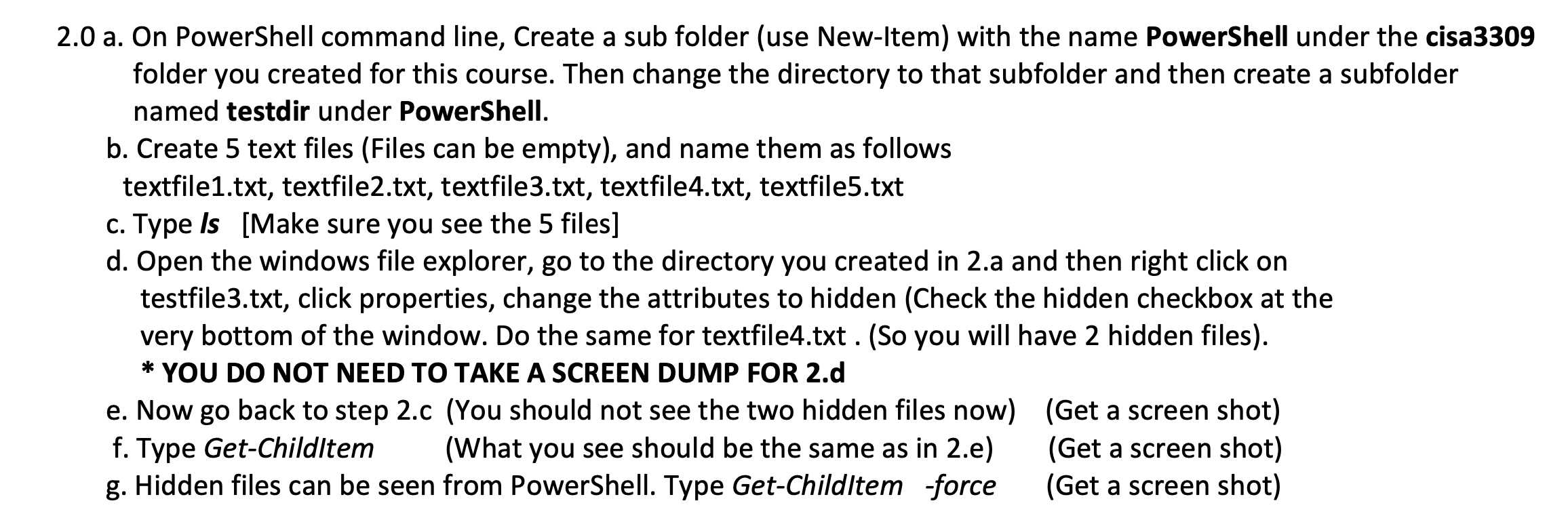
2.0 a. On PowerShell command line, Create a sub folder (use New-Item) with the name PowerShell under the cisa33C folder you created for this course. Then change the directory to that subfolder and then create a subfolder named testdir under PowerShell. b. Create 5 text files (Files can be empty), and name them as follows textfile1.txt, textfile2.txt, textfile3.txt, textfile4.txt, textfile5.txt c. Type Is [Make sure you see the 5 files] d. Open the windows file explorer, go to the directory you created in 2 .a and then right click on testfile3.txt, click properties, change the attributes to hidden (Check the hidden checkbox at the very bottom of the window. Do the same for textfile4.txt . (So you will have 2 hidden files). * YOU DO NOT NEED TO TAKE A SCREEN DUMP FOR 2.d e. Now go back to step 2.c (You should not see the two hidden files now) (Get a screen shot) f. Type Get-Childltem (What you see should be the same as in 2.e) (Get a screen shot) g. Hidden files can be seen from PowerShell. Type Get-Child/tem -force (Get a screen shot)
Step by Step Solution
There are 3 Steps involved in it

Get step-by-step solutions from verified subject matter experts
 Study Help