







Question: 1. Build a launcher Java class that extends Application and displays the starting Stage, including a menu and a menu controller. Menu code should only
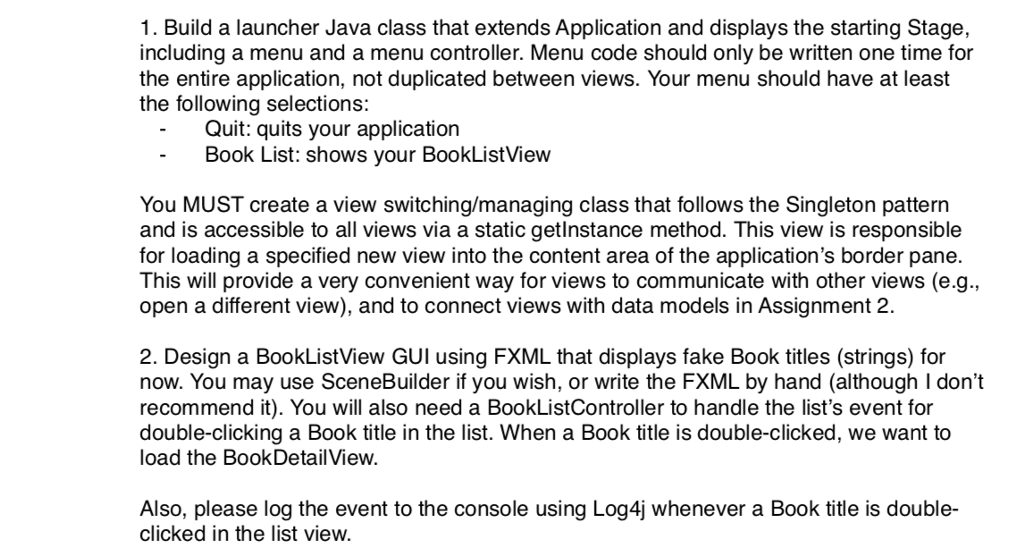
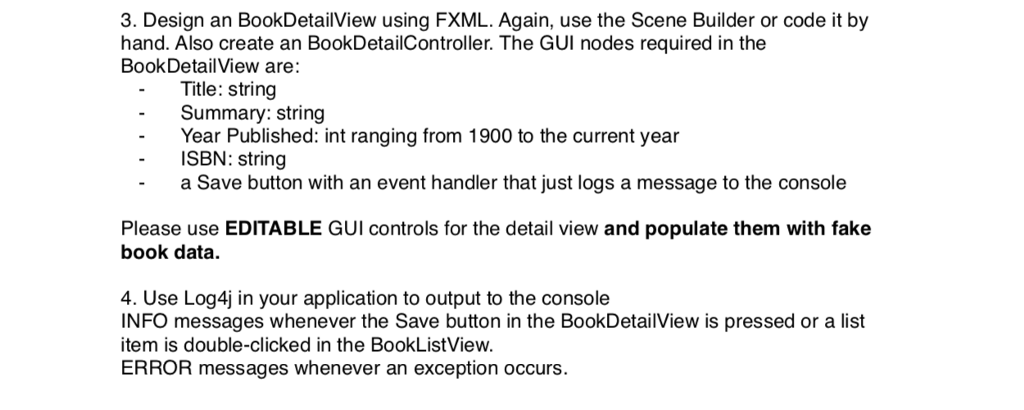
1. Build a launcher Java class that extends Application and displays the starting Stage, including a menu and a menu controller. Menu code should only be written one time for the entire application, not duplicated between views. Your menu should have at least the following selections: -Quit: quits your application Book List: shows your BookListView You MUST create a view switching/managing class that follows the Singleton pattern and is accessible to all views via a static getlnstance method. This view is responsible for loading a specified new view into the content area of the application's border pane. This will provide a very convenient way for views to communicate with other views (e.g., open a different view), and to connect views with data models in Assignment 2. 2. Design a BookListView GUI using FXML that displays fake Book titles (strings) for now. You may use SceneBuilder if you wish, or write the FXML by hand (although I don't recommend it). You will also need a BookListController to handle the list's event for double-clicking a Book title in the list. When a Book title is double-clicked, we want to load the Book DetailView Also, please log the event to the console using Log4j whenever a Book title is double- clicked in the list view. 3. Design an BookDetailView using FXML. Again, use the Scene Builder or code it by hand. Also create an BookDetailController. The GUI nodes required in the BookDetailView are: Title: string Summary: string Year Published: int ranging from 1900 to the current year ISBN: string a Save button with an event handler that just logs a message to the console Please use EDITABLE GUI controls for the detail view and populate them with fake book data. 4. Use Log4j in your application to output to the console INFO messages whenever the Save button in the BookDetailView is pressed or a list item is double-clicked in the BookListView. ERROR messages whenever an exception occurs. 1. Build a launcher Java class that extends Application and displays the starting Stage, including a menu and a menu controller. Menu code should only be written one time for the entire application, not duplicated between views. Your menu should have at least the following selections: -Quit: quits your application Book List: shows your BookListView You MUST create a view switching/managing class that follows the Singleton pattern and is accessible to all views via a static getlnstance method. This view is responsible for loading a specified new view into the content area of the application's border pane. This will provide a very convenient way for views to communicate with other views (e.g., open a different view), and to connect views with data models in Assignment 2. 2. Design a BookListView GUI using FXML that displays fake Book titles (strings) for now. You may use SceneBuilder if you wish, or write the FXML by hand (although I don't recommend it). You will also need a BookListController to handle the list's event for double-clicking a Book title in the list. When a Book title is double-clicked, we want to load the Book DetailView Also, please log the event to the console using Log4j whenever a Book title is double- clicked in the list view. 3. Design an BookDetailView using FXML. Again, use the Scene Builder or code it by hand. Also create an BookDetailController. The GUI nodes required in the BookDetailView are: Title: string Summary: string Year Published: int ranging from 1900 to the current year ISBN: string a Save button with an event handler that just logs a message to the console Please use EDITABLE GUI controls for the detail view and populate them with fake book data. 4. Use Log4j in your application to output to the console INFO messages whenever the Save button in the BookDetailView is pressed or a list item is double-clicked in the BookListView. ERROR messages whenever an exception occurs
Step by Step Solution
There are 3 Steps involved in it

Get step-by-step solutions from verified subject matter experts
 Study Help