







Question: 1. Create a new Java Project called GUIDemo 2. Create a package called com.gui_demo 3. Create a class called GUIDemo with the main method in
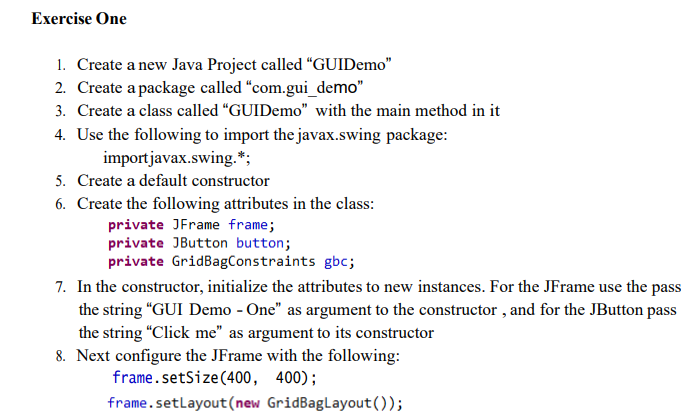
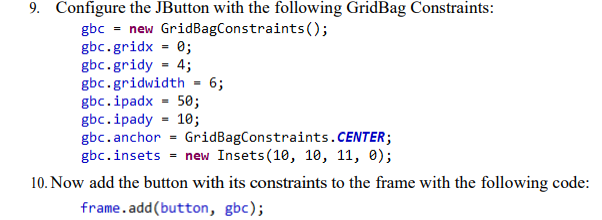
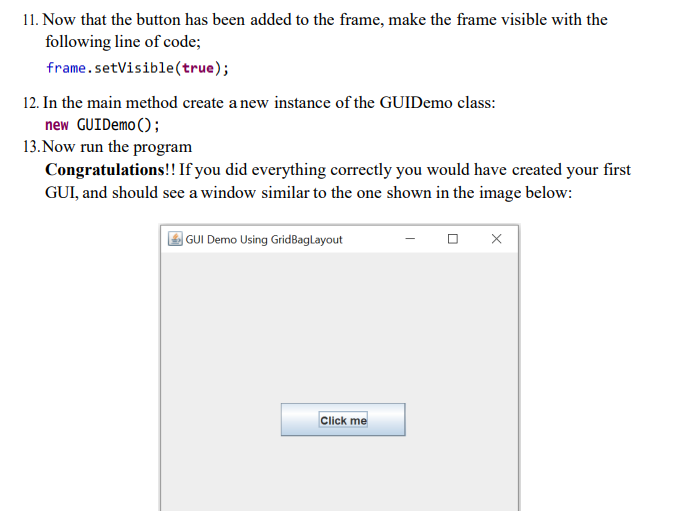
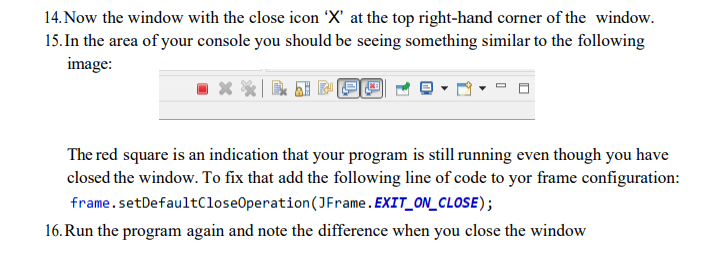
1. Create a new Java Project called "GUIDemo" 2. Create a package called "com.gui_demo" 3. Create a class called "GUIDemo" with the main method in it 4. Use the following to import the javax.swing package: importjavax.swing.*; 5. Create a default constructor 6. Create the following attributes in the class: private JFrame frame; private JButton button; private GridBagConstraints gbc; 7. In the constructor, initialize the attributes to new instances. For the JFrame use the pass the string "GUI Demo - One" as argument to the constructor , and for the JButton pass the string "Click me" as argument to its constructor 8. Next configure the JFrame with the following: frame. setSize (400,400); frame.setLayout(new GridBagLayout()); 9. Configure the JButton with the following GridBag Constraints: gbc = new GridBagConstraints (); gbc. gridx =0; gbc.gridy =4; gbc. gridwidth =6; gbc. ipadx =50; gbc.ipady =10; gbc.anchor = GridBagConstraints.CENTER; gbc.insets = new Insets (10,10,11,0); 10. Now add the button with its constraints to the frame with the following code: frame.add(button, gbc); 11. Now that the button has been added to the frame, make the frame visible with the following line of code; frame. setVisible(true); 12. In the main method create a new instance of the GUIDemo class: new GUIDemo(); 13. Now run the program Congratulations!! If you did everything correctly you would have created your first GUI, and should see a window similar to the one shown in the image below: 14. Now the window with the close icon ' X ' at the top right-hand corner of the window. 15. In the area of your console you should be seeing something similar to the following image: The red square is an indication that your program is still running even though you have closed the window. To fix that add the following line of code to yor frame configuration: frame.setDefaultClose0peration(JFrame.EXIT_ON_CLOSE); 16. Run the program again and note the difference when you close the window
Step by Step Solution
There are 3 Steps involved in it

Get step-by-step solutions from verified subject matter experts
 Study Help