







Question: 1. Create a Windows Forms application. Use the following names for the project and solution, respectively: States Capitals Project and States Capitals Solution. Save
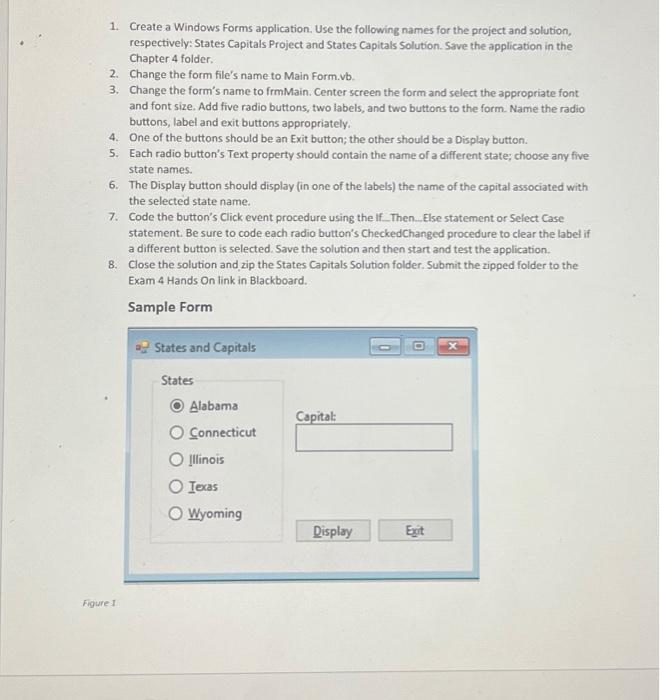
1. Create a Windows Forms application. Use the following names for the project and solution, respectively: States Capitals Project and States Capitals Solution. Save the application in the Chapter 4 folder. 2. Change the form file's name to Main Form.vb. 3. Change the form's name to frmMain. Center screen the form and select the appropriate font and font size. Add five radio buttons, two labels, and two buttons to the form. Name the radio buttons, label and exit buttons appropriately. 4. One of the buttons should be an Exit button; the other should be a Display button. 5. Each radio button's Text property should contain the name of a different state; choose any five state names. 6. The Display button should display (in one of the labels) the name of the capital associated with the selected state name. 7. Code the button's Click event procedure using the If.Then...Else statement or Select Case statement. Be sure to code each radio button's CheckedChanged procedure to clear the label if a different button is selected. Save the solution and then start and test the application. 8. Close the solution and zip the States Capitals Solution folder. Submit the zipped folder to the Exam 4 Hands On link in Blackboard. Sample Form States and Capitals Figure 1 States Alabama Capital: Connecticut Illinois Texas O Wyoming Display Exit
Step by Step Solution
There are 3 Steps involved in it

Get step-by-step solutions from verified subject matter experts
 Study Help