







Question: ( 1 ) Enhance JavaFX Project 3 Button Demo by adding a text field. You can find some example code in eBook Code Listing 1
Enhance JavaFX Project "Button Demo" by adding a text field.
You can find some example code in eBook Code Listing
Put all the GUI controls in an HBox.
The stage title should be "Text Field Demo by where is your first name and last name.
The label should initially display "Enter your name, then click the button."
After the user enters the name and clicks the button, the label should display
welcome!",
where is name that the user entered.
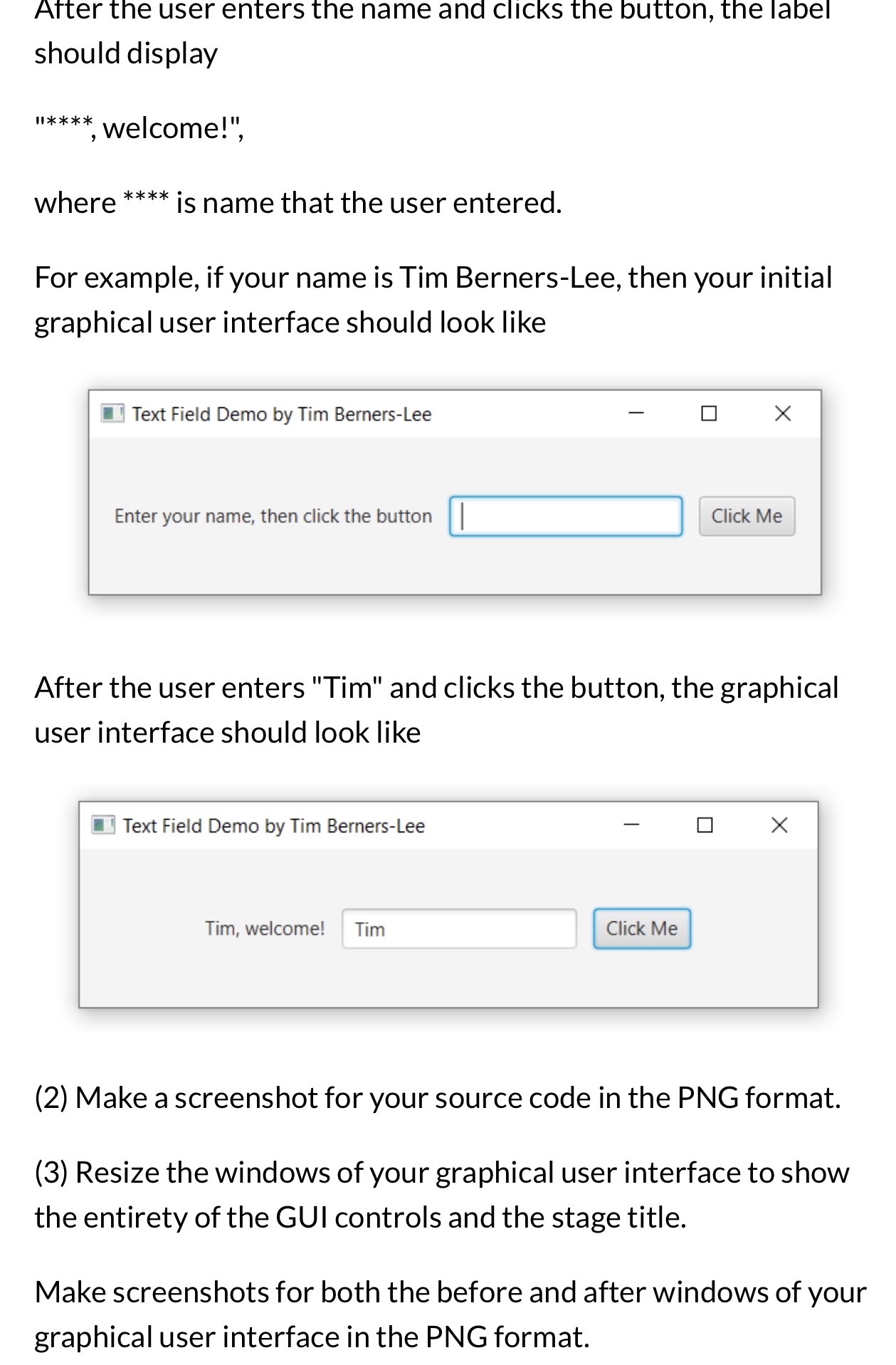
For example, if your name is Tim BernersLee, then your initial graphical user interface should look like
Text Field Demo by Tim BernersLee
Enter your name, then click the button
Click Me
After the user enters "Tim" and clicks the button, the graphical user interface should look like
After the user enters the name and clicks the button, the label should display
welcome!",
where is name that the user entered.
For example, if your name is Tim BernersLee, then your initial graphical user interface should look like
Text Field Demo by Tim BernersLee
Enter your name, then click the button
Click Me
After the user enters "Tim" and clicks the button, the graphical user interface should look like
Text Field Demo by Tim BernersLee
Tim, welcome!
Click Me
Make a screenshot for your source code in the PNG format.
Resize the windows of your graphical user interface to show the entirety of the GUI controls and the stage title.
Make screenshots for both the before and after windows of your graphical user interface in the PNG format.
Step by Step Solution
There are 3 Steps involved in it
1 Expert Approved Answer
Step: 1 Unlock

Question Has Been Solved by an Expert!
Get step-by-step solutions from verified subject matter experts
Step: 2 Unlock
Step: 3 Unlock
 Study Help