







Question: In this assignment, we will create an application which runs on the sample database from the Forta textbook. We will code it in the spirit
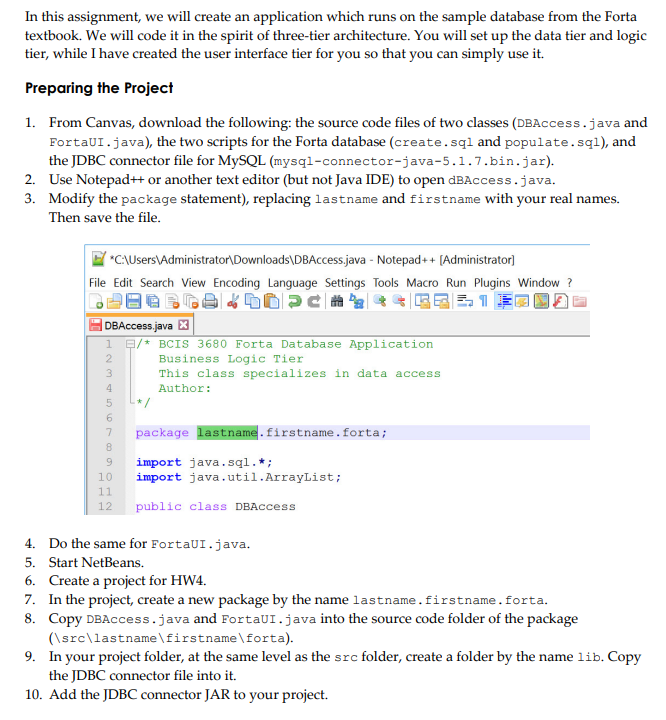
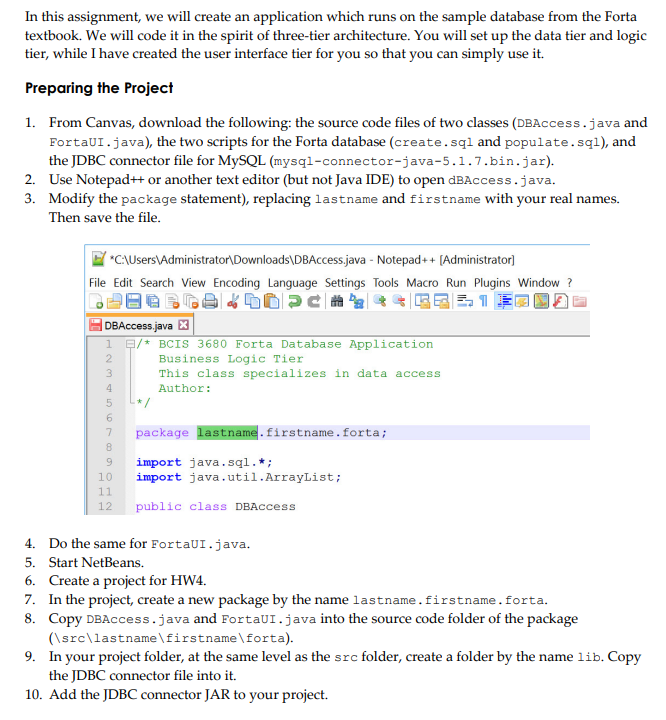
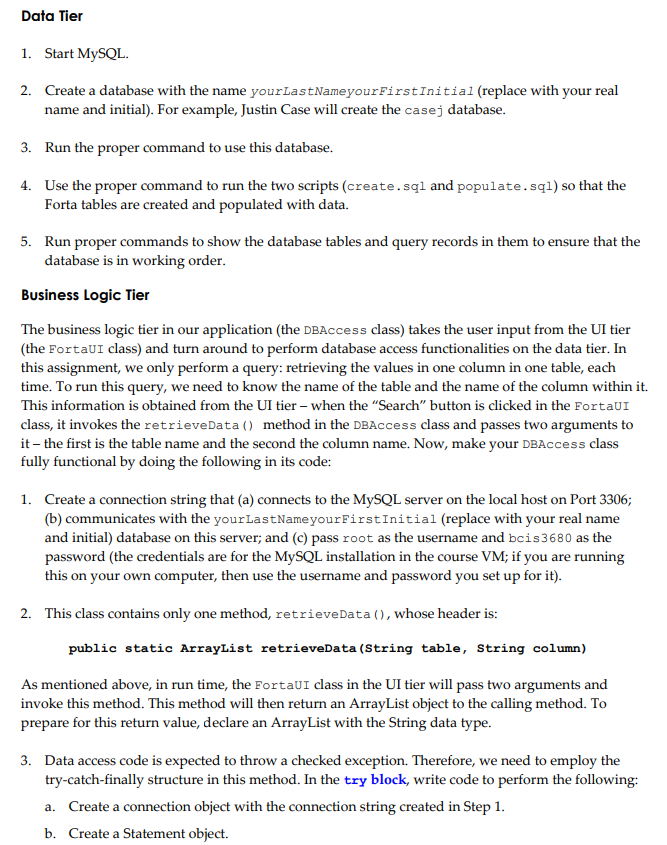
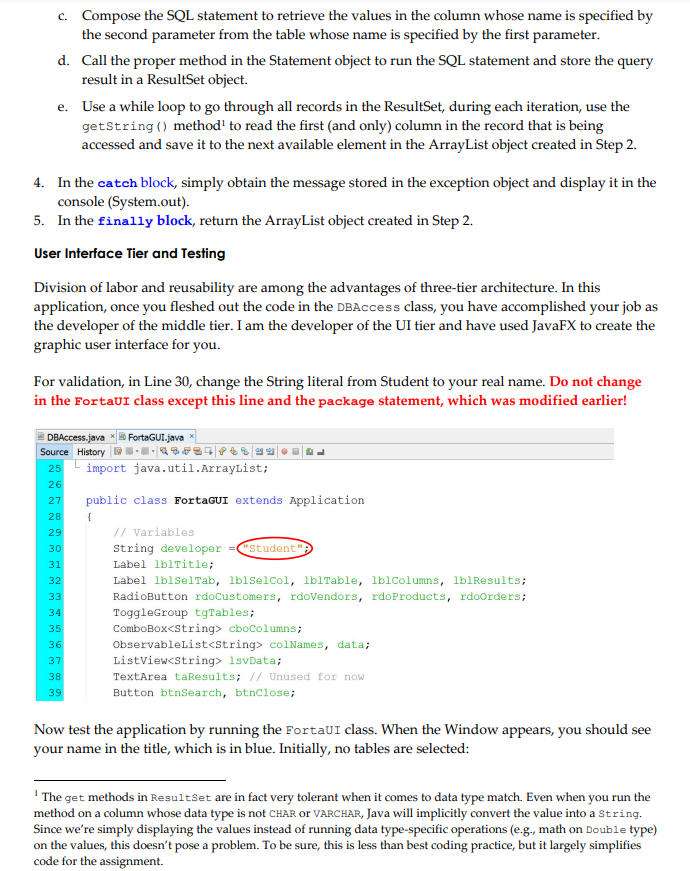
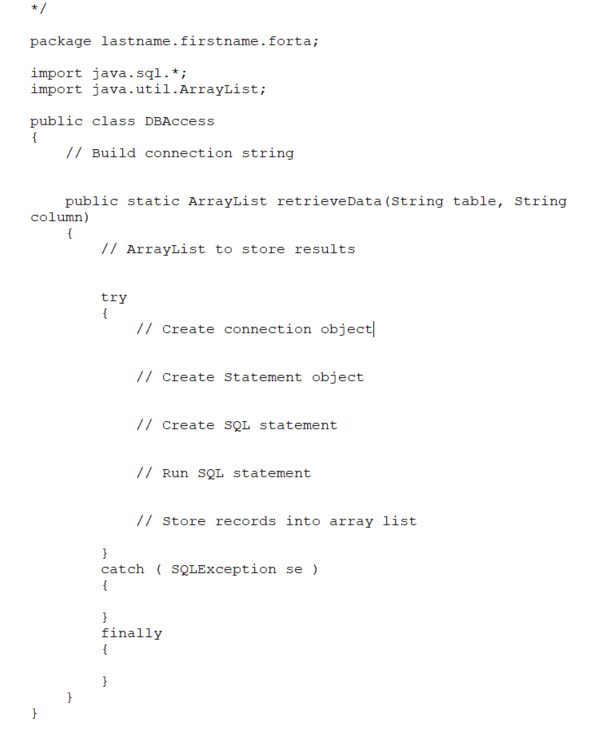
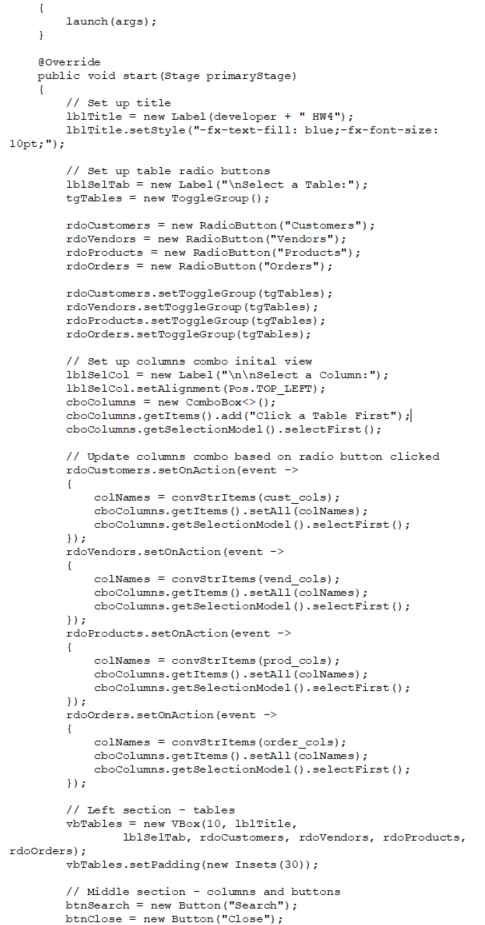
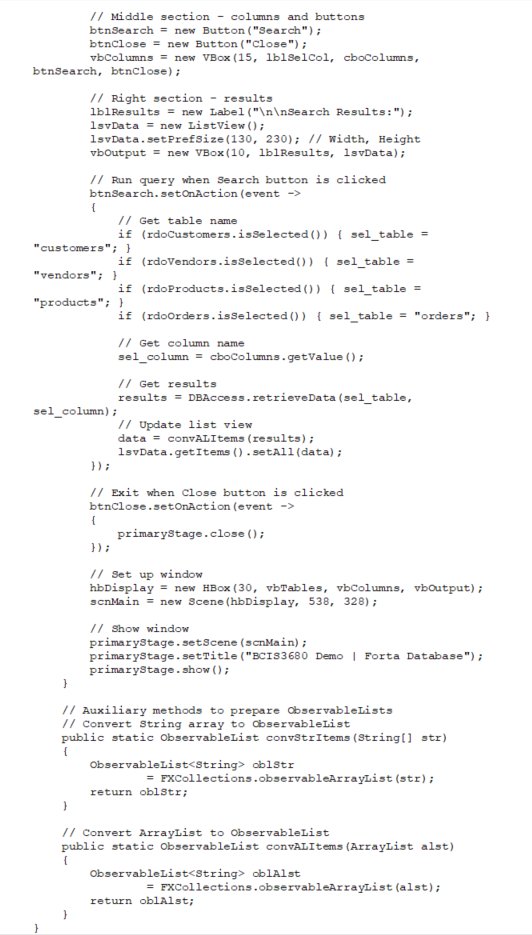
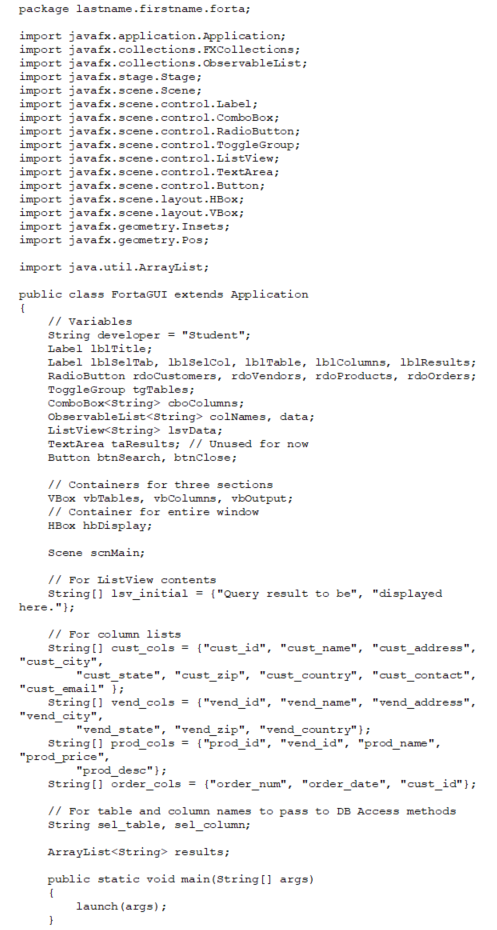

In this assignment, we will create an application which runs on the sample database from the Forta textbook. We will code it in the spirit of three-tier architecture. You will set up the data tier and logic tier, while I have created the user interface tier for you so that you can simply use it. Preparing the Project 1. From Canvas, download the following: the source code files of two classes (DBAccess . java and FortaUI . java), the two scripts for the Forta database (create . sql and populate. sql), and the JDBC connector file for MySQL (mysql-connector-java-5. 1.7.bin. jar). 2. Use Notepad++ or another text editor (but not Java IDE) to open dBAccess . java. 3. Modify the package statement), replacing lastname and firstname with your real names. Then save the file. /*C:\\Users\\Administrator\\Downloads\\DBAccess.java - Notepad+ + [Administrator] File Edit Search View Encoding Language Settings Tools Macro Run Plugins Window ? DBAccess.java XXX /* BCIS 3680 Forta Database Application Business Logic Tier This class specializes in data access Author : package lastname . firstname . forta; import java. sql. *; 10 import java. util . ArrayList ; 11 12 public class DBAccess 4. Do the same for FortaUI . java. 5. Start NetBeans. 6. Create a project for HW4. 7. In the project, create a new package by the name lastname . firstname. forta. 8. Copy DBAccess. java and FortaUI . java into the source code folder of the package (\\src\\lastname\\firstname\\forta). 9. In your project folder, at the same level as the src folder, create a folder by the name lib. Copy the JDBC connector file into it. 10. Add the JDBC connector JAR to your project.In this assignment, we will create an application which runs on the sample database from the Forta textbook. We will code it in the spirit of three-tier architecture. You will set up the data tier and logic tier, while I have created the user interface tier for you so that you can simply use it. Preparing the Project 1. From Canvas, download the following: the source code files of two classes (DBAccess . java and FortaUI . java), the two scripts for the Forta database (create . sql and populate. sql), and the JDBC connector file for MySQL (mysql-connector-java-5. 1.7.bin. jar). 2. Use Notepad++ or another text editor (but not Java IDE) to open dBAccess . java. 3. Modify the package statement), replacing lastname and firstname with your real names. Then save the file. /*C:\\Users\\Administrator\\Downloads\\DBAccess.java - Notepad+ + [Administrator] File Edit Search View Encoding Language Settings Tools Macro Run Plugins Window ? DBAccess.java XXX /* BCIS 3680 Forta Database Application Business Logic Tier This class specializes in data access Author : package lastname . firstname . forta; import java. sql. *; 10 import java. util . ArrayList ; 11 12 public class DBAccess 4. Do the same for FortaUI . java. 5. Start NetBeans. 6. Create a project for HW4. 7. In the project, create a new package by the name lastname . firstname. forta. 8. Copy DBAccess. java and FortaUI . java into the source code folder of the package (\\src\\lastname\\firstname\\forta). 9. In your project folder, at the same level as the src folder, create a folder by the name lib. Copy the JDBC connector file into it. 10. Add the JDBC connector JAR to your project.Data Tier 1. Start MySQL. 2. Create a database with the name yourLastName-yourf'irstInitiai {replace with your real name and initial). For example, Justin Case will create the casej database. 3. Run the proper command to use this database. 4. Use the proper command to run the two scripts (create . sql and populate i sql] so that the Forta tables are created and populated with data. 5. Run proper commands to show the database tables and query records in them to ensure that the database is in working order. Business Logic Tier The business logic tier in our application (the DEA-ace s 5 class) takes the user input from the UI tier (the For:a:JI class} and turn around to perform database access tunctionalities on the data tier. In this assignment, we only perform a query: retrieving the values in one column in one table, each time. To run this query, we need to know the name of the table and the name of the column within it. This information is obtained from the UI tier when the "Search\" button is clicked in the FortaUl class, it invokes the retrieveoata {1 method in the DEACCESS class and passes two arguments to it the first is the table name and the second the column name. Now, make your DEAccess class fully functional by doing the following in its code: 1. Create a connection string that (a) connects to the MySQL server on the local host on Port 3306,- (b) communicates with the yourLas:NameyourFi r s: Ini: ial (replace with your real name and initial) database on this server; and [c] pass root as the username and bcisBEBU as the password (the credentials are for the MySQL installation in the course VM; if you are running this on your own computer, then use the username and password you set up for it). 2. This class contains only one method, retrieveData E], Whose header is: public static Array-List. retrievanatatstring table, String column] As mentioned above, in run time, the For:a:JI class in the UI tier will pass two arguments and invoke this method. This method will then return an ArrayList object to the calling method. To prepare for this return value, declare an ArrayList with the String data type. 3. Data access code is expected to throw a checked exception. Therefore, we need to employ the try-catch-finally structure in this method. In the try block, write code to perform the following: a. Create a connection object with the connection string created in Step 1. b. Create a Statement object. c. Compose the SQL statement to retrieve the values in the column whose name is specified by the second parameter from the table whose name is specified by the first parameter. d. Call the proper method in the Statement object to run the SQL statement and store the query result in a ResultSet object. e. Use a while loop to go through all records in the ResultSet, during each iteration, use the getString () method' to read the first (and only) column in the record that is being accessed and save it to the next available element in the ArrayList object created in Step 2. 4. In the catch block, simply obtain the message stored in the exception object and display it in the console (System.out). 5. In the finally block, return the ArrayList object created in Step 2. User Interface Tier and Testing Division of labor and reusability are among the advantages of three-tier architecture. In this application, once you fleshed out the code in the DBAccess class, you have accomplished your job as the developer of the middle tier. I am the developer of the UI tier and have used JavaFX to create the graphic user interface for you. For validation, in Line 30, change the String literal from Student to your real name. Do not change in the FortaUI class except this line and the package statement, which was modified earlier! DBAccess.java * FortaGUI.java * Source History . .19/54 P$599. 804 25 import java. util. ArrayList; 26 27 public class FortaGUI extends Application 28 29 // variables 30 string developer "Student "; 31 Label 1blTitle; 32 Label IbiselTab, IblselCol, 1blTable, lblColumns, IblResults; 33 RadioButton rdoCustomers, rdoVendors, rdoProducts, rdoorders; 34 ToggleGroup tgTables; 35 ComboBox
Step by Step Solution
There are 3 Steps involved in it

Get step-by-step solutions from verified subject matter experts
 Study Help