





Question: 1 Introduction In this homework you will explore LinearLayout. Throughout this homework you will find resources at https: //developer.android.com very help. In particular the the
 1 Introduction In this homework you will explore LinearLayout. Throughout this
homework you will find resources at https: //developer.android.com very help. In particular
the the API guide For the following exercises, create an Android project
called Homeworkl targeting API level 16 and above. Accept the defaults for

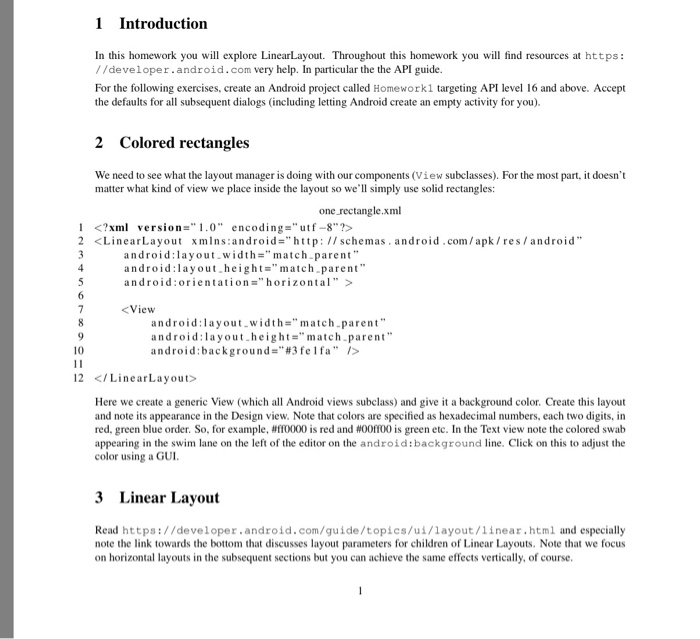
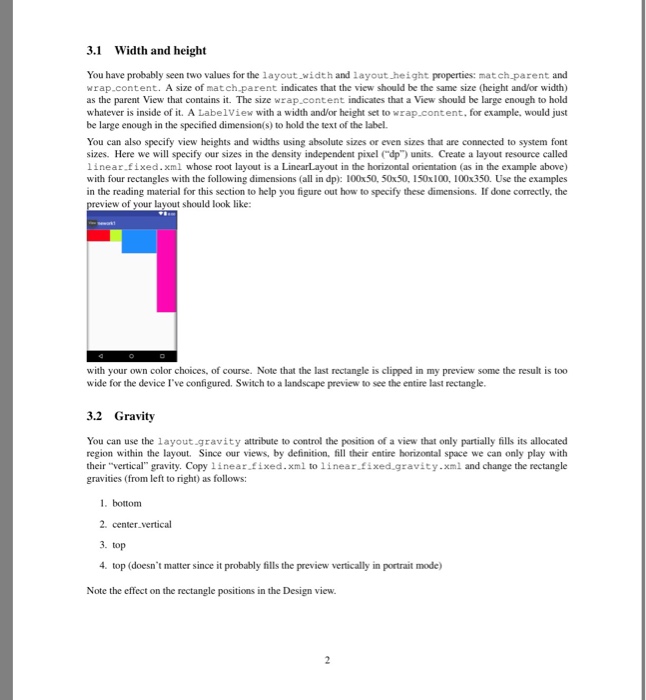
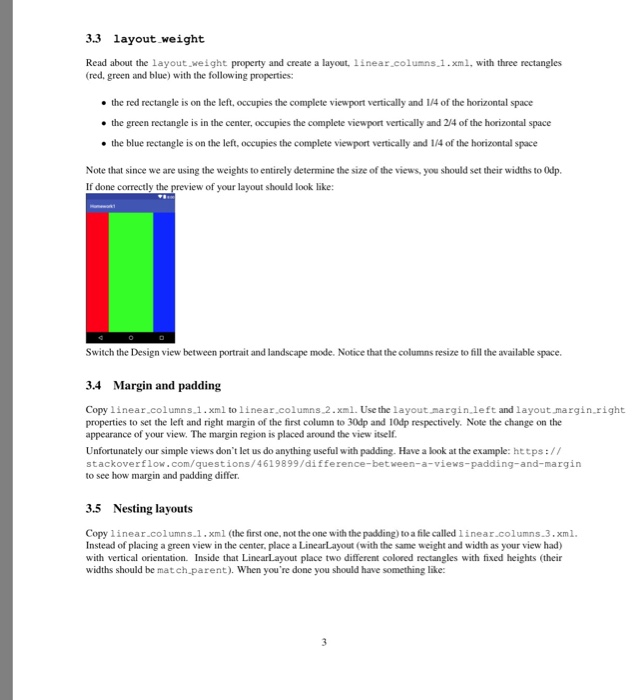
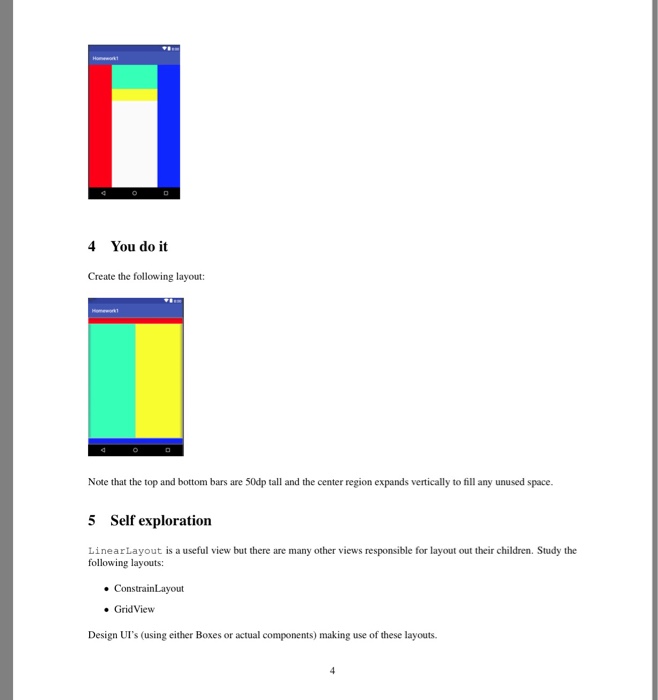
1 Introduction In this homework you will explore LinearLayout. Throughout this homework you will find resources at https: //developer.android.com very help. In particular the the API guide For the following exercises, create an Android project called Homeworkl targeting API level 16 and above. Accept the defaults for all subsequent dialogs (including letting Android create an empty activity for you). 2 Colored rectangles We need to see what the layout manager is doing with our components (View subclasses). For the most part, it doesn't matter what kind of view we place inside the layout so we'l simply use solid rectangles: one rectangle.xml 1 2 10 12 KILinearLayout> Here we create a generic View (which all Android views subclass) and give it a background color. Create this layout and note its appearance in the Design view. Note that colors are specified as hexadecimal numbers, each two digits, in red. green blue order. So, for example, #ff0000 is red and #00ff00 is green etc. In the Text view note the colored swab appearing in the swim lane on the left of the editor on the android:background line. Click on this to adjust the color using a GUI 3 Linear Layout Read https://developer.android.com/guide/topics/ui/layout/linear.html and especially note the link towards the bottom that discusses layout parameters for children of Linear Layouts. Note that we focus on horizontal layouts in the subsequent sections but you can achieve the same effects vertically, of course
Step by Step Solution

There are 3 Steps involved in it

1 Expert Approved Answer
Step: 1 Unlock blur-text-image
Question Has Been Solved by an Expert!

Get step-by-step solutions from verified subject matter experts

Step: 2 Unlock
Step: 3 Unlock

Students Have Also Explored These Related Databases Questions!