







Question: 1. Oper the start lie AC2016-Capstone-Level2. NOTE: If necessary, chable active content by dicking the Enable Content button in the Message Bar. 2. The file
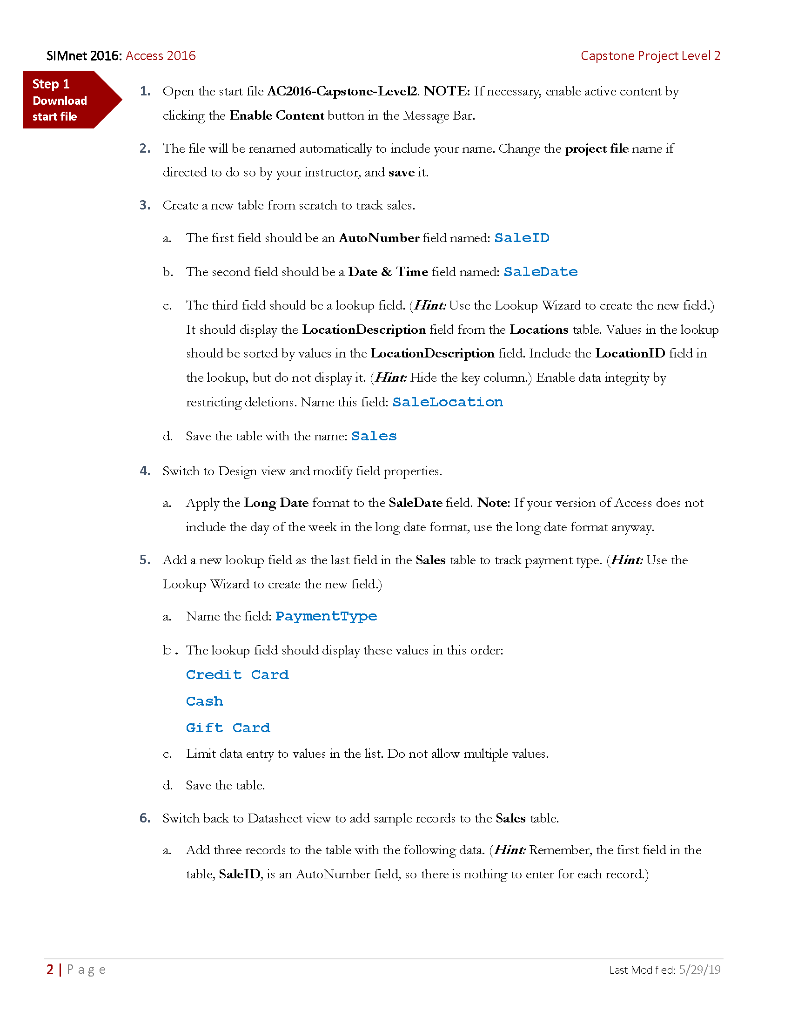
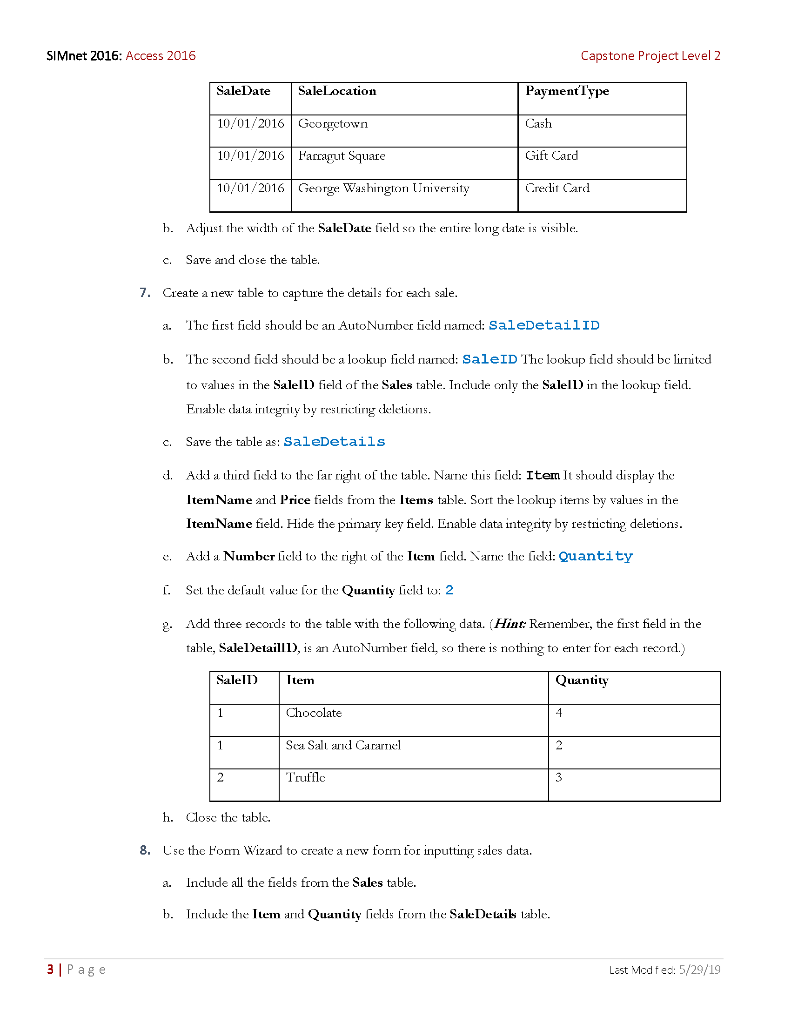
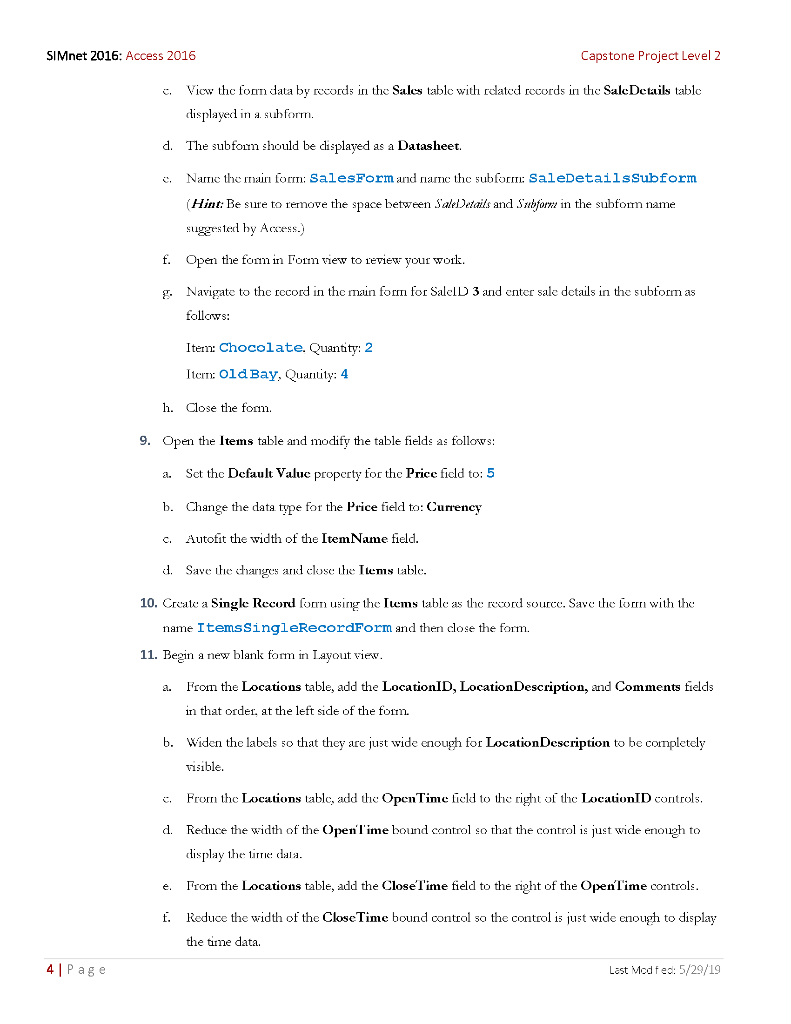
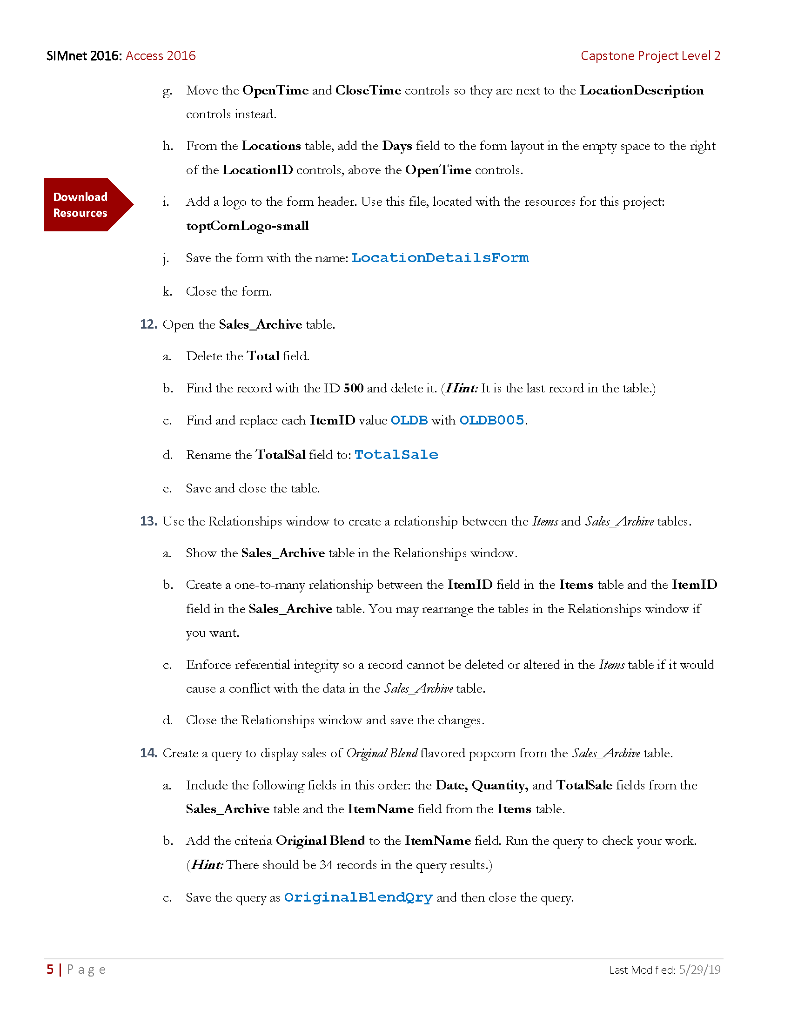
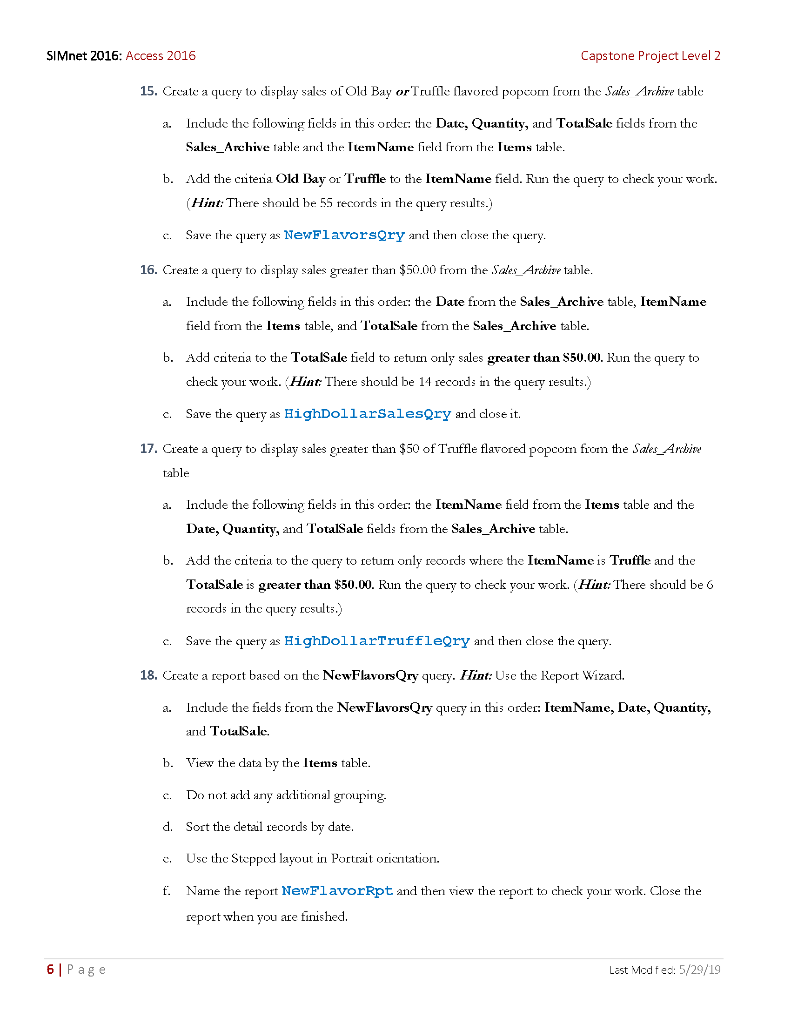
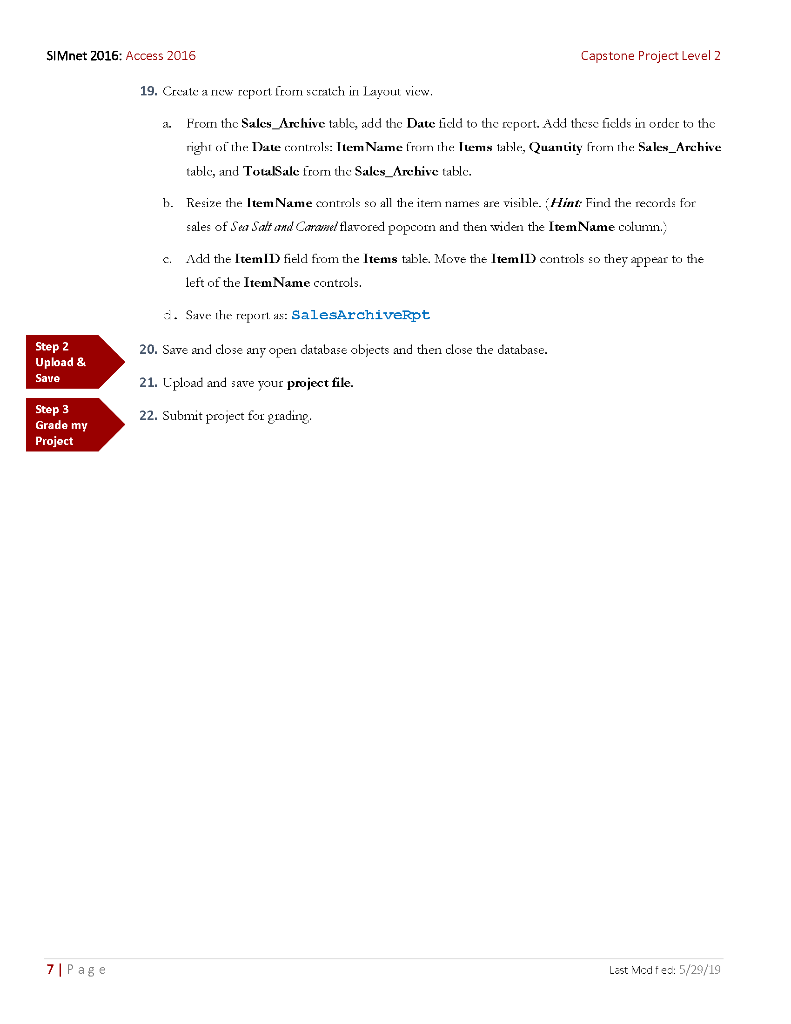
1. Oper the start lie AC2016-Capstone-Level2. NOTE: If necessary, chable active content by dicking the Enable Content button in the Message Bar. 2. The file will be renamed automatically to include your name. Change the project file name if dirowed to do so by your imstructor, and save it. 3. Crate a new table from scratch to track salcs. 2. The first field should be an AutoNumber field named: SaleID b. The second tield should be a Date \& ' 'ime field named: saleDate c. The third tidd should be a lookup ficld. (Iint: Usc the Lookup Wizard to create the new fidd.) It should display the LocationDescription field from the Locations table. Values in the lookup should be sorked by values in the LocationDescription ficld. Include the LocationID fidd in the lookup, but do not display it. Hiat: Hide the key column., Enable data integrity by restricting deletions. Narne this lield: SaleLocation d. Save the table with the marne: Sales 4. Switch to Design view and modify tield properties. a. Apply the Long Date format to the SaleDate field. Note: If your version of Acoes does not include the day of the week in the long date format, use the long date format anyway. 5. Add a new lookup tield as the last field in the Sales table to track payment type. Hint Use the Loskup Wizard to create the new lield.) a. Name the ficld: PaymentType E. The lookup fidd should display these values in this order: Credit Card Cash Gift Card c. Limit data entry to values in the list. Do not allow multiple values. d. Save the table. 6. Switch back to Datasheet view to add sample reords to the Salcs table. 2. Add three records to the table with the following data. (Hint Remember, the tirst field in the table, SaleID, is arl Auto Vurmber lield, se there is nothing ts erler For eath record.) SIMnet 2016: Access 2016 Capstone Project Level 2 b. Adjust the width ot the SaleDate tield so the ertire long date is visible. c. Save and dose the table. 7. Create a new table to capture the detaals for each sale. a. 'The tirst ficld should be an AutoNumber tield named: Saledetail ID b. The soond fidd should be a lookup ficld namod: SaleID The lookup fidd should be lirnitad to values in the Salell field of the Sales table. Include mly the Salell in the lookup tield. Errable dala iriegrily by real ricting deletionn: c. Save the table as: SaleDetails d. Adid a third fidd to the Far right of the lable. Narne thi; ficld: Item It should diaplay the ItemName and Price tields from the Items table. Sort the lookup items by values in the ItemName field. Hide the primayy key field. Enable data integrity by restricting deletions. e. Add a Number lield to the right of the Itm fied. Name the fidd: Quantity i. Set the delialt value [or the Quantiy lield io: 2 2. Add three reconds to the table with the following data. Himt Remember, the first field in the table, Saleldetaill1, is an AutoNumber field, so there is nothing to enter for each record.) h. Close the table. 8. Lis the Fonn Wizard to create a new form for inputting sales data. a. Include all the fields from the Sales table. b. Include 1he Item and Quantity fiedd: Irom the Sak:Detaiks latsle. net 2016: Access 2016 Capstone Project Level 2 e. Vicw the form data by rocords in the Sales table with related rocords in the SaleDetails table displayed in a subform. d. The subform should be displayed as a Datasheet. e. Name the rnain form: SalesForm and name the subform: SaleDetailssubform (Hint: Be sure to remove the space between Salejetails and Subform in the subform name suggested by Acress.) f. Open the form in orm niew to review your work. g. Navigate to the record in the main form for SalelD 3 and enter sale details in the subtorm as follows: Itern: Chocolate. Quantity: 2 Iterm: Old Bay, Quantity: 4 h. Close the form. 9. Open the Items table and modify the table fields as follows: a. Sct the Default Value property tor the Price ficld to: 5 b. Change the data type for the Price tield to: Currency c. Autof the width of the ItemName field. d. Save the thanges and close the Items table. 10. Creale a Single Record fonm uning the Iums lable as the rooord source. Save the form with the name ItemssingleRecordForm and then close the form. 11. Begin a new blank form in Layout view. a. From the Locations table, add the LocationID, LocationDescription, and Comments fields in that order, at the left side of the form. b. Widen the labels so that they are just wide enough for LocationDescription to be completely visible. e. From the Locations table, add the OpenTime lield to the right of the LocationID controls, d. Reduce the width of the Open'l'ime bound control so that the control is just wide enough to display the tirne dala. e. From the Locations table, add the Close T'ime field to the right of the Open'ime controls. t. Roduce the width of the CloseTime bound control so the control is just wide enough to display the time data. et 2016: Access 2016 Capstone Project Level 2 g. Move the OpenTime and CloseTime controls so they are next to the LocationDescription controls instear. h. Prom the Locations table, add the Days field to the fom layout in the empty space to the right of the LocationI1) controls, above the Open'lime controls. i. Add a logo to the form header. Use this file, located with the resouroes for this project: toptComLogo-small j. Save the form with the name: LocationDetailsForm k. Close the form. 12. Open the Sales_Archive table. a Delete the Total field. b. Find the rexord with the ID 500 and delete is. (IImt: It is the last roourd in the lable,) c. Find and replace cach ItemID valuc OLDB with OLDBOO 5 . d. Rename the TotalSal field to: TotalSale a. Save and dose the table. 13. Lsc the Relationships window to crcate a relationship betwecn the Itens and Sales Archie tables. a. Show the Sales_Archive table in the Relationships window. b. Create a one-to-many relationship between the ItemID field in the Items table and the ItemID field in the Sales_Archive table. You may reartange the tables in the Relationships window if you want. c. Dnforce referential integrity so a record cannot be deleted or altered in the Items table if it would cause a conflict with the data in the Sales_Anhize table. d. Close the Relationships window and save the changes. 14. Greate a query to display sales of Original Blend liavored pupoum from the Sales Arabire 1able. a. Iricude the following ficlds in this order: the Dake, Quantity, and TotalSale fieds from the Sales_Archive table and the ItemName field from the Items table. b. Add the criteria Original Blend to the ItemName field. Run the query to check your work. (Hint: There should be 34 records in the query results.) c. Save the query as originalBlendQry and then close the query. 16: Access 2016 Capstone Project Level 2 15. Create a query to dizplay sales of Old Bay or Trumle Ravored poperm from the Sales Arobie table a. Include the following ficlds in this order: the Date, Quantity, and TotalSake fidds from the Sales_Archive table and the. ItemName field frorn rhe Items lable. b. Add the citenia Old Bay or' Truffle to the ItemName field. Run the query to check your work. (Hint: There should be 55 records in the query results.) c. Save the query a NewFlavorsQry and then close the query. 16. Greate a query to display sales greater than $50.00 from the Sales_Aribive table. a. Include the following fields in this order: the Date from the Sales_Archive table, ItemName tield from the Items table, and I'otalSale from the Sales_Archive table. b. Add criteria to the TotalSale tield to retum only sales greater than s50.00. Run the query to check your work. Hint; There should be 14 records in the query results.) c. Save the query as HighDollarsalesQry and dose it. 17. Create a query to display sales greater than $50 of Truffle flavored popoom from the Sales_Ambit' table a. Inclucle the following fields in this order: the ItemName field from the Items table and the Date, Quantity, and TotalSale fields from the Sales_Archive table. b. Add the criteria to the query to retum only reoords where the ItemName is Truffle and the TotalSale is greater than $50.00. Run the query to check your work. (Hint: There should be 6 roords in the query results.) c. Save the query as HighDollarTruffleQry and then close the query. 18. Crate a report based on the NewFlavorsQry query. IHint: Use the Report Wizard. a. Include the fields from the NewFlavorsQry query in this arder: ItemName, Date, Quantity, and TotalSale. b. View the data by the Items table. c. Do not add any additinal grouping. d. Sort the cletzal records by date. e. Use the Steppod layout in portcait oricntation. f. Name the report NewFl avorRpt and then view the report to check your work. Close the report when you are finished. 19. Creale a rew report Irom scrat oh in Layoul vicw. a. From the Sales_Archive table, add the Date field to the report. Add these ficlds in order to the right of the Date comirobls: Ttem Name Trum the Items 1able, Quantity from the Sales_Archive table, and TotalSale trom the Sales_Arehive table. b. Resize the Item Name controls so all the item names are visible. Hint Find the records for sales of S a Sat and Carambl flavored popoorn and then widen the ItemName column., c. Add the ItemID field from the Items table. Move the ItemID controls so they appear to the left of the ItemName controls. Save ke repori as: SalesArahiverpt 20. Save and dose any open database objects and then dolse the database. 21. Lpload and save your project file. 22. Submit project for prading. 1. Oper the start lie AC2016-Capstone-Level2. NOTE: If necessary, chable active content by dicking the Enable Content button in the Message Bar. 2. The file will be renamed automatically to include your name. Change the project file name if dirowed to do so by your imstructor, and save it. 3. Crate a new table from scratch to track salcs. 2. The first field should be an AutoNumber field named: SaleID b. The second tield should be a Date \& ' 'ime field named: saleDate c. The third tidd should be a lookup ficld. (Iint: Usc the Lookup Wizard to create the new fidd.) It should display the LocationDescription field from the Locations table. Values in the lookup should be sorked by values in the LocationDescription ficld. Include the LocationID fidd in the lookup, but do not display it. Hiat: Hide the key column., Enable data integrity by restricting deletions. Narne this lield: SaleLocation d. Save the table with the marne: Sales 4. Switch to Design view and modify tield properties. a. Apply the Long Date format to the SaleDate field. Note: If your version of Acoes does not include the day of the week in the long date format, use the long date format anyway. 5. Add a new lookup tield as the last field in the Sales table to track payment type. Hint Use the Loskup Wizard to create the new lield.) a. Name the ficld: PaymentType E. The lookup fidd should display these values in this order: Credit Card Cash Gift Card c. Limit data entry to values in the list. Do not allow multiple values. d. Save the table. 6. Switch back to Datasheet view to add sample reords to the Salcs table. 2. Add three records to the table with the following data. (Hint Remember, the tirst field in the table, SaleID, is arl Auto Vurmber lield, se there is nothing ts erler For eath record.) SIMnet 2016: Access 2016 Capstone Project Level 2 b. Adjust the width ot the SaleDate tield so the ertire long date is visible. c. Save and dose the table. 7. Create a new table to capture the detaals for each sale. a. 'The tirst ficld should be an AutoNumber tield named: Saledetail ID b. The soond fidd should be a lookup ficld namod: SaleID The lookup fidd should be lirnitad to values in the Salell field of the Sales table. Include mly the Salell in the lookup tield. Errable dala iriegrily by real ricting deletionn: c. Save the table as: SaleDetails d. Adid a third fidd to the Far right of the lable. Narne thi; ficld: Item It should diaplay the ItemName and Price tields from the Items table. Sort the lookup items by values in the ItemName field. Hide the primayy key field. Enable data integrity by restricting deletions. e. Add a Number lield to the right of the Itm fied. Name the fidd: Quantity i. Set the delialt value [or the Quantiy lield io: 2 2. Add three reconds to the table with the following data. Himt Remember, the first field in the table, Saleldetaill1, is an AutoNumber field, so there is nothing to enter for each record.) h. Close the table. 8. Lis the Fonn Wizard to create a new form for inputting sales data. a. Include all the fields from the Sales table. b. Include 1he Item and Quantity fiedd: Irom the Sak:Detaiks latsle. net 2016: Access 2016 Capstone Project Level 2 e. Vicw the form data by rocords in the Sales table with related rocords in the SaleDetails table displayed in a subform. d. The subform should be displayed as a Datasheet. e. Name the rnain form: SalesForm and name the subform: SaleDetailssubform (Hint: Be sure to remove the space between Salejetails and Subform in the subform name suggested by Acress.) f. Open the form in orm niew to review your work. g. Navigate to the record in the main form for SalelD 3 and enter sale details in the subtorm as follows: Itern: Chocolate. Quantity: 2 Iterm: Old Bay, Quantity: 4 h. Close the form. 9. Open the Items table and modify the table fields as follows: a. Sct the Default Value property tor the Price ficld to: 5 b. Change the data type for the Price tield to: Currency c. Autof the width of the ItemName field. d. Save the thanges and close the Items table. 10. Creale a Single Record fonm uning the Iums lable as the rooord source. Save the form with the name ItemssingleRecordForm and then close the form. 11. Begin a new blank form in Layout view. a. From the Locations table, add the LocationID, LocationDescription, and Comments fields in that order, at the left side of the form. b. Widen the labels so that they are just wide enough for LocationDescription to be completely visible. e. From the Locations table, add the OpenTime lield to the right of the LocationID controls, d. Reduce the width of the Open'l'ime bound control so that the control is just wide enough to display the tirne dala. e. From the Locations table, add the Close T'ime field to the right of the Open'ime controls. t. Roduce the width of the CloseTime bound control so the control is just wide enough to display the time data. et 2016: Access 2016 Capstone Project Level 2 g. Move the OpenTime and CloseTime controls so they are next to the LocationDescription controls instear. h. Prom the Locations table, add the Days field to the fom layout in the empty space to the right of the LocationI1) controls, above the Open'lime controls. i. Add a logo to the form header. Use this file, located with the resouroes for this project: toptComLogo-small j. Save the form with the name: LocationDetailsForm k. Close the form. 12. Open the Sales_Archive table. a Delete the Total field. b. Find the rexord with the ID 500 and delete is. (IImt: It is the last roourd in the lable,) c. Find and replace cach ItemID valuc OLDB with OLDBOO 5 . d. Rename the TotalSal field to: TotalSale a. Save and dose the table. 13. Lsc the Relationships window to crcate a relationship betwecn the Itens and Sales Archie tables. a. Show the Sales_Archive table in the Relationships window. b. Create a one-to-many relationship between the ItemID field in the Items table and the ItemID field in the Sales_Archive table. You may reartange the tables in the Relationships window if you want. c. Dnforce referential integrity so a record cannot be deleted or altered in the Items table if it would cause a conflict with the data in the Sales_Anhize table. d. Close the Relationships window and save the changes. 14. Greate a query to display sales of Original Blend liavored pupoum from the Sales Arabire 1able. a. Iricude the following ficlds in this order: the Dake, Quantity, and TotalSale fieds from the Sales_Archive table and the ItemName field from the Items table. b. Add the criteria Original Blend to the ItemName field. Run the query to check your work. (Hint: There should be 34 records in the query results.) c. Save the query as originalBlendQry and then close the query. 16: Access 2016 Capstone Project Level 2 15. Create a query to dizplay sales of Old Bay or Trumle Ravored poperm from the Sales Arobie table a. Include the following ficlds in this order: the Date, Quantity, and TotalSake fidds from the Sales_Archive table and the. ItemName field frorn rhe Items lable. b. Add the citenia Old Bay or' Truffle to the ItemName field. Run the query to check your work. (Hint: There should be 55 records in the query results.) c. Save the query a NewFlavorsQry and then close the query. 16. Greate a query to display sales greater than $50.00 from the Sales_Aribive table. a. Include the following fields in this order: the Date from the Sales_Archive table, ItemName tield from the Items table, and I'otalSale from the Sales_Archive table. b. Add criteria to the TotalSale tield to retum only sales greater than s50.00. Run the query to check your work. Hint; There should be 14 records in the query results.) c. Save the query as HighDollarsalesQry and dose it. 17. Create a query to display sales greater than $50 of Truffle flavored popoom from the Sales_Ambit' table a. Inclucle the following fields in this order: the ItemName field from the Items table and the Date, Quantity, and TotalSale fields from the Sales_Archive table. b. Add the criteria to the query to retum only reoords where the ItemName is Truffle and the TotalSale is greater than $50.00. Run the query to check your work. (Hint: There should be 6 roords in the query results.) c. Save the query as HighDollarTruffleQry and then close the query. 18. Crate a report based on the NewFlavorsQry query. IHint: Use the Report Wizard. a. Include the fields from the NewFlavorsQry query in this arder: ItemName, Date, Quantity, and TotalSale. b. View the data by the Items table. c. Do not add any additinal grouping. d. Sort the cletzal records by date. e. Use the Steppod layout in portcait oricntation. f. Name the report NewFl avorRpt and then view the report to check your work. Close the report when you are finished. 19. Creale a rew report Irom scrat oh in Layoul vicw. a. From the Sales_Archive table, add the Date field to the report. Add these ficlds in order to the right of the Date comirobls: Ttem Name Trum the Items 1able, Quantity from the Sales_Archive table, and TotalSale trom the Sales_Arehive table. b. Resize the Item Name controls so all the item names are visible. Hint Find the records for sales of S a Sat and Carambl flavored popoorn and then widen the ItemName column., c. Add the ItemID field from the Items table. Move the ItemID controls so they appear to the left of the ItemName controls. Save ke repori as: SalesArahiverpt 20. Save and dose any open database objects and then dolse the database. 21. Lpload and save your project file. 22. Submit project for prading
Step by Step Solution
There are 3 Steps involved in it

Get step-by-step solutions from verified subject matter experts
 Study Help