







Question: 1 Project 24 The projects Project 2-A: Maintain products For this project, you'll create the parent form for the MDI application. In addition, you'll develop
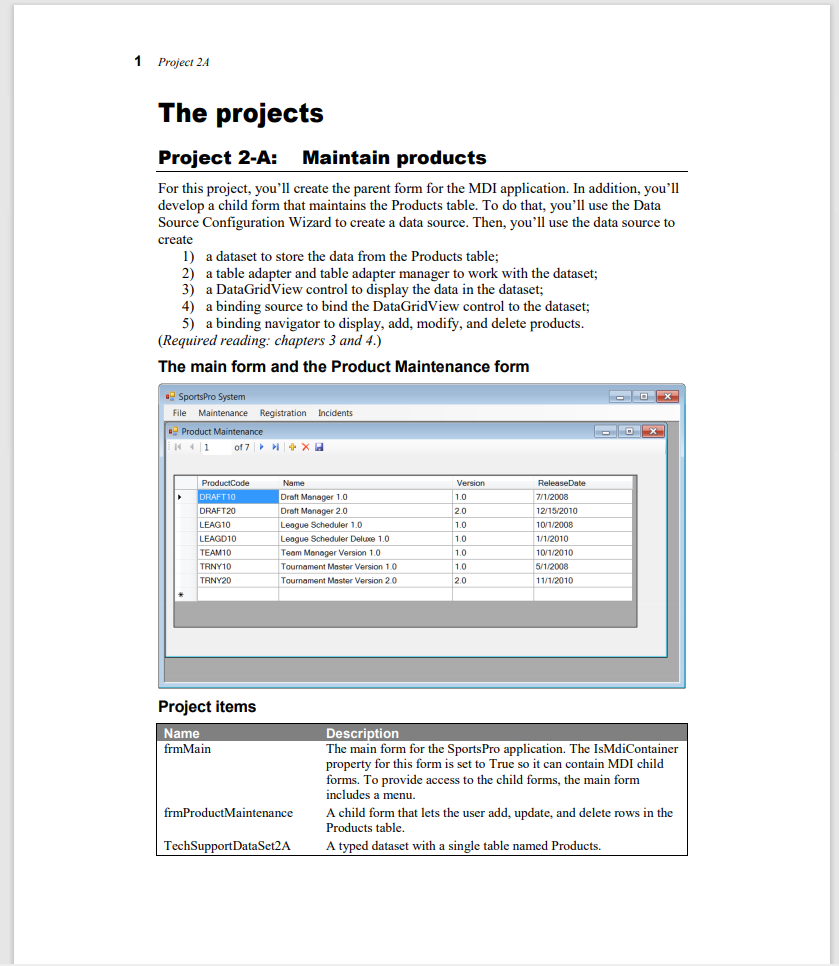
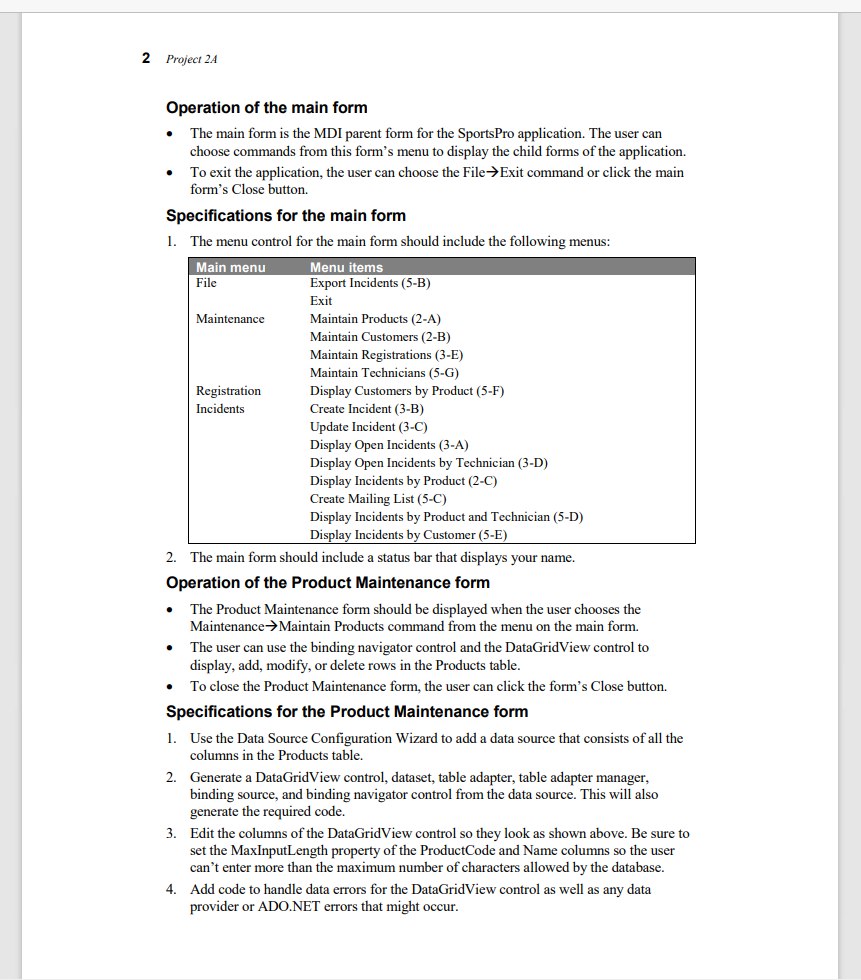
1 Project 24 The projects Project 2-A: Maintain products For this project, you'll create the parent form for the MDI application. In addition, you'll develop a child form that maintains the Products table. To do that, you'll use the Data Source Configuration Wizard to create a data source. Then, you'll use the data source to create 1) a dataset to store the data from the Products table; 2) table adapter and table adapter manager to work with the dataset; 3) a DataGridView control to display the data in the dataset; 4) a binding source to bind the DataGridView control to the dataset; 5) a binding navigator to display, add, modify, and delete products. (Required reading: chapters 3 and 4.) The main form and the Product Maintenance form SportsPro System File Maintenance Registration Incidents Product Maintenance K 1 of 7 + XH Name Product Code DRAFT10 DRAFT20 LEAG10 LEAGD10 TEAM10 TRNY10 TRNY20 Draft Manager 1.0 Draft Manager 2.0 League Scheduler 10 League Scheduler Deluxe 1.0 Team Manager Version 10 Tournament Master Version 1.0 Tournament Master Version 20 Version 1.0 2.0 1.0 1.0 1.0 10 20 Release Date 7/1/2008 12/15/2010 10/1/2008 1/1/2010 10/1/2010 5/1/2008 11/1/2010 Project items Name frmMain Description The main form for the Sports Pro application. The IsMdiContainer property for this form is set to True so it can contain MDI child forms. To provide access to the child forms, the main form includes a menu. A child form that lets the user add, update, and delete rows in the Products table. A typed dataset with a single table named Products. frmProduct Maintenance TechSupportDataSet2A 2 Project 24 Operation of the main form The main form is the MDI parent form for the SportsPro application. The user can choose commands from this form's menu to display the child forms of the application. To exit the application, the user can choose the FileExit command or click the main form's Close button. Specifications for the main form 1. The menu control for the main form should include the following menus: Main menu Menu items File Export Incidents (5-B) Exit Maintenance Maintain Products (2-A) Maintain Customers (2-B) Maintain Registrations (3-E) Maintain Technicians (5-G) Registration Display Customers by Product (5-F) Incidents Create Incident (3-B) Update Incident (3-C) Display Open Incidents (3-A) Display Open Incidents by Technician (3-D) Display Incidents by Product (2-C) Create Mailing List (5-C) Display Incidents by Product and Technician (5-D) Display Incidents by Customer (5-E) 2. The main form should include a status bar that displays your name. Operation of the Product Maintenance form The Product Maintenance form should be displayed when the user chooses the Maintenance Maintain Products command from the menu on the main form. The user can use the binding navigator control and the DataGridView control to display, add, modify, or delete rows in the Products table. To close the Product Maintenance form, the user can click the form's Close button. Specifications for the Product Maintenance form 1 Use the Data Source Configuration Wizard to add a data source that consists of all the columns in the Products table. 2. Generate a DataGridView control, dataset, table adapter, table adapter manager, binding source, and binding navigator control from the data source. This will also generate the required code. 3. Edit the columns of the DataGridView control so they look as shown above. Be sure to set the MaxInputLength property of the Product Code and Name columns so the user can't enter more than the maximum number of characters allowed by the database. 4. Add code to handle data errors for the DataGridView control as well as any data provider or ADO.NET errors that might occur. . 1 Project 24 The projects Project 2-A: Maintain products For this project, you'll create the parent form for the MDI application. In addition, you'll develop a child form that maintains the Products table. To do that, you'll use the Data Source Configuration Wizard to create a data source. Then, you'll use the data source to create 1) a dataset to store the data from the Products table; 2) table adapter and table adapter manager to work with the dataset; 3) a DataGridView control to display the data in the dataset; 4) a binding source to bind the DataGridView control to the dataset; 5) a binding navigator to display, add, modify, and delete products. (Required reading: chapters 3 and 4.) The main form and the Product Maintenance form SportsPro System File Maintenance Registration Incidents Product Maintenance K 1 of 7 + XH Name Product Code DRAFT10 DRAFT20 LEAG10 LEAGD10 TEAM10 TRNY10 TRNY20 Draft Manager 1.0 Draft Manager 2.0 League Scheduler 10 League Scheduler Deluxe 1.0 Team Manager Version 10 Tournament Master Version 1.0 Tournament Master Version 20 Version 1.0 2.0 1.0 1.0 1.0 10 20 Release Date 7/1/2008 12/15/2010 10/1/2008 1/1/2010 10/1/2010 5/1/2008 11/1/2010 Project items Name frmMain Description The main form for the Sports Pro application. The IsMdiContainer property for this form is set to True so it can contain MDI child forms. To provide access to the child forms, the main form includes a menu. A child form that lets the user add, update, and delete rows in the Products table. A typed dataset with a single table named Products. frmProduct Maintenance TechSupportDataSet2A 2 Project 24 Operation of the main form The main form is the MDI parent form for the SportsPro application. The user can choose commands from this form's menu to display the child forms of the application. To exit the application, the user can choose the FileExit command or click the main form's Close button. Specifications for the main form 1. The menu control for the main form should include the following menus: Main menu Menu items File Export Incidents (5-B) Exit Maintenance Maintain Products (2-A) Maintain Customers (2-B) Maintain Registrations (3-E) Maintain Technicians (5-G) Registration Display Customers by Product (5-F) Incidents Create Incident (3-B) Update Incident (3-C) Display Open Incidents (3-A) Display Open Incidents by Technician (3-D) Display Incidents by Product (2-C) Create Mailing List (5-C) Display Incidents by Product and Technician (5-D) Display Incidents by Customer (5-E) 2. The main form should include a status bar that displays your name. Operation of the Product Maintenance form The Product Maintenance form should be displayed when the user chooses the Maintenance Maintain Products command from the menu on the main form. The user can use the binding navigator control and the DataGridView control to display, add, modify, or delete rows in the Products table. To close the Product Maintenance form, the user can click the form's Close button. Specifications for the Product Maintenance form 1 Use the Data Source Configuration Wizard to add a data source that consists of all the columns in the Products table. 2. Generate a DataGridView control, dataset, table adapter, table adapter manager, binding source, and binding navigator control from the data source. This will also generate the required code. 3. Edit the columns of the DataGridView control so they look as shown above. Be sure to set the MaxInputLength property of the Product Code and Name columns so the user can't enter more than the maximum number of characters allowed by the database. 4. Add code to handle data errors for the DataGridView control as well as any data provider or ADO.NET errors that might occur
Step by Step Solution
There are 3 Steps involved in it

Get step-by-step solutions from verified subject matter experts
 Study Help