







Question: 1. Save the workbook as SC_EX_5_FormatCodes. 2. Select cell B3. Display the Format Cells dialog box, and note that the General format has been applied
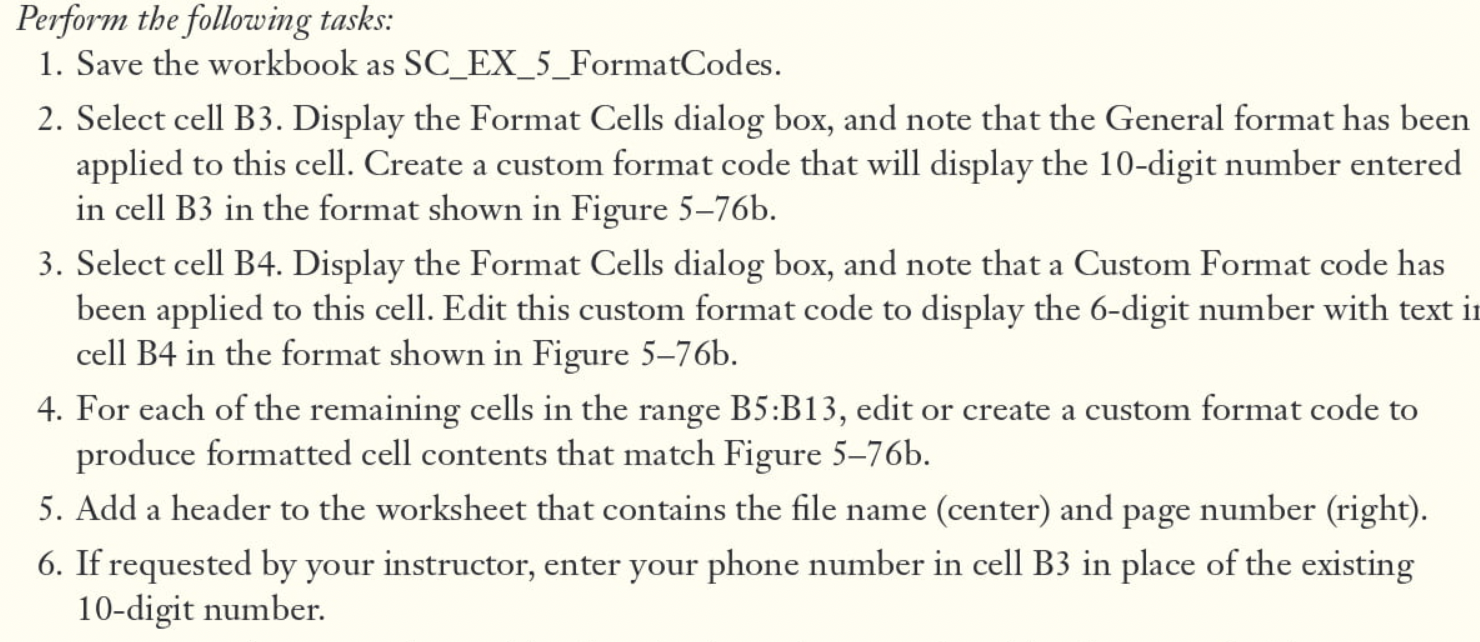
1. Save the workbook as SC_EX_5_FormatCodes. 2. Select cell B3. Display the Format Cells dialog box, and note that the General format has been applied to this cell. Create a custom format code that will display the 10-digit number entered in cell B 3 in the format shown in Figure 5-76b. 3. Select cell B4. Display the Format Cells dialog box, and note that a Custom Format code has been applied to this cell. Edit this custom format code to display the 6-digit number with text i cell B4 in the format shown in Figure 5-76b. 4. For each of the remaining cells in the range B5:B13, edit or create a custom format code to produce formatted cell contents that match Figure 5-76b. 5. Add a header to the worksheet that contains the file name (center) and page number (right). 6. If requested by your instructor, enter your phone number in cell B3 in place of the existing 10-digit number
Step by Step Solution
There are 3 Steps involved in it

Get step-by-step solutions from verified subject matter experts
 Study Help