







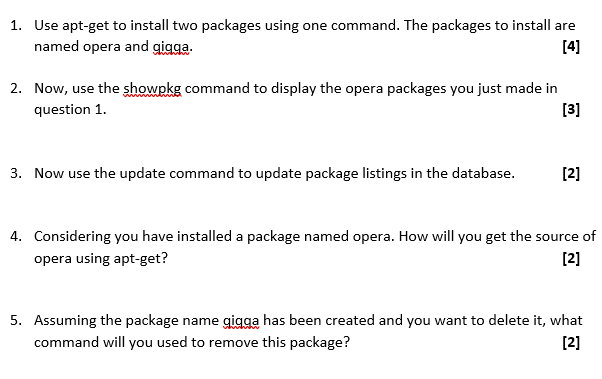
Question: 1. Use apt-get to install two packages using one command. The packages to install are named opera and gigga. [4] 2. Now, use the showpkg
![packages to install are named opera and gigga. [4] 2. Now, use](https://dsd5zvtm8ll6.cloudfront.net/si.experts.images/questions/2024/09/66f5070b11c73_15466f5070ab749e.jpg)
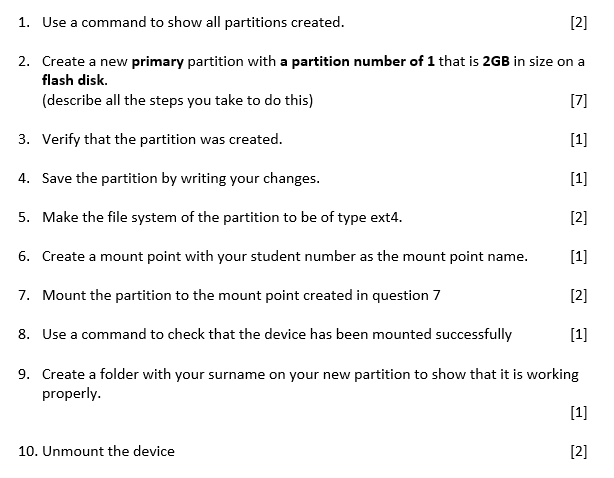
1. Use apt-get to install two packages using one command. The packages to install are named opera and gigga. [4] 2. Now, use the showpkg command to display the opera packages you just made in question 1. [3] 3. Now use the update command to update package listings in the database. [2] 4. Considering you have installed a package named opera. How will you get the source of opera using apt-get? [2] 5. Assuming the package name gigga has been created and you want to delete it, what command will you used to remove this package? [2] Here you will be required to create a partition on your flash drive. Make sure to back up all data from your flash drive before proceeding because you could potentially lose all data on your flash drive. To answer, fill in here the commands that you used to perform all the various tasks related to partition creation and use. You may also include short explanations along with your listed commands. 1. Use a command to show all partitions created. [2] 2. Create a new primary partition with a partition number of 1 that is 2GB in size on a flash disk. (describe all the steps you take to do this) [7] 3. Verify that the partition was created. [1] 1 4. Save the partition by writing your changes. 5. Make the file system of the partition to be of type ext4. [2] 6. Create a mount point with your student number as the mount point name. [1] 7. Mount the partition to the mount point created in question 7 [2] 8. Use a command to check that the device has been mounted successfully [1] 9. Create a folder with your surname on your new partition to show that it is working properly. [1] 10. Unmount the device [2]
Step by Step Solution
There are 3 Steps involved in it

Get step-by-step solutions from verified subject matter experts
 Study Help