







Question: 10, Insert a Total row that shows the total shirts in Stock: (2 points Change the Total row label to Total Shirts. . 11. Based
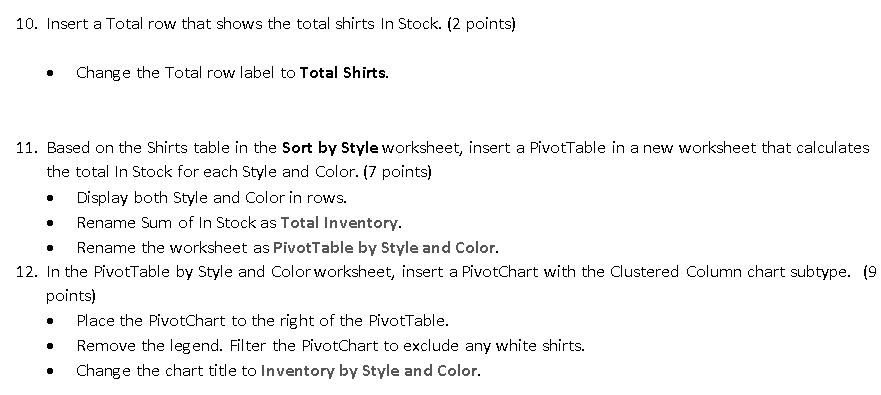
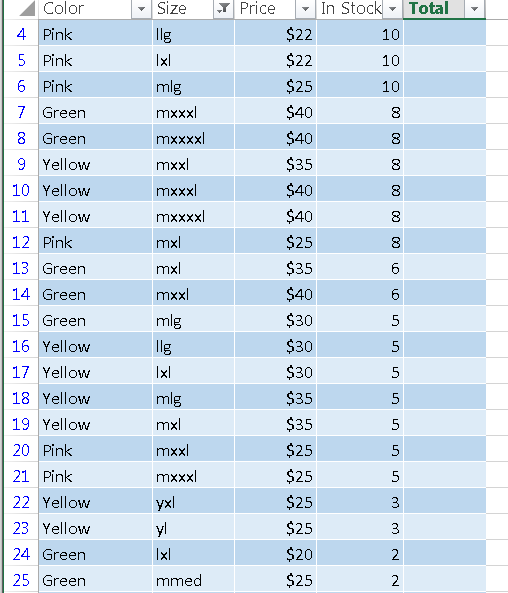
10, Insert a Total row that shows the total shirts in Stock: (2 points Change the Total row label to Total Shirts. . 11. Based on the Shirts table in the Sort by Style worksheet, insert a PivotTable in a new worksheet that calculates the total In Stock for each Style and Color. (7 points) Display both Style and Color in rows. . Rename Sum of In Stock as Total Inventory. Rename the worksheet as PivotTable by Style and Color. 12. In the PivotTable by Style and Color worksheet, insert a PivotChart with the Clustered Column chart subtype. (9 points) . Place the PivotChart to the right of the PivotTable. Remove the legend. Filter the PivotChart to exclude any white shirts. Change the chart title to Inventory by Style and Color. , 0008888886655555553322 2250 2224 0500230 00055555505 33333222222 J Si lg X m m m m m m m m m m lg m m m m yyKm Wnn ooee nn r ree 0122 3 4 5 6 7 8 9 0 1 2 3 4 5 10, Insert a Total row that shows the total shirts in Stock: (2 points Change the Total row label to Total Shirts. . 11. Based on the Shirts table in the Sort by Style worksheet, insert a PivotTable in a new worksheet that calculates the total In Stock for each Style and Color. (7 points) Display both Style and Color in rows. . Rename Sum of In Stock as Total Inventory. Rename the worksheet as PivotTable by Style and Color. 12. In the PivotTable by Style and Color worksheet, insert a PivotChart with the Clustered Column chart subtype. (9 points) . Place the PivotChart to the right of the PivotTable. Remove the legend. Filter the PivotChart to exclude any white shirts. Change the chart title to Inventory by Style and Color. , 0008888886655555553322 2250 2224 0500230 00055555505 33333222222 J Si lg X m m m m m m m m m m lg m m m m yyKm Wnn ooee nn r ree 0122 3 4 5 6 7 8 9 0 1 2 3 4 5
Step by Step Solution
There are 3 Steps involved in it

Get step-by-step solutions from verified subject matter experts
 Study Help