







Question: 10. starting in cell N1, run an advanced data filter that will filter out the Employee # and Total Sales for the employees found in

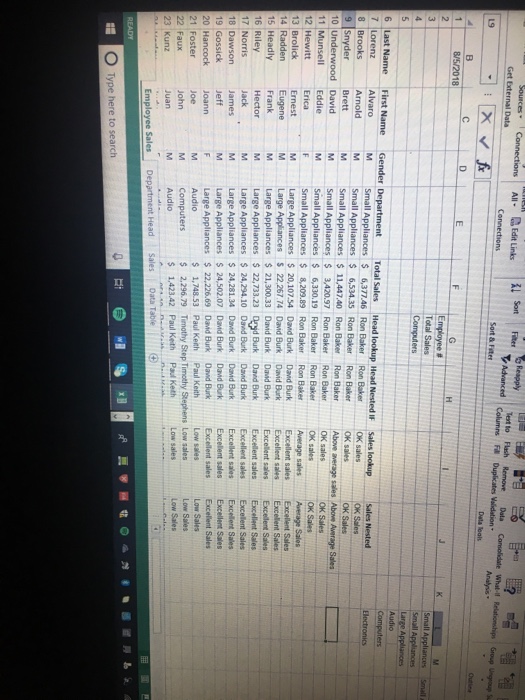
10. starting in cell N1, run an advanced data filter that will filter out the Employee # and Total Sales for the employees found in the Computer Department. Create your criteria Range starting in cell G1. 11. In cell F46, create a formula to calculate the Total Sales. (Hint: Sum) 12.In cell F47, create a formula to give the largest sales Figure in the database. (Hint: Max) 13.From your Unique Records only Filter in number s, copy and paste the results starting in Cell A5 on the Data Table Sheet. 14. Create a one variable Data Table from what you just copied and pasted gving the average sales for each department, and the Largest Sale from each department. (Hint: Daverage and Dmax and create your criteria range starting in CellA1) 2:22 PM 10. starting in cell N1, run an advanced data filter that will filter out the Employee # and Total Sales for the employees found in the Computer Department. Create your criteria Range starting in cell G1. 11. In cell F46, create a formula to calculate the Total Sales. (Hint: Sum) 12.In cell F47, create a formula to give the largest sales Figure in the database. (Hint: Max) 13.From your Unique Records only Filter in number s, copy and paste the results starting in Cell A5 on the Data Table Sheet. 14. Create a one variable Data Table from what you just copied and pasted gving the average sales for each department, and the Largest Sale from each department. (Hint: Daverage and Dmax and create your criteria range starting in CellA1) 2:22 PM
Step by Step Solution
There are 3 Steps involved in it

Get step-by-step solutions from verified subject matter experts
 Study Help